
Dealing with a stuck lock screen on your iPhone can be frustrating. Whether you rely on your phone for work, school, or staying connected, a frozen lock screen can disrupt your day. Restarting the phone often solves the issue quickly and easily. Understanding why your iPhone’s screen becomes unresponsive can help you prevent it in the future.
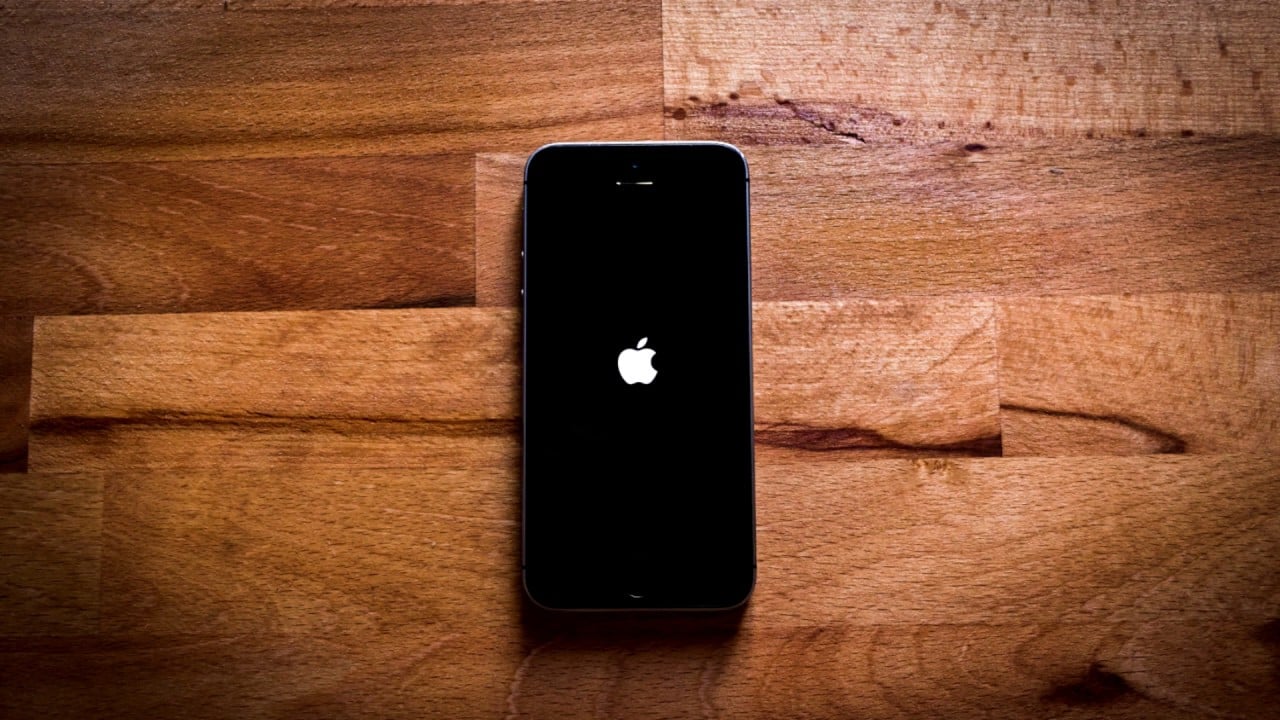
To force a restart, press and release the volume up button, then press and release the volume down button. Hold the side button until the Apple logo appears. If these steps don’t work, your phone may need additional troubleshooting or a trip to the Apple store.
Keeping your iPhone updated with the latest iOS can prevent many common problems. If the screen consistently freezes, resetting it through iTunes may help. Getting familiar with these troubleshooting steps ensures you can handle the problem whenever it happens.
iPhone Lock Screen Stuck: Troubleshooting Steps
If your iPhone’s lock screen is frozen, won’t swipe, or doesn’t respond to touch, don’t worry — this is a common issue that can usually be fixed without professional repair. The problem can stem from a software glitch, a frozen app, or (less commonly) a hardware issue.
⚙️ Step 1: Check for Physical or Screen Issues
Before diving into resets, make sure it’s not a hardware problem.
- Clean the screen with a soft, dry cloth — dirt or moisture can block touch input.
- Remove your case or screen protector, which might be interfering with touch sensitivity.
- Check for cracks or damage — if the screen is physically damaged, skip to Step 7 and contact Apple Support.
🔁 Step 2: Force Restart Your iPhone
A force restart clears temporary system glitches and doesn’t erase your data.
For iPhone 8 and later (including iPhone SE 2/3, X, 11, 12, 13, 14, 15):
- Quickly press and release the Volume Up button.
- Quickly press and release the Volume Down button.
- Then press and hold the Side button until the Apple logo appears.
For iPhone 7 / 7 Plus:
- Press and hold Volume Down + Side button together until you see the Apple logo.
For iPhone 6s or earlier:
- Press and hold Home + Power button until the Apple logo appears.
🔋 Tip: Make sure your iPhone has enough charge (plug it in for at least 15 minutes before restarting).
🧹 Step 3: Disconnect Accessories
If your iPhone is connected to a charger, headphones, or Bluetooth device, disconnect them. Faulty accessories or cables can sometimes cause the system to freeze, especially if they’re not Apple-certified (MFi).
🧰 Step 4: Update iOS (Once It Responds)
If the screen starts working again, check for software updates — Apple often patches bugs that cause freezing or touch issues.
Go to:
Settings → General → Software Update → Download and Install
💡 If your phone freezes again during updates, connect it to a computer and use Finder (Mac) or iTunes (Windows) to update manually.
🔄 Step 5: Use Recovery Mode (If It’s Still Unresponsive)
If your iPhone stays frozen after a force restart, you may need to reinstall iOS using recovery mode.
- Connect your iPhone to a computer using a Lightning or USB-C cable.
- Open Finder (on macOS Catalina or later) or iTunes (on Windows/macOS Mojave or earlier).
- Force restart your iPhone again (see Step 2), but keep holding the buttons until you see the recovery mode screen.
- Choose Update (not Restore) to reinstall iOS without erasing data.
If the update fails, you may need to select Restore, which erases the device and reinstalls iOS from scratch.
🧩 Step 6: Free Up Storage and Check Apps
A nearly full storage or a misbehaving app can cause system lag or freezing.
- Go to Settings → General → iPhone Storage and delete unused apps or files.
- If the issue started after installing a new app, uninstall it to see if the problem resolves.
🧯 Step 7: Check for Hardware Problems
If your iPhone still freezes on the lock screen after trying all the above steps, it may have a hardware issue such as a faulty display, digitizer, or logic board.
In that case:
- Visit an Apple Store or Authorized Service Provider.
- You can also start a repair request at Apple Support.
🔍 Apple technicians can run diagnostics to determine if it’s a display or internal hardware issue.
🧠 Bonus: Prevent Future Lock Screen Freezes
- Keep iOS updated regularly.
- Avoid beta software unless you’re testing.
- Don’t overload your phone with background apps or widgets.
- Restart your iPhone occasionally to clear memory.
- Use only Apple-certified accessories.
✅ Summary
| Problem | Solution |
|---|---|
| Screen unresponsive | Force restart (Step 2) |
| Still frozen after restart | Use Recovery Mode (Step 5) |
| Repeats often | Update iOS or remove buggy apps |
| Physical damage | Contact Apple Support |
Sources:
- Apple Support – If your iPhone won’t turn on or the screen is black
- CNET – How to Force Restart or Reset Any iPhone
- Dr.Buho – 6 Ways to Fix iPhone Frozen/Stuck on Lock Screen (2025)
- FoneTool – How to Unfreeze iPhone Stuck on Lock Screen
Key Takeaways
- Restarting the phone often solves the issue quickly and easily.
- Press volume up, volume down, then hold the side button.
- Regular updates can prevent many common problems.
Troubleshooting Lock Screen Issues
Fixing a stuck lock screen on an iPhone involves checking the problem, trying simple solutions, and using recovery methods if needed. Each step depends on the iPhone model and the nature of the issue.
Assessing the Problem
First, figure out what’s wrong with your iPhone. Check if the screen is responsive. If it isn’t, the problem might be more serious. Look for signs like the Apple logo stuck on the screen. This can show that the issue is with the software. Battery level matters too. A low-charge battery might make it look like the iPhone is stuck. Always charge your iPhone before trying other fixes.
Noticing any damage to the hardware? A cracked screen or a damaged button (like the home button or side button) can cause lock screen problems. If Face ID or Touch ID isn’t working, it may also be a clue. Hardware problems often need more advanced solutions or a visit to Apple Support.
Basic Fixes
Start with a force restart. It’s different for various iPhone models:
- iPhone 8 and later: Press and quickly release the Volume Up button, then the Volume Down button. Hold the Side button till the Apple logo appears.
- iPhone 7 and 7 Plus: Hold Volume Down and Sleep/Wake button until the Apple logo appears.
- iPhone 6, 6s, and SE (1st gen): Hold the Home button and the Sleep/Wake button together until the Apple logo shows up.
If a force restart doesn’t work, try a hard reset. This might involve more detailed steps depending on your model. Make sure your iPhone’s iOS is up to date. Go to Settings > General > Software Update. Update iOS if needed, this can solve many software glitches.
Recovery Mode and Restore Processes
If simple fixes don’t help, move to recovery mode. Connect your iPhone to a computer with iTunes. Follow these steps:
- For iPhone 8 and later: Press and release Volume Up, then Volume Down. Hold the Side button until the recovery mode screen appears.
- For iPhone 7 and 7 Plus: Hold the Volume Down and Sleep/Wake button together until the recovery mode screen shows.
- For iPhone 6 and SE (1st gen): Hold the Home and Top buttons together until the recovery mode screen appears.
iTunes will prompt you to update or restore your device. Choose Update first to reinstall iOS without wiping data. If this fails, try Restore but note it will erase all data.
For advanced issues, contact Apple Support or visit support.apple.com for more help. They can guide you through more complex solutions or recommend service options.





