
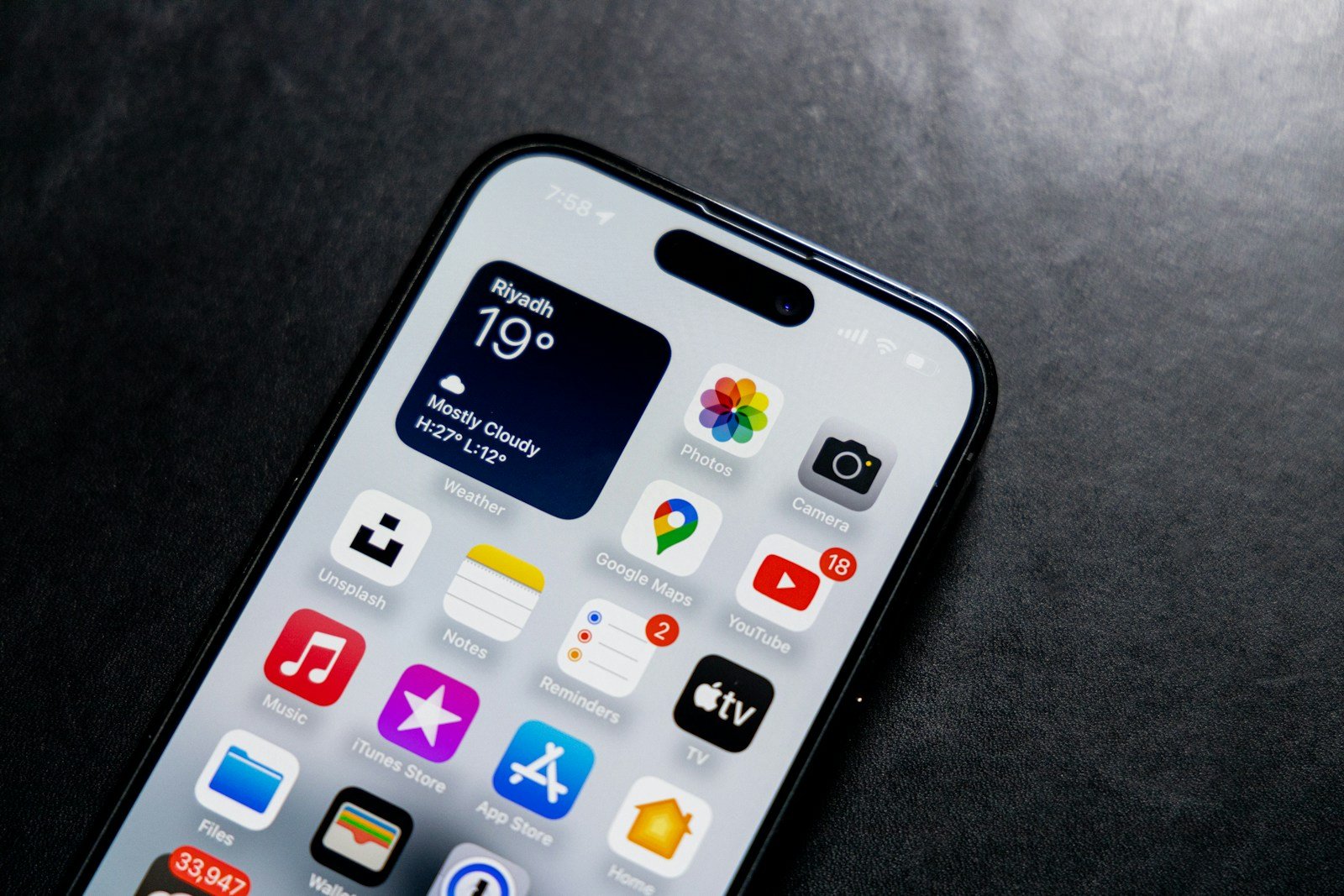
Are you struggling with your iPhone keyboard microphone not working? Many users face this issue, but there are ways to fix it. The most effective way to address this is by checking if the ‘Enable Dictation’ option in your settings is turned on.
If the problem persists, it could be more than just a settings issue. It might relate to your iPhone’s microphone hardware. Testing your microphone by recording a voice memo can help you pinpoint the problem. This step ensures the issue isn’t with the app you’re using.
Updating your iPhone to the latest iOS version can resolve software bugs that may cause the microphone to stop working. Keeping your device current often fixes many common issues.
iPhone Keyboard Microphone Not Working: How to Fix It
The microphone icon on your iPhone keyboard enables dictation, allowing you to convert speech to text. If this microphone isn’t working or missing, it can be frustrating. Here’s how to diagnose and fix the problem.
Common Reasons Why the Keyboard Microphone May Not Work
- Dictation feature is disabled.
- Microphone permissions are restricted.
- Software glitches or outdated iOS.
- Microphone hardware issues.
- Network connectivity problems (dictation requires internet).
- Language or keyboard settings not properly configured.
How to Fix iPhone Keyboard Microphone Not Working
1. Check if Dictation is Enabled
- Go to Settings > General > Keyboard.
- Scroll down and ensure Enable Dictation is turned ON.
- If it’s off, toggle it on and try again.
2. Check Microphone Permissions
- Go to Settings > Privacy & Security > Microphone.
- Ensure that apps like Keyboard or any third-party keyboard apps have permission to access the microphone.
3. Restart Your iPhone
- A simple restart can fix minor glitches.
- Hold the power button and slide to power off.
- Turn it back on and test dictation.
4. Check Your Internet Connection
- Dictation requires an active internet connection.
- Make sure you have Wi-Fi or cellular data enabled.
- Try switching between Wi-Fi and cellular to test.
5. Update iOS
- Go to Settings > General > Software Update.
- Install any available updates, as Apple often fixes bugs in updates.
6. Reset Keyboard Dictionary
- Go to Settings > General > Reset.
- Tap Reset Keyboard Dictionary.
- This can fix issues related to keyboard settings.
7. Test the Microphone
- Open the Voice Memos app and record a short clip.
- If the recording is clear, the microphone hardware is likely fine.
- If not, clean the microphone openings gently and try again.
8. Try Using a Different Keyboard
- If you use third-party keyboards, switch back to the default Apple keyboard.
- Go to Settings > General > Keyboard > Keyboards.
- Remove third-party keyboards temporarily and test dictation.
9. Reset All Settings (Last Resort)
- Go to Settings > General > Reset > Reset All Settings.
- This resets system settings but keeps your data.
- You’ll need to reconfigure Wi-Fi and preferences afterward.
When to Seek Professional Help
- If the microphone doesn’t work in other apps like Voice Memos or Phone calls, it might be a hardware issue.
- Contact Apple Support or visit an authorized service provider for hardware diagnostics and repair.
Summary
If your iPhone keyboard microphone isn’t working, start by ensuring dictation is enabled and microphone permissions are granted. Check your internet connection, restart your device, and update iOS. Test the microphone hardware with Voice Memos. If problems persist, consider resetting settings or seeking professional repair.
Key Takeaways
- Check if ‘Enable Dictation’ is turned on in settings.
- Test your microphone to rule out hardware problems.
- Update your iPhone to the latest iOS version.
Diagnosing and Resolving Hardware Issues
When the microphone on your iPhone keyboard stops working, it’s vital to diagnose and fix the hardware issues that might be causing the problem. Follow these steps to check and troubleshoot the microphone functionality.
Initial Checks for Microphone Functionality
Test Microphones: To start, test the front, back, and primary microphones on your iPhone. Open the Voice Memos app, tap the red record button, and speak into the microphone. Stop recording and play it back to see if the recording is clear.
Check Permissions: Ensure apps have permission to use the microphone. Go to Settings > Privacy > Microphone and check that the necessary apps have access.
Use Speakerphone During Calls: Make a call and switch to speakerphone. If the issue persists, it may confirm a hardware problem.
Hardware Troubleshooting Steps
Clean iPhone Microphones: Dirt or debris can block the microphone. Use a soft brush or a clean toothbrush to gently remove any lint or dust. Avoid using sharp objects or compressed air directly, as it can damage the microphone.
Restart iPhone: Press and hold the power button, then slide to power off. Wait a few seconds and turn your iPhone back on. This can sometimes resolve minor glitches.
Reset All Settings: Go to Settings > General > Transfer or Reset iPhone > Reset > Reset All Settings. Enter your passcode if prompted and confirm. This will reset all settings without deleting your data.
Contact Apple Support: If these steps do not resolve the issue, consult Apple Support. They can provide further diagnostics and repair options if necessary. Visiting the Apple Store may be required for hardware repairs, especially if your iPhone is under warranty.





