
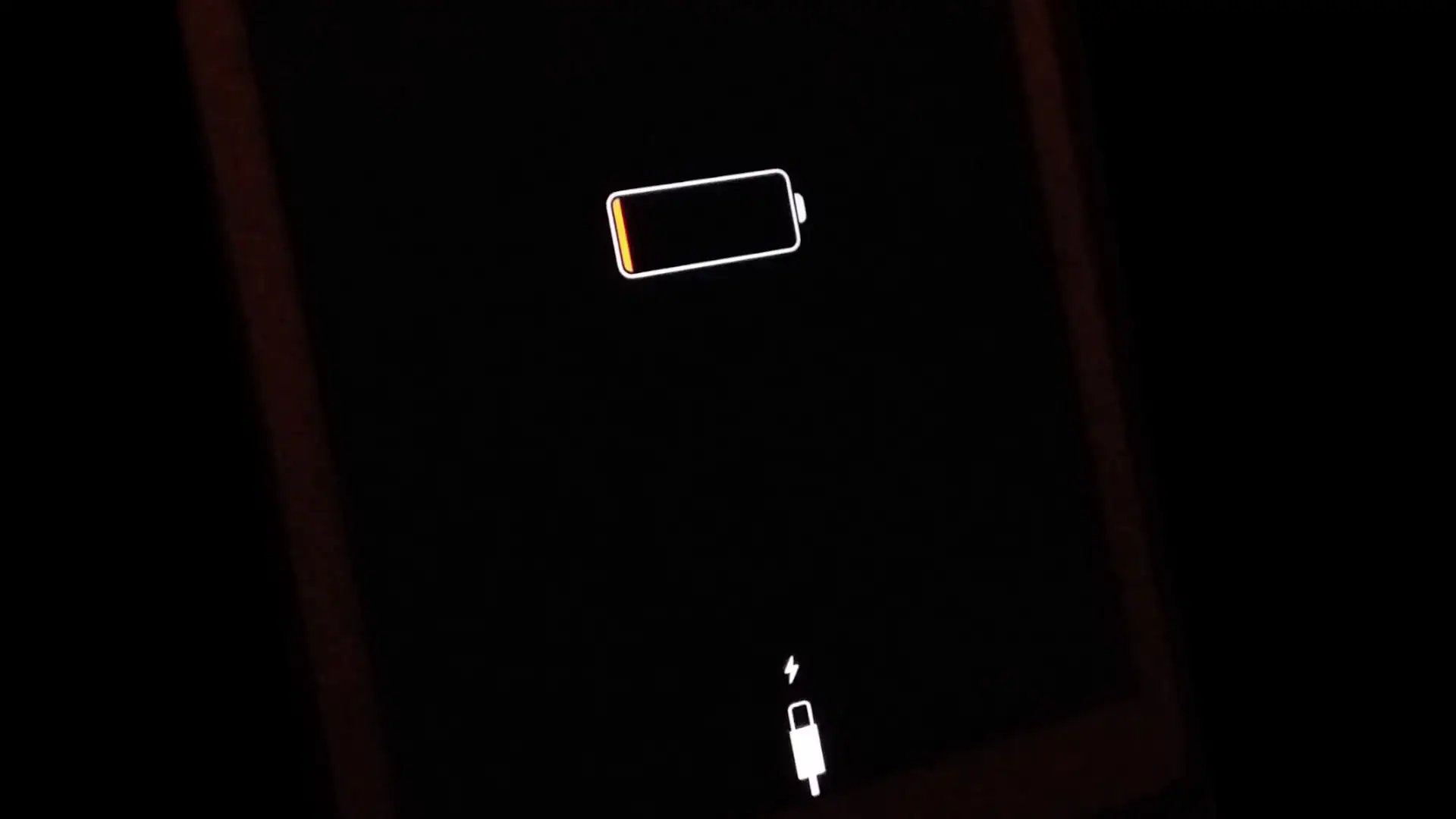
iPhone users often face a common issue after a software update: rapid battery drain. This can be frustrating, especially when the battery life was adequate before the update. A quick fix is to force restart the iPhone to clear temporary glitches. For many, this simple solution can make a significant difference.
Another effective way to manage battery life is to adjust display settings. Lowering screen brightness or enabling Auto-Brightness can help conserve energy. Additionally, using Dark Mode can also extend battery life.
Updating all apps is crucial. Sometimes, outdated apps may not work well with the new iOS, causing the device to use more power. Checking for app updates regularly ensures they run smoothly and efficiently.
1. Why Does Battery Drain After an Update?
It’s common for iPhones to lose battery faster right after an iOS update. Reasons include:
- Background re‑indexing: iOS reprocesses photos, files, and apps after an update, which can take 24–48 hours (source: Macworld).
- New features: Updates may enable new features that use more power.
- Bugs or compatibility issues: Some updates introduce temporary glitches.
- Background app activity: Apps may not yet be optimized for the new iOS version.
2. Quick Fixes to Try First
- Restart your iPhone: Simple but often effective.
- Check Battery Health:
- Go to Settings > Battery > Battery Health & Charging.
- If Maximum Capacity is below 80%, your battery may need replacement.
- Wait 1–2 days: Battery often stabilizes after the system finishes re‑indexing.
3. Optimize Settings After Update
- Turn off Background App Refresh:
- Go to Settings > General > Background App Refresh → set to Wi‑Fi or Off.
- Disable Location Services (for unused apps):
- Settings > Privacy & Security > Location Services → set apps to While Using or Never.
- Manage Widgets: Remove widgets you don’t use, as they refresh in the background.
- Check Battery Usage:
- Settings > Battery → see which apps are draining most power.
4. Update Apps & iOS
- Open the App Store > Profile > Update All.
- Check for a minor iOS update (e.g., 18.3.1 → 18.3.2) since Apple often releases quick fixes for battery drain (source: ZDNet).
5. Advanced Fixes
- Reset All Settings:
- Go to Settings > General > Transfer or Reset iPhone > Reset > Reset All Settings.
- This won’t erase data but resets Wi‑Fi, Bluetooth, and system preferences.
- Reinstall iOS (Clean Restore): If the problem persists, back up your iPhone and reinstall iOS via Finder/iTunes.
6. When to Contact Apple
- If battery drain continues for more than a week after the update.
- If your battery health is below 80%.
- If the phone heats up excessively during normal use.
👉 Apple Support: iPhone Battery and Performance
✅ Summary
- Battery drain after an update is normal for 1–2 days due to system re‑indexing.
- Optimize settings: background refresh, location, widgets, and app updates.
- If the issue persists, reset settings or reinstall iOS.
- Contact Apple if battery health is poor or the issue doesn’t resolve.
Key Takeaways
- Force restart can clear temporary glitches to fix battery issues.
- Adjust display settings to save power.
- Keep apps updated to ensure they run efficiently.
Understanding iPhone Battery Drain Post-Update
Many users see worse battery life in their iPhone after an iOS update. This issue can be caused by several factors related to software and settings.
Common Causes of Battery Drain
One cause of battery drain is background app refresh. After an update, some apps may start running in the background more, which uses more energy. To save battery, turn off this feature in the Settings app.
Another cause is too many background processes. Updates can make older devices work harder to keep up with new features. This can shorten battery life as the system uses more power to operate efficiently.
Location services can also drain your battery. Many apps use GPS to give better services but this also uses a lot of power. Turning off location services for apps that don’t need it can help extend battery life.
Battery health is another factor. Over time, the battery’s capacity decreases. After updates, this can lead to noticeable drops in battery life. It’s good to regularly check your battery health in the settings to understand its condition.
Impact of iOS Version on Battery Life
New iOS versions sometimes have bugs that affect battery performance. For example, many users reported issues with battery life after updating to iOS 17.5.1. These updates often include many new features which can cause older devices to perform poorly and use more power.
Older iPhones might struggle with the latest updates. The new software might not be optimized for older hardware, leading to faster battery drain. This can be seen with users having issues after upgrading to iOS 16 or 17.
Some updates fix these issues, but it’s common for battery drain complaints to follow new releases. Sometimes a force restart or a factory reset can help, but these are not guaranteed fixes. Users should stay informed about new updates and possible fixes from Apple support.





