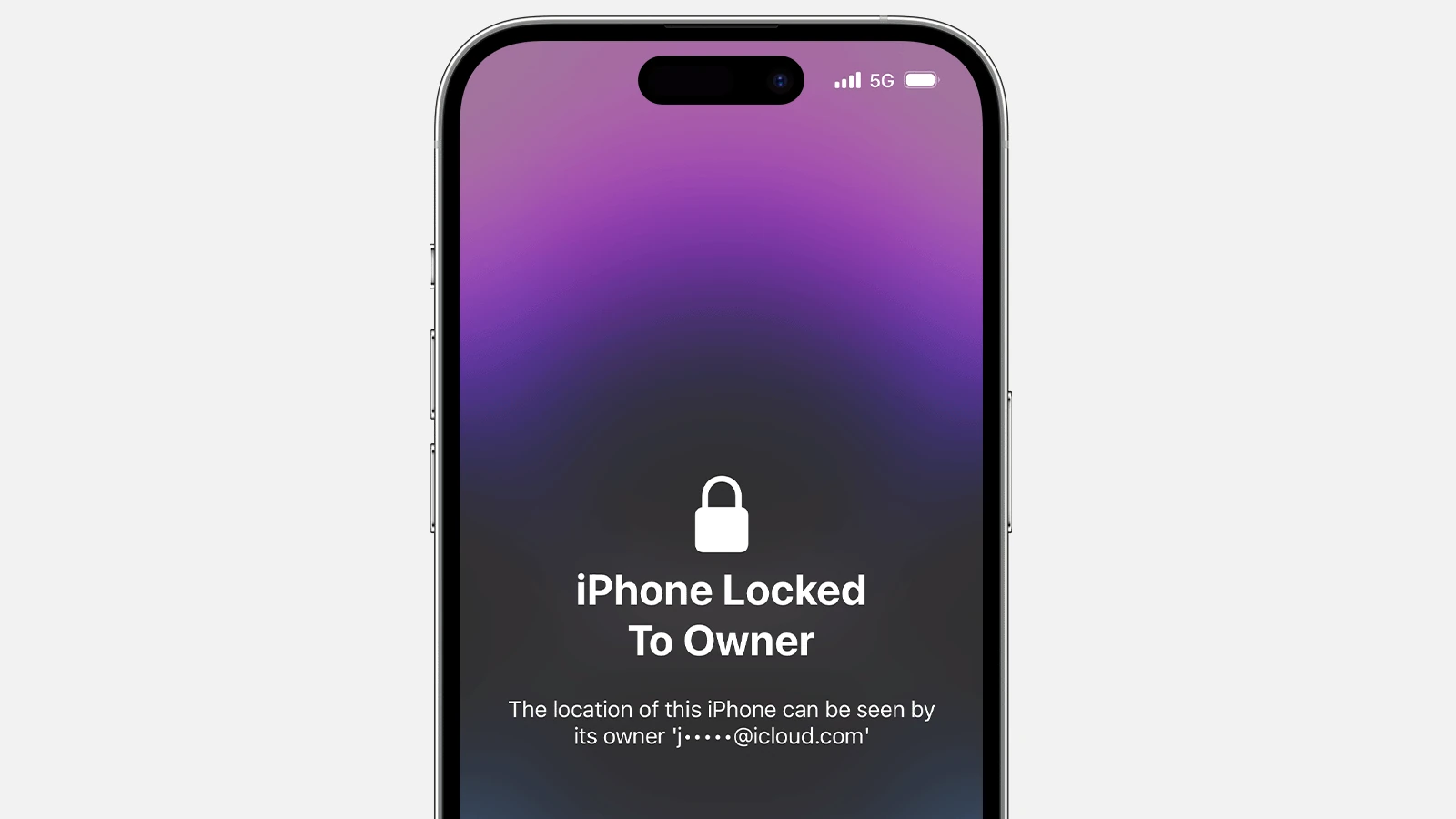
Before You Begin
- These methods erase all data on your iPhone, including your passcode.
- You can restore your data later from an iCloud or iTunes backup.
- Your iPhone must be connected to Wi-Fi or cellular data.
- You’ll need your Apple ID and password for activation after reset.
🧭 Method 1: Use Find My iPhone (iCloud)
If Find My iPhone is enabled, you can erase your iPhone remotely using iCloud.
Steps:
- On another device (phone, tablet, or computer), open a browser and go to iCloud.com/find.
- Sign in with your Apple ID (the same one linked to your locked iPhone).
- Tap All Devices at the top and select your locked iPhone.
- Tap Erase iPhone → confirm the action.
- Wait for the process to complete — your iPhone will reset and restart.
- Once done, set it up as new or restore from your iCloud backup.
✅ This is the easiest and official Apple-approved method to unlock an iPhone without a computer.
🆕 Method 2: Use the “Forgot Passcode?” Feature (iOS 17.4 and later)
Apple introduced a new “Forgot Passcode?” option that allows you to reset your iPhone directly from the lock screen — no computer needed.
Steps:
- After several failed passcode attempts, you’ll see “iPhone Unavailable” or “Security Lockout” on the screen.
- Tap Forgot Passcode? in the bottom corner.
- Tap Start iPhone Reset.
- Enter your Apple ID password to confirm.
- Your iPhone will erase all data and settings, removing the passcode.
- Once complete, set up your iPhone again.
✅ This works only on iPhones running iOS 17.4 or newer and connected to the internet.
📱 Method 3: Use Another iPhone (Find My App)
If you have another Apple device signed in with the same Apple ID:
- Open the Find My app on your other iPhone or iPad.
- Tap the Devices tab.
- Select your locked iPhone.
- Tap Erase This Device → confirm.
- Wait for the process to finish, then set up your iPhone again.
⚠️ Important Notes
- If none of these methods work and you don’t have access to your Apple ID, you’ll need to visit an Apple Store or Authorized Service Provider with proof of purchase.
- Avoid using third-party unlocking tools — they’re often unsafe and can permanently disable your device.
🔄 After Unlocking
Once your iPhone is reset:
- Follow the on-screen setup steps.
- When prompted, choose Restore from iCloud Backup (if available).
- Re-enter your Apple ID credentials.
✅ Summary
| Method | Requirements | Works Without Computer | Erases Data |
|---|---|---|---|
| Find My via iCloud | Find My iPhone enabled | ✅ | ✅ |
| “Forgot Passcode?” | iOS 17.4+, Internet access | ✅ | ✅ |
| Find My App | Another Apple device | ✅ | ✅ |
Official Apple Support: If you forgot your iPhone passcode or your iPhone is disabled
Key Takeaways
- You can use the Find My app to erase and unlock an iPhone without a computer.
- Make sure the iPhone has the Find My feature enabled and is connected to WiFi or data.
- This method requires access to your Apple ID and password.
Understanding iPhone Security Features
iPhones come with many security features to protect user data and privacy. These include various lock mechanisms, Apple ID, iCloud, and legal implications surrounding phone security.
Distinguishing Between Different Lock Mechanisms
iPhones use several lock mechanisms to secure the device. iPhone Passcode is the most common, requiring a numerical code. Touch ID uses a fingerprint to unlock the phone while Face ID scans the user’s face. Each provides a different level of security and convenience.
The Lock Screen is the first line of defense. It can display notifications and control access to some features. The locked iPhone is protected until the correct method is used to unlock it.
The Role of Apple ID and iCloud in iPhone Security
Apple ID is essential for many Apple services. It’s used for iCloud, the cloud storage service that stores data online. iCloud also enables security features like Find My iPhone and Activation Lock.
Find My iPhone helps locate lost devices and can remotely lock or erase them. Activation Lock prevents anyone from using the device without the proper Apple ID and password. This stops unauthorized users from accessing or resetting the device, ensuring data security.
Legal Considerations and Ethical Implications of Unlocking a Stolen iPhone
Unlocking a stolen iPhone has legal and ethical issues. Unauthorized access to someone’s device can lead to legal trouble. Different jurisdictions have varied laws, but accessing a stolen iPhone is generally illegal.
Beyond legality, there are ethical questions. Respecting privacy is crucial. Even if the technical means to unlock the phone exist, it is important to consider the consequences. Bypassing security features on a stolen device can harm the rightful owner and infringe on their privacy rights.