
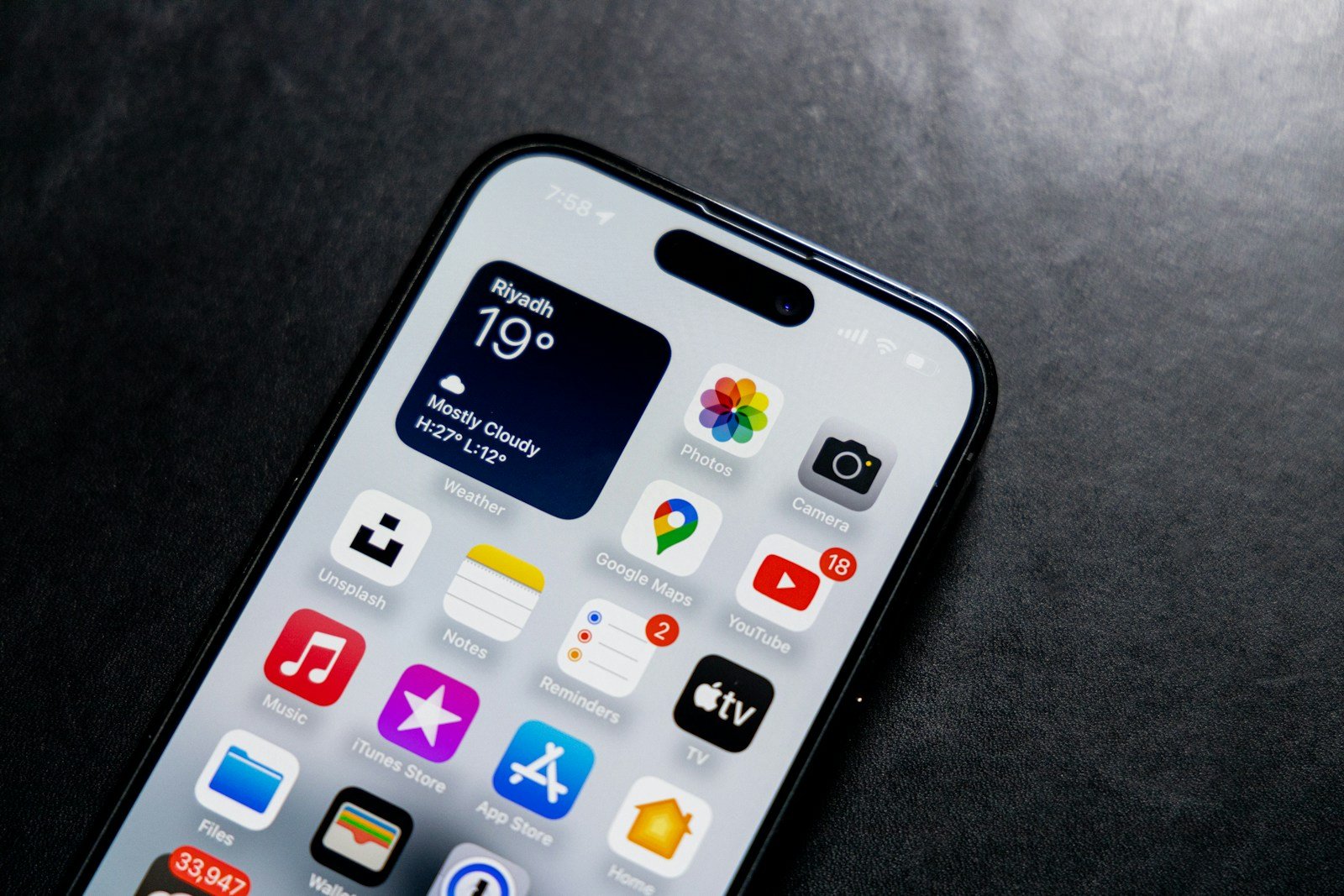
Many iPhone users wonder if they can update their device without Wi-Fi. The good news is, you can update your iPhone without Wi-Fi by using cellular data or connecting it to a computer with internet access. This option is helpful when you don’t have access to a Wi-Fi network, but still want the latest iOS features and security patches.
Updating through cellular data is simple. If your iPhone supports 5G, enable the “Allow More Data on 5G” option in Settings. This allows you to download updates directly over your cellular network. You’re not limited to Wi-Fi for keeping your iPhone current and secure.
You can also update your iPhone using a computer. By connecting your iPhone to a computer with internet access, you can use iTunes or Finder to download and install the latest updates. This method provides an alternative for users without reliable Wi-Fi or cellular data.
Can I Update My iPhone Without Wi‑Fi?
Yes — you can update your iPhone without Wi‑Fi, but it depends on your connection and settings.
By default, Apple prefers Wi‑Fi for iOS updates because files are large (often 1–5+ GB). However, there are several ways to update without a traditional Wi‑Fi network.
Here’s everything you need to know.
✅ Option 1: Update Using Cellular Data (5G or LTE)
If you have 5G (and in some cases strong LTE), you can download iOS updates over cellular.
How to Update Using Cellular Data
- Go to Settings
- Tap General
- Tap Software Update
- If allowed, tap Download and Install
If your iPhone allows it, the update will begin using mobile data.
📌 If It Says “Wi‑Fi Required”
Some carriers or regions restrict large downloads.
Try this:
- Go to Settings → Cellular (or Mobile Data)
- Tap Cellular Data Options
- Enable:
- Allow More Data on 5G (if available)
Then try updating again.
⚠️ Note: iOS updates can use several gigabytes of data. Make sure you have enough data in your plan.
✅ Option 2: Use a Personal Hotspot (Another Phone)
If you don’t have regular Wi‑Fi:
- Use a friend’s phone
- Use your own secondary device
- Turn on Personal Hotspot
Then connect your iPhone to that hotspot via Wi‑Fi and update normally.
This works because your phone sees it as a Wi‑Fi network.
✅ Option 3: Update Using a Computer (No Wi‑Fi Needed)
You can update using a Mac or Windows PC with an internet connection (even wired Ethernet).
On a Mac (macOS Catalina or later):
- Connect your iPhone with a cable
- Open Finder
- Select your iPhone
- Click Check for Update
- Click Download and Update
On Windows (or older Mac):
- Install/open iTunes
- Connect your iPhone
- Click the device icon
- Select Check for Update
- Click Download and Update
✅ This method works even if your iPhone itself has no internet access.
✅ Option 4: Manual IPSW Update (Advanced)
You can manually download the iOS firmware file (IPSW) on a computer and install it.
Steps:
- Download the correct IPSW file for your iPhone model
- Connect your iPhone to a Mac or PC
- Open Finder (Mac) or iTunes (Windows)
- Hold:
- Option (Mac) or
- Shift (Windows)
- Click Check for Update
- Select the IPSW file
⚠️ Only download firmware from trusted sources.
This method is more advanced but useful if automatic updates fail.
🚫 When You Cannot Update Without Wi‑Fi
- If you’re on restricted LTE and carrier blocks large downloads
- If your data plan blocks high‑volume usage
- If your battery is below 50% (unless plugged in)
🔋 Important Requirements Before Updating
Make sure you have:
✅ At least 50% battery (or plugged into charger)
✅ Enough free storage (Settings → General → iPhone Storage)
✅ A stable connection
✅ Backup of your device (recommended)
💡 Best Option?
- Have 5G? → Update over cellular
- No 5G? → Use a hotspot
- Want the most reliable method? → Use a computer
Final Answer
Yes, you can update your iPhone without Wi‑Fi — using:
- Cellular data (5G/LTE, if allowed)
- A personal hotspot
- A Mac or Windows computer
- Manual IPSW firmware installation
Key Takeaways
- You can update your iPhone without Wi-Fi using cellular data.
- 5G users can enable more data usage for updates.
- Updates can also be done via a computer with an internet connection.
Updating Your iPhone without Wi-Fi
iPhone users sometimes need to update their devices without a Wi-Fi connection. They can use cellular data, a computer with iTunes or Finder, or other methods like personal hotspots.
Prerequisites for Using Cellular Data
To update iOS using cellular data, the user must have a stable 4G LTE or 5G connection. Not all cellular data plans allow for large downloads, so checking the data plan is essential.
It’s important to have enough data available because updates can be large. Users need to be aware that this could consume much of their monthly allowance.
Additionally, the phone’s battery should be charged to at least 50% or connected to a charger during the update.
Steps to Update iPhone Using Cellular Data
The iPhone must be on iOS 15 or later. First, open the Settings app. Tap on General, then Software Update. If an update is available, it will appear here.
Go back and tap Cellular. Select Cellular Data Options and enable Allow More Data on 5G. This allows using cellular data for large downloads. Next, return to Software Update. Tap Download and Install to start the update process.
Being connected to a charger during the update ensures there’s enough power for the process.
Using iTunes/Finder for Updates with a Computer
An alternate method is using iTunes (on Windows PC) or Finder (on Mac). Connect the iPhone to the computer with a USB cable.
Open iTunes or Finder and select the iPhone. Click Check for Update. If an update is available, click Download and Update. This can be faster if the cellular network is slow.
This method can also help if the user wants to avoid using cellular data for the update entirely.
Alternative Methods: Hotspots and Third-Party Tools
If cellular data isn’t preferred, an iPhone can be updated using a personal hotspot. This involves another device with an internet connection, like another phone, to share its internet via hotspot.
Another option is using third-party tools like iMyFone Fixppo. This software can be downloaded on a PC or Mac. Users connect their phone to the computer, launch the tool, and follow on-screen instructions to update the iOS software.
These tools can offer additional features like fixing errors during the update process.
Potential Issues and Solutions
Updating without Wi-Fi may present challenges. For example, slow download speeds over cellular data can be resolved by connecting to a faster network, like a hotspot.
Sometimes, updates can lead to issues like data loss or bugs. It’s advisable to back up the iPhone before updating. If the phone gets stuck in an update loop, using a computer to restore the iPhone through iTunes or Finder might help.
Security patches and bug fixes in the updates are critical for keeping the device secure.





