
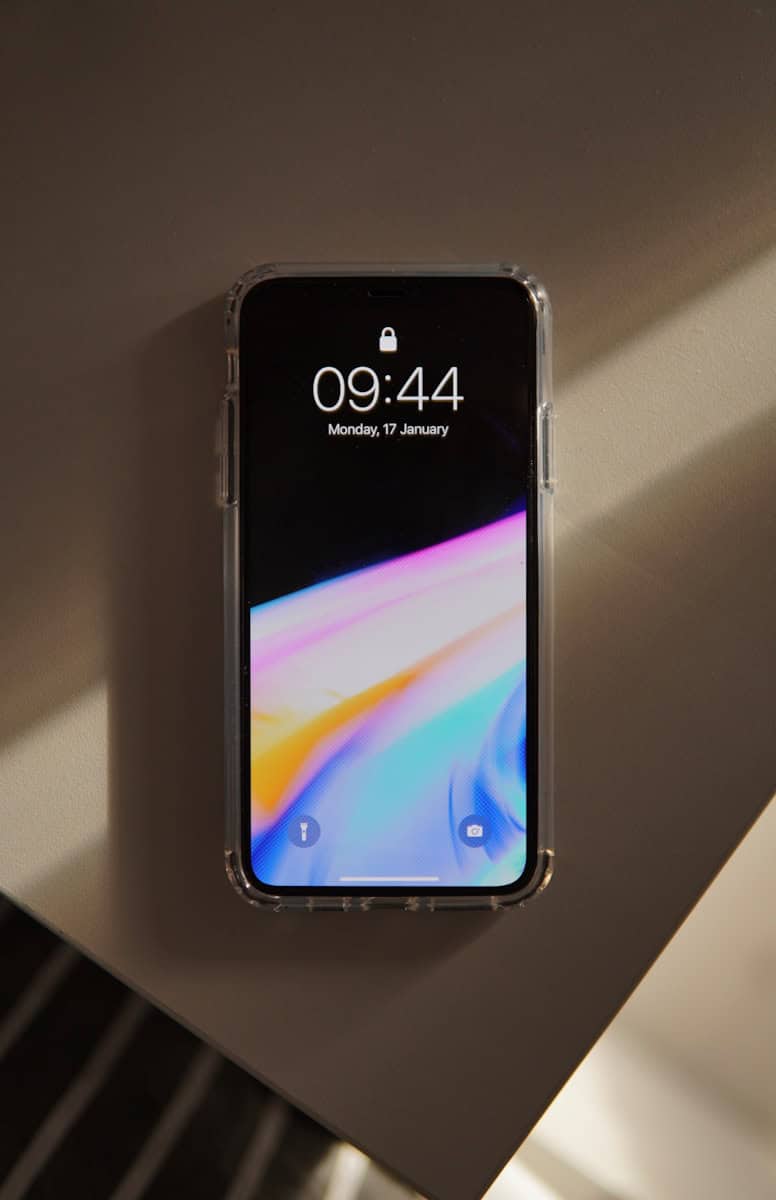
If the bottom part of your iPhone screen isn’t working, it can be really frustrating. Often, simple fixes like restarting or updating your device can solve the issue. There are also specific settings tweaks that might help.
Checking for iOS updates is a good first step. Updating your software can solve many problems. You can also reset settings or adjust the 3D Touch settings in accessibility.
Sometimes, a more serious fix is needed. Tools like FoneGeek or FoneDog can help. They offer solutions for software recovery that might save you a trip to a repair shop.
Bottom of iPhone Screen Not Working: Troubleshooting and Fixes
If the bottom portion of your iPhone’s touchscreen is unresponsive, it can severely affect usability. This issue can be caused by software glitches, hardware damage, or display connector problems. Follow these steps to diagnose and fix the problem.
1. Restart Your iPhone
- Press and hold the Power button (and Volume button on newer models) until the slider appears.
- Slide to power off.
- Wait 30 seconds, then turn it back on.
- This can clear temporary glitches causing touch issues.
2. Update iOS
- Go to Settings > General > Software Update.
- If an update is available, download and install it.
- Software bugs can cause touchscreen problems, and updates often fix them.
3. Remove Screen Protector and Case
- Sometimes screen protectors or cases interfere with touch sensitivity.
- Remove them and test if the bottom screen responds better.
4. Force Restart
- For iPhone 8 and later: Quickly press and release Volume Up, then Volume Down, then press and hold Power until Apple logo appears.
- For iPhone 7/7 Plus: Hold Volume Down + Power button until Apple logo appears.
- For iPhone 6s and earlier: Hold Home + Power button until Apple logo appears.
- This deeper restart can resolve more stubborn software issues.
5. Reset All Settings
- Go to Settings > General > Transfer or Reset iPhone > Reset > Reset All Settings.
- This won’t delete your data but will reset system settings.
- Sometimes corrupted settings cause screen responsiveness issues.
6. Restore iPhone via iTunes/Finder
- Backup your iPhone.
- Connect to a computer and open iTunes (Windows/macOS Mojave or earlier) or Finder (macOS Catalina or later).
- Choose Restore iPhone to reinstall iOS.
- This can fix software-related touchscreen problems.
7. Check for Physical or Water Damage
- Inspect the screen for cracks or signs of damage.
- Water exposure can cause unresponsive areas.
- If damaged, the screen or internal components may need repair.
8. Contact Apple Support or Visit a Repair Center
- If none of the above steps work, it’s likely a hardware issue.
- Visit an Apple Store or authorized repair center for diagnosis.
- They can check for display or digitizer faults and perform necessary repairs.
Summary Table
| Step | Action | Purpose |
|---|---|---|
| Restart iPhone | Power off and on | Clear temporary glitches |
| Update iOS | Install latest software | Fix software bugs |
| Remove Screen Protector | Test without accessories | Eliminate interference |
| Force Restart | Hard reboot | Resolve stubborn glitches |
| Reset All Settings | Reset system settings | Fix corrupted configurations |
| Restore iPhone | Reinstall iOS via computer | Fix deep software issues |
| Check for Damage | Inspect physical and water damage | Identify hardware problems |
| Contact Apple Support | Professional diagnosis and repair | Hardware repair if needed |
For detailed troubleshooting, see: Bottom of iPhone Screen Not Working? Here’s How to Fix It.
Key Takeaways
- Basic fixes like restarting and updating can solve screen issues.
- Adjusting 3D Touch settings can sometimes resolve the problem.
- Software recovery tools can be useful for more persistent issues.
Troubleshooting Software Issues
Resolving software-related problems can often fix the issue of the bottom half of the iPhone screen not working. This can include quick fixes and some more advanced methods.
Initial Steps to Resolve Software Problems
Restart the iPhone: A simple restart can resolve many software glitches. Press and hold the power button until the “slide to power off” appears.
Update iOS: Ensure the iPhone is running the latest iOS version. Go to Settings > General > Software Update and check for updates. Software updates often fix bugs and improve performance.
Reset All Settings: If issues persist, try resetting all settings. Go to Settings > General > Reset > Reset All Settings. This will reset settings to default without erasing data.
Force Restart: If the screen is unresponsive, a force restart may help. For iPhones with Face ID, press and release the volume up button, press and release the volume down button, then press and hold the side button until the Apple logo appears.
Advanced Software Repair Techniques
Recovery Mode: If the screen is still unresponsive, use Recovery Mode. Connect the iPhone to a computer with iTunes. Start Recovery Mode by pressing and holding the power and volume down buttons until the recovery screen appears. Follow the on-screen instructions in iTunes to restore the device.
DFU Mode: For more severe issues, Device Firmware Update (DFU) mode can help. Connect the iPhone to a computer. Quickly press the volume up button, then the volume down button. Press and hold the side button until the screen goes black. Then, press and hold the volume down button while continuing to hold the side button. Release the side button after 5 seconds but keep holding the volume down button. Follow iTunes prompts to restore the iPhone.
Factory Reset via iTunes: As a last resort, factory reset the iPhone using iTunes. This will erase all data, so ensure to back up data first. Connect the iPhone to a computer. Open iTunes, select the device, and click Restore iPhone. Follow on-screen instructions to complete the reset.
Install Firmware: Sometimes, installing new firmware can fix issues. Connect the iPhone, and then download the latest firmware package from Apple’s official site. Use iTunes to install the firmware on the iPhone.
Following these steps may help resolve software issues causing the bottom half of the iPhone screen to stop working. If problems persist, consider seeking professional help from Apple Support.





