
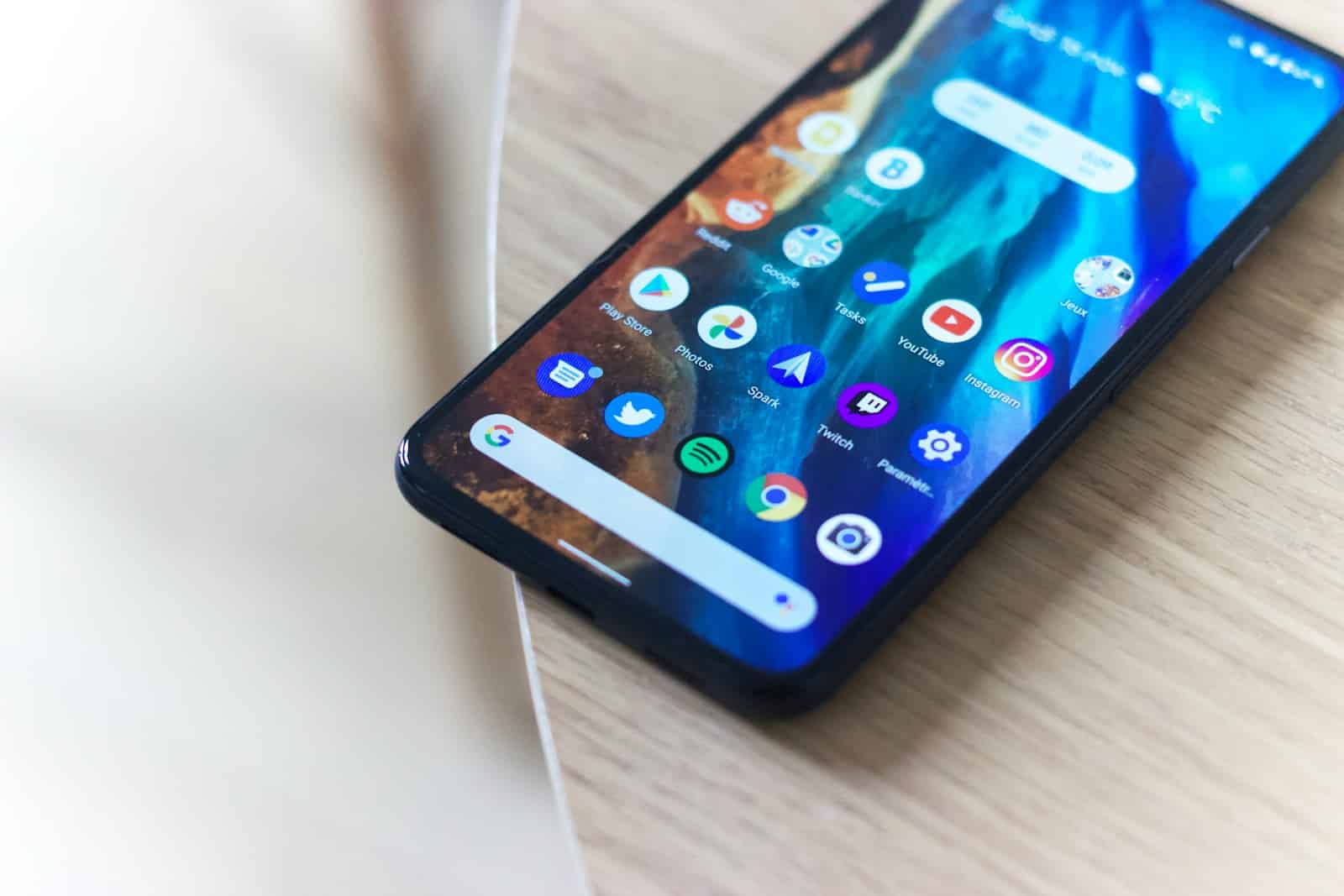
Keeping an Android phone up to date is crucial for security and access to new features. Updating the latest version of Android ensures that you have the current security patches and operating system enhancements. However, it’s important to note that not all Android devices can update to the latest version. The capability to update depends on the phone’s manufacturer, model, and the Android version it supports.
Before attempting to update an Android phone, it is necessary to prepare it for the process. This involves backing up important data to prevent any loss during the update. One must also ensure that the device is connected to a reliable Wi-Fi network and is sufficiently charged. These steps reduce the risk of interruptions that could potentially harm the device.
Why Update Your Old Android Phone?
Updating your phone ensures:
- Better performance and stability
- Enhanced security with the latest patches
- Access to new features and app compatibility
Even if your manufacturer no longer provides updates, there are still ways to modernize your device.
✅ Method 1: Official Update via Settings
This is the simplest and safest method.
Steps:
- Connect to Wi-Fi and ensure your phone is charged (at least 50%).
- Open Settings → System → System update (or About phone → Software update, depending on your device).
- Tap Check for updates.
- If an update is available, tap Download and install.
- Wait for the process to complete — your phone will restart automatically.
📘 Tip: Some brands like Samsung, Google Pixel, and OnePlus push updates in phases, so you may need to wait a few days after release.
Source: Android Help – Google
🔄 Method 2: Update Using Manufacturer Software (PC or Mac)
If the OTA (over-the-air) update isn’t available, try using the manufacturer’s desktop tool.
| Brand | Software | Download Link |
|---|---|---|
| Samsung | Smart Switch | smart-switch.com |
| Xiaomi | Mi PC Suite | mi.com |
| Huawei | HiSuite | consumer.huawei.com |
| Sony | Xperia Companion | sony.com |
Steps:
- Install the correct software on your computer.
- Connect your phone via USB.
- Look for an Update or Repair option.
- Follow on-screen instructions to install the latest firmware.
⚙️ Method 3: Manually Install Firmware (OEM ROM)
If your device no longer receives updates officially, you can manually install the latest firmware from your manufacturer’s website.
Steps:
- Visit your brand’s official support page.
- Download the correct firmware (double-check model number!).
- Follow the flashing instructions — usually via recovery mode or a flashing tool (e.g., Odin for Samsung).
⚠️ Caution: This can void your warranty or brick your device if done incorrectly. Always back up your data first.
🧩 Method 4: Install a Custom ROM (Unofficial Method)
For older phones that no longer receive updates, you can install a custom ROM like LineageOS, Pixel Experience, or crDroid to get a newer Android version.
Requirements:
- Unlocked bootloader
- Custom recovery (like TWRP)
- ROM and GApps (Google Apps package)
Steps:
- Unlock your phone’s bootloader (check manufacturer’s developer settings).
- Install TWRP Recovery.
- Download a compatible ROM (e.g., from LineageOS.org).
- Flash the ROM and GApps via recovery.
- Reboot and set up your device.
📘 Tip: Always verify ROM compatibility with your phone model.
Source: BasGuide – How to Update an Old Android Phone
🧼 Bonus: Optimize After Updating
After the update:
- Clear cache for smoother performance
- Reinstall apps that misbehave
- Check for app updates in Google Play
- Enable automatic updates for future releases
🧠 Summary
| Method | Difficulty | Risk | Works For |
|---|---|---|---|
| Official OTA | Easy | Low | Most phones |
| Manufacturer Software | Moderate | Low | Older supported models |
| Manual Firmware | Advanced | Medium | Unsupported models |
| Custom ROM | Expert | High | Very old phones |
🔗 References
- Android Help – Google
- Android Authority: How to Update Android
- BasGuide: Update an Old Android Phone
Key Takeaways
- Keeping Android phones up to date is important for security and feature access.
- Not all Android phones can update to the latest operating system version.
- Preparation steps include data backup, Wi-Fi connection, and battery charge.
Preparing Your Android Phone for Update
Before updating your Android phone, it’s important to prepare it properly. This ensures that the update process goes smoothly and your phone functions well after the update.
Checking Device Compatibility
Your phone may only support updates up to a certain version of Android, depending on its age and model. To find out, open the Settings app and look for System update under the About phone section. Your device manufacturer will have listed the latest supported version here. If no update is available, your phone might be at its maximum upgrade level.
Backing Up Your Data
It’s a smart move to back up everything important before you start the update. You can use the Settings app to sync your data to Google or back up to an SD card. Make sure to secure your contacts, photos, and app data. This way, if anything goes wrong during the update, you won’t lose your personal items.
Ensuring Battery and Connectivity Requirements
Have your phone charged to at least 50% before starting an update. It’s best to plug in your phone during the process to avoid any interruptions due to a low battery. The phone will need a stable Wi-Fi connection too. Updates happen over the internet, so data charges can be high if you’re not using Wi-Fi.
Freeing Up Space on Your Device
Updates need room to download and install. If your phone’s storage is nearly full, delete unused apps or move files to an SD card. You can check available space in the Settings app under the storage section. Cleaning up your phone’s memory will help the update to download and install without running into errors.





