
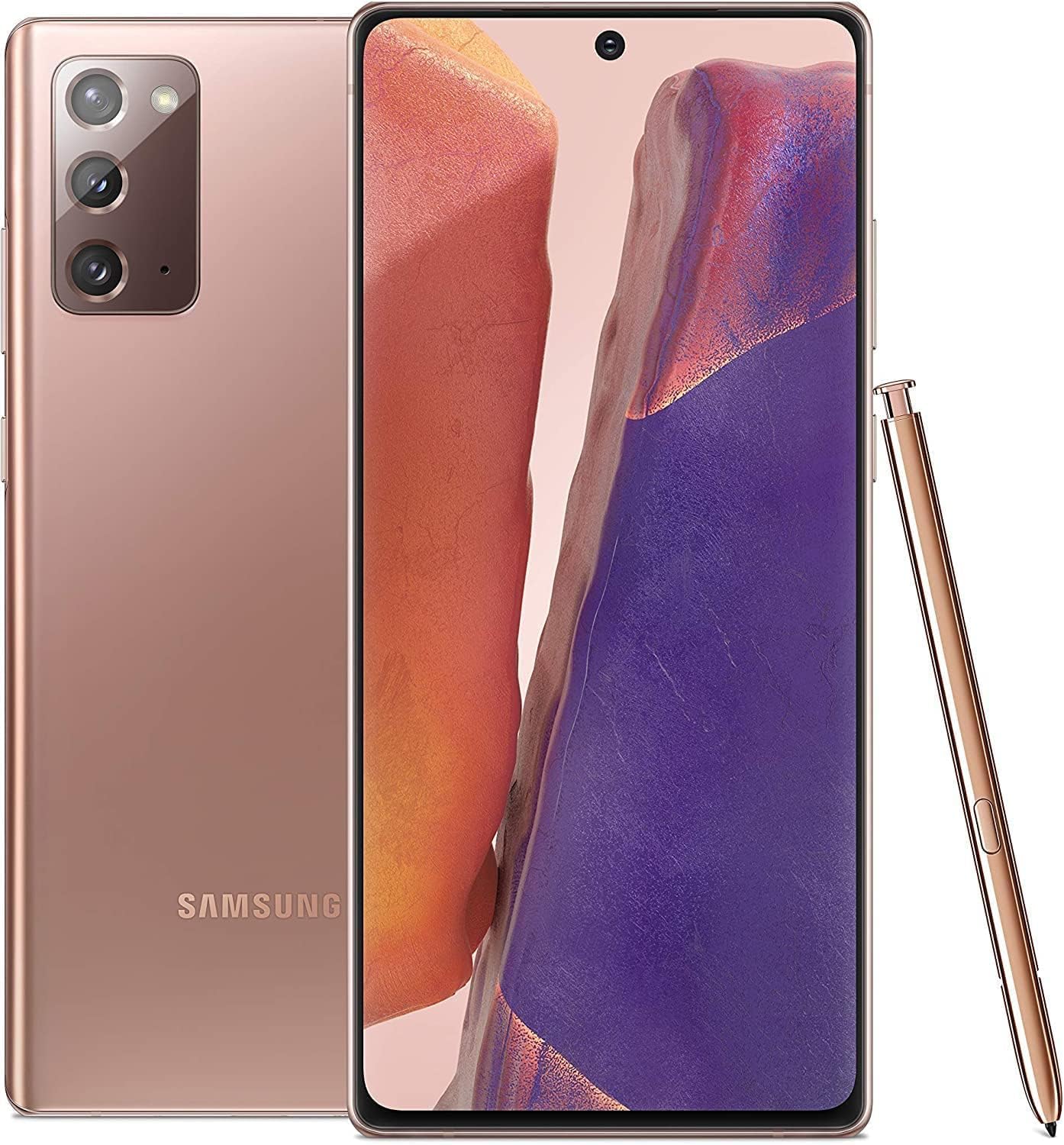
The Samsung Galaxy Note 20 remains a powerful productivity-focused smartphone, thanks to its S Pen, strong performance, and versatile camera system. Whether you’ve just bought one or want to get more out of your device, this complete Galaxy Note 20 guide covers setup, features, tips, troubleshooting, and performance optimization.
Galaxy Note 20 Overview
Released in 2020, the Galaxy Note 20 was designed for users who want a phone that doubles as a productivity tool.
Key Specs:
- Display: 6.7-inch Super AMOLED Plus
- Processor: Snapdragon 865+ (US) / Exynos 990 (International)
- RAM: 8GB
- Storage: 128GB
- Rear Cameras: 12MP (wide), 64MP (telephoto), 12MP (ultra-wide)
- Front Camera: 10MP
- Battery: 4,300mAh
- S Pen: Built-in with low latency
- 5G Support: Yes
How to Set Up Your Galaxy Note 20
If you’re starting fresh, follow these steps:
- Power On – Press and hold the Side button.
- Select Language & Region
- Connect to Wi-Fi
- Sign in to Google Account
- Sign in or Create a Samsung Account
- Restore Backup (Optional)
- Set Up Security (Fingerprint or Face Unlock)
Pro Tip:
Register your fingerprint twice for better accuracy.
Mastering the S Pen
The S Pen is what makes the Note series special. Here’s how to make the most of it.
Air Actions
Air Actions allow gesture control without touching the screen.
Enable Air Actions:
- Go to Settings > Advanced Features > S Pen > Air Actions
You can:
- Switch camera modes
- Control music playback
- Navigate slides in presentations
Screen Off Memo
Quickly jot down notes without unlocking your phone.
How to Use:
- Remove the S Pen while the screen is off.
- Start writing.
- Tap Save when finished.
Perfect for quick reminders.
Samsung Notes Tips
- Convert handwriting to text
- Export notes as PDF or Word
- Sync across Samsung devices
- Annotate PDFs
To convert handwriting:
- Open a note.
- Tap the Convert to Text icon.
Camera Guide
The Galaxy Note 20 camera system is versatile and powerful.
Camera Modes
- Single Take – Captures multiple photos/videos at once
- Night Mode – Better low-light photos
- Pro Mode – Manual controls (ISO, shutter speed)
- 8K Video Recording
- Super Steady Video
Best Camera Settings for Sharp Photos:
- Turn on Scene Optimizer
- Enable HDR
- Use Night Mode in dim environments
Customizing Your Galaxy Note 20
Samsung’s One UI allows deep customization.
Change Themes
- Go to Settings > Themes
- Download new icons, wallpapers, and system themes
Edge Panels
- Enable via Settings > Display > Edge Panels
- Add app shortcuts, tools, clipboard, contacts
Always-On Display
- Go to Settings > Lock Screen > Always On Display
- Customize clock style and notifications
Performance Tips
If your Galaxy Note 20 feels slow, try these optimizations:
1. Enable 120Hz (Note: Only on Ultra model)
The standard Note 20 supports 60Hz. The Note 20 Ultra supports 120Hz.
2. Optimize Battery Usage
- Go to Settings > Battery and Device Care
- Tap Optimize Now
3. Reduce Background Apps
- Settings > Apps
- Disable unused apps
4. Clear Cache Partition
- Power off device
- Hold Volume Up + Power Button
- Select Wipe Cache Partition
Battery and Charging Guide
The 4,300mAh battery supports:
- Fast Charging
- Wireless Charging
- Wireless PowerShare
Enable Fast Charging
- Go to Settings > Battery > Charging Settings
- Turn on Fast Charging
Improve Battery Life
- Lower screen brightness
- Use Dark Mode
- Turn off 5G if not needed
- Enable Power Saving Mode
Security Features
The Galaxy Note 20 includes:
- Fingerprint Scanner (under display)
- Face Recognition
- Samsung Knox Security
- Secure Folder
How to Set Up Secure Folder
- Go to Settings > Biometrics and Security
- Tap Secure Folder
- Follow setup instructions
This allows you to hide apps and files securely.
Software Updates
To check for updates:
- Go to Settings > Software Update
- Tap Download and Install
Keeping your device updated improves performance and security.
Common Galaxy Note 20 Problems & Fixes
Phone Overheating
- Close background apps
- Avoid gaming while charging
- Update software
S Pen Not Connecting
- Reinsert the S Pen
- Reset S Pen from Settings
Camera Blurry
- Clean lens
- Tap to focus
- Reset camera settings
Slow Performance
- Restart device
- Clear cache
- Free up storage space
Is the Galaxy Note 20 Still Worth It?
Even years after release, the Galaxy Note 20 is still capable for:
- Productivity
- Note-taking
- Media consumption
- Social media
- Moderate gaming
However, it lacks some newer features found in the latest Galaxy S Ultra models.
If you need built-in stylus support, it remains a solid choice.
Final Thoughts
The Samsung Galaxy Note 20 combines productivity and performance in a sleek design. Its S Pen functionality, strong cameras, and multitasking features make it ideal for students, professionals, and creatives.
With the right setup and optimization, it can still perform smoothly for daily tasks in 2026.
Galaxy Note 20: Colors
The Samsung Galaxy Note 20 series stands out for its sleek design and powerful performance, but one aspect that often catches the eye is its array of available colors. When choosing a smartphone, color is more than just an aesthetic choice; it reflects personal style and preferences. The Galaxy Note 20 and the more premium Note 20 Ultra cater to a variety of tastes with their color selection, offering shades that range from understated to bold.
Customers looking to purchase a Galaxy Note 20 can select from colors including Mystic Green, Mystic Bronze, and Mystic Gray. For those opting for the Galaxy Note 20 Ultra, additional exclusive colors like Mystic White and Mystic Black are on offer, along with a unique finish on certain variants. Not only do these colors provide a distinctive look, but they also complement the devices’ cutting-edge features such as 5G and LTE connectivity, the integrated high-performance S Pen, and advanced smartphone photography capabilities.
Samsung Galaxy Note 20 Colors:
Mystic Bronze: The signature metallic color for both models.
Mystic Green: Exclusive to the standard Note 20.
Mystic Gray: Available on the standard Note 20.
Mystic Red/Blue/Pink: Available in select markets.
Samsung Galaxy Note 20 Ultra Colors
Mystic Bronze: Signature metallic color.
Mystic Black: Standard sleek option.
Mystic White: A bright, glossy finish.
Key Takeaways
- The Galaxy Note 20 series includes a variety of color options to suit different user preferences.
- Exclusive colors are available for different models, with the Note 20 Ultra offering Mystic White and Mystic Black.
- Color choices accentuate the stylish design and advanced features like the S Pen and 5G technology.
Galaxy Note 20 Color Variants and Design
Samsung offers a range of colors for the Galaxy Note 20 series, each with its own unique appeal and design features. From the standout Mystic Bronze to the refreshing Mystic Green, these color options enhance both the style and overall aesthetic of the device.
Mystic Bronze: Signature Color and Appeal
Mystic Bronze stands out as the signature color for the Galaxy Note 20 series. Samsung chose this color for its warm, earthy tone that catches the light with a subtle glow. The color has a satin finish that resists fingerprints, making it practical for daily use.
Mystic Green: A Fresh Perspective
Mystic Green offers a vibrant, nature-inspired hue to the Galaxy Note 20 lineup. It’s a unique blend of color that’s distinct yet understated. Samsung has given this color a matte finish, aiding in grip and reducing smudges.
Mystic Black: Classic and Timeless
Mystic Black is the classic choice, embodying elegance and sophistication. The high-gloss finish on this variant adds a mirror-like quality. Its timeless appeal makes it a popular choice for those who prefer understated style.
Mystic White: Elegance and Purity
Mystic White gives the Galaxy Note 20 Ultra a look of pure elegance. This color variant speaks to a sense of sophistication and cleanliness. The reflective glass back of the Mystic White adds depth and a premium feel to the device.
Mystic Gray: The Balance of Power and Style
Mystic Gray is a balanced color that exudes both power and style. It offers a muted yet powerful alternative for those who seek a minimalist design. Much like the other colors, it is designed to minimize fingerprints and enhance usability.





