
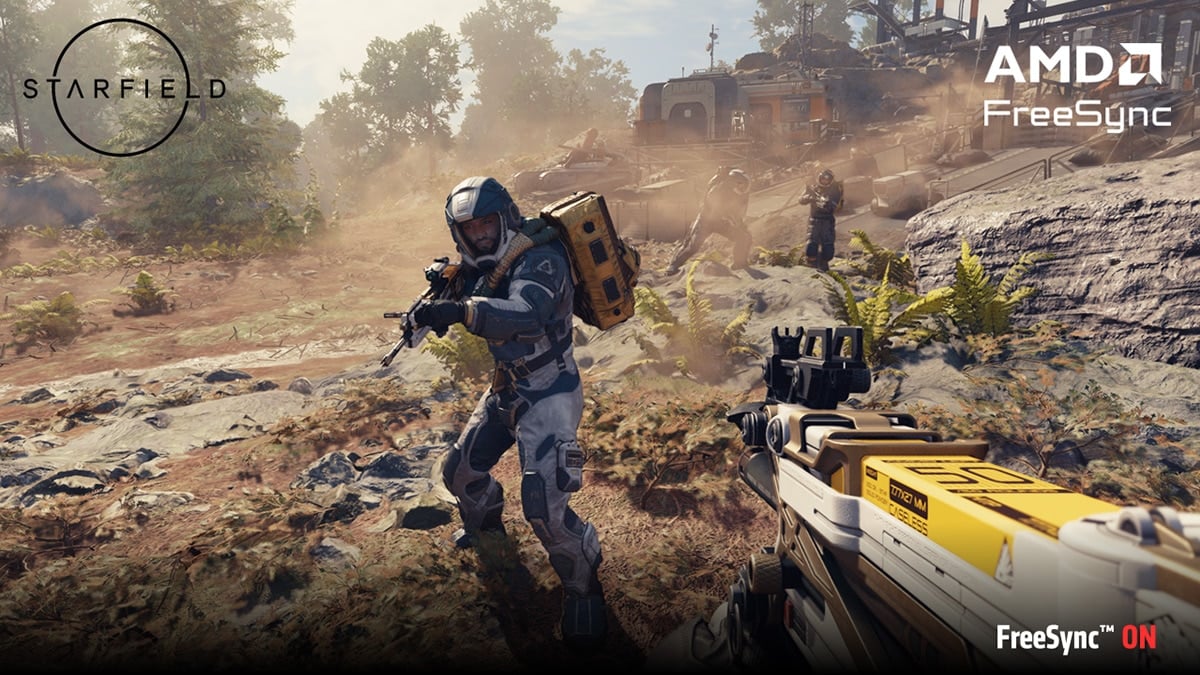
AMD FreeSync tackles common gaming issues like screen tearing and stuttering. This tech syncs a monitor’s refresh rate with a graphics card’s frame rate. AMD FreeSync makes games look smoother and more fluid on supported displays.
Gamers can enjoy a better experience with FreeSync. It works with many monitors, laptops, and TVs. FreeSync uses industry standards to achieve its benefits. This means it’s easy to find and use with the right setup.
FreeSync comes in different tiers. Each tier offers unique features for gamers. The tech helps reduce input lag too. This means actions in games can feel more responsive.
AMD FreeSync: Complete Guide
AMD FreeSync™ is a display technology designed to eliminate screen tearing, reduce stuttering, and provide smoother gameplay by synchronizing your monitor’s refresh rate with your graphics card’s frame rate. Unlike traditional V-Sync, it doesn’t introduce significant input lag, making it popular among gamers.
1. What is AMD FreeSync?
- Problem it solves: Screen tearing happens when your GPU and monitor refresh rates are out of sync.
- How it works: FreeSync dynamically adjusts your monitor’s refresh rate to match your GPU’s output.
- Requirements:
- An AMD graphics card or APU that supports FreeSync.
- A FreeSync-compatible monitor or TV.
- A proper connection (usually DisplayPort or HDMI with FreeSync support).
2. Types of FreeSync
AMD has three tiers of FreeSync support:
- FreeSync (Standard) – Eliminates tearing and stuttering during gameplay.
- FreeSync Premium – Adds Low Framerate Compensation (LFC), which keeps gameplay smooth even when FPS drops below the monitor’s minimum refresh rate.
- FreeSync Premium Pro – Adds HDR support with low latency, giving better colors and brightness without extra lag.
3. How to Enable FreeSync
Step 1: Enable FreeSync on Your Monitor
- Open your monitor’s on-screen display (OSD) menu.
- Look for Adaptive Sync or FreeSync and turn it ON.
Step 2: Enable FreeSync in AMD Software
- Open AMD Software: Adrenalin Edition.
- Go to Settings > Display.
- Toggle AMD FreeSync to Enabled.
Step 3: Adjust Game Settings
- Disable V-Sync inside games (unless recommended otherwise).
- Optionally, use a frame rate cap (slightly below your monitor’s max refresh rate) for the smoothest experience.
4. Troubleshooting Common Issues
If FreeSync isn’t working:
- Check your cable: Use DisplayPort or a FreeSync-certified HDMI cable.
- Confirm monitor support: Not all monitors support FreeSync over HDMI.
- Update drivers: Install the latest AMD GPU drivers.
- Check refresh rate: Make sure Windows is set to the correct refresh rate (Settings > Display > Advanced display settings).
- Disable conflicting settings: Turn off V-Sync in Radeon Software if it causes stutter.
For detailed fixes, see AMD’s official support guide (source: AMD).
5. Tips for Best Performance
- Use Radeon Chill or Radeon Anti-Lag for smoother gameplay.
- Keep your FPS within the monitor’s FreeSync range (e.g., 48–144Hz).
- If your FPS often drops below the minimum range, a FreeSync Premium monitor with LFC is recommended.
6. FreeSync vs. G-Sync
- FreeSync: Open standard, no extra cost, works with AMD GPUs and (partially) with NVIDIA GPUs on some monitors.
- G-Sync: NVIDIA’s proprietary version, usually more expensive, requires NVIDIA GPUs.
✅ In summary: AMD FreeSync is a free, effective way to improve gaming visuals by eliminating tearing and stutter without adding input lag. With the right setup, you’ll notice smoother gameplay and a more responsive feel.
Key Takeaways
- AMD FreeSync syncs display refresh rates with GPU frame rates
- It works on many devices and uses industry standards
- FreeSync reduces screen tearing, stuttering, and input lag
Understanding AMD FreeSync Technology
AMD FreeSync boosts visual quality in games and videos. It stops screen tearing and stuttering on displays.
How FreeSync Enhances Visual Performance
FreeSync matches a display’s refresh rate to the graphics card’s frame rate. This sync stops screen tearing and stuttering. Screen tearing happens when the display shows parts of multiple frames at once. Stuttering occurs when frame rates drop suddenly.
FreeSync works across a range of refresh rates. It keeps images smooth even when performance varies. The tech also reduces input lag. This means actions on screen happen faster after you press a button.
Some FreeSync displays offer Low Framerate Compensation. This feature helps when frame rates drop very low. It keeps the picture smooth and clear.
Exploring the AMD FreeSync Ecosystem
FreeSync works with many devices. You can find it in desktop monitors, laptops, and TVs. It’s an open standard, so many brands use it.
To use FreeSync, you need a compatible AMD graphics card. Some NVIDIA cards now support it too. Game consoles like Xbox Series X and S also work with FreeSync TVs.
FreeSync comes in different tiers. Higher tiers add features like HDR and wider color ranges. They also work at higher refresh rates and resolutions.
Many new gaming monitors include FreeSync. It’s becoming a common feature in mid-range and high-end displays. This wide support makes it easy for gamers to find a FreeSync setup that fits their needs.
Implementing FreeSync in Gaming Setups
FreeSync can greatly improve gaming visuals. It stops screen tearing and makes gameplay smoother. Setting it up takes a few steps and needs the right gear.
Setting Up FreeSync for Optimal Gaming
First, check if your monitor supports FreeSync. Most new AMD gaming monitors do. Next, make sure you have an AMD graphics card. Open AMD Radeon Settings on your computer. You can find this by right-clicking on your desktop. Look for the FreeSync option and turn it on.
Some monitors have their own menu. You might need to turn on FreeSync there too. Once it’s on, play a game and see the difference. No more screen tearing! Your game should look smoother, especially when the frame rate changes.
Compatibility and Connectivity Considerations
FreeSync works best with DisplayPort cables. Some newer setups can use HDMI too. Check what ports your monitor and graphics card have. Make sure they match up.
FreeSync has different versions. There’s regular FreeSync, FreeSync Premium, and FreeSync Premium Pro. Each one adds more features. Premium Pro even supports HDR. Your monitor and graphics card need to work with the same version.
Not all games support FreeSync. But many new ones do. When buying a new monitor or graphics card, look for FreeSync support. It can make a big difference in how your games look and feel.





