
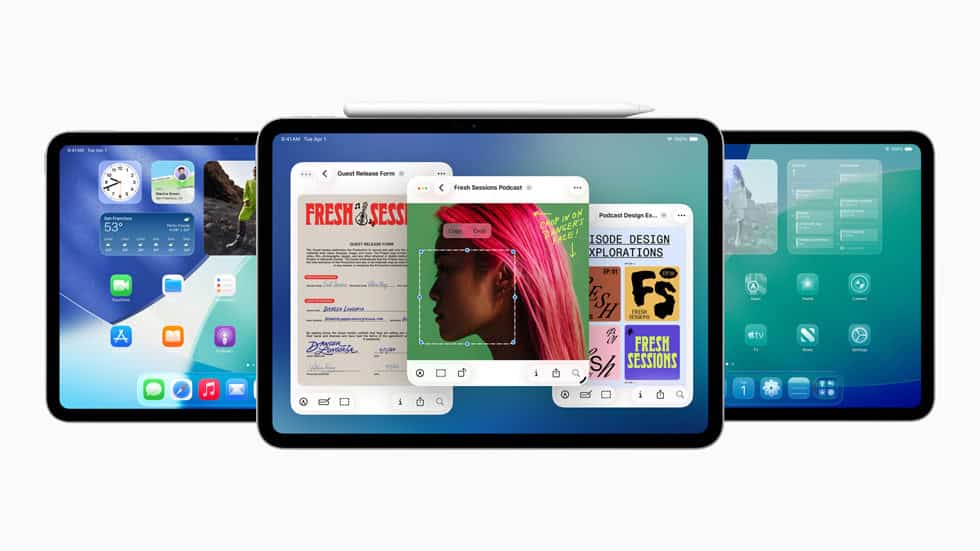
Using split screen on an iPad can be handy for multitasking, but sometimes it gets in the way. To exit split screen, tap and drag the dividing line to either side of the screen until only one app is visible. This simple action restores your screen to its original state.
For those who want to remove a floating app, touch the app controller at the top of the floating app window. Then, swipe it left or right off the screen. This quick gesture will keep your primary app in view without other windows taking up space.
If you’re looking to disable split screen entirely, you can do so in the Settings app. Go to the Home Screen & Dock settings and turn off multitasking features. This will prevent split screen and Slide Over from appearing at all.
Key Overview
The iPad split screen feature, also known as multitasking, lets you use two apps side by side. To enable it, open one app, then swipe down slightly from the top of the screen and drag a second app from the dock to the left or right edge. You can adjust the divider to resize each app. To remove split screen, drag the divider all the way to one side or swipe the second app off the screen. Keep in mind that not all apps support split view, and the feature works best on newer iPad models with updated software. It’s a powerful way to boost productivity, whether you’re browsing, taking notes, or comparing content.
Key Takeaways
- Drag the divider to exit split screen.
- Swipe the floating app off the screen to remove it.
- Disable multitasking in the Settings app to stop split screen.
Understanding iPad Multitasking Features
iPads come with useful multitasking features that help users work with more than one app at the same time. Two of these features are Split View and Slide Over.
Exploring Split View and Slide Over
Split View lets users have two apps open, side by side. This makes it easy to copy information from one app to another. For example, you can have Safari and Notes open at the same time. To enter Split View, open an app, then swipe up to see the Dock. Drag a second app from the Dock to the left or right side of the screen. The apps will then share the screen equally.
Slide Over allows an app to float over another open app. It’s helpful for quick tasks, like checking your email while on a FaceTime call. To use Slide Over, open an app, then drag another app from the Dock to the middle of the screen. The second app will appear in a smaller window that you can move around. To close the Slide Over app, swipe it off the screen.
Accessibility and Multitasking Settings
Multitasking can be customized in the Settings app. Open the Settings app, then go to General > Multitasking & Dock. Here you can choose if you want to Allow Multiple Apps, which enables Split View and Slide Over.
If you find multitasking overwhelming, you can turn these features off. Tap the toggle next to “Allow Multiple Apps” to disable it. This will make each app full-screen by default. You can also adjust gestures for multitasking in the same menu.
These settings give users control over how they want to use their iPad. Adjusting these options can make the iPad more user-friendly.





