
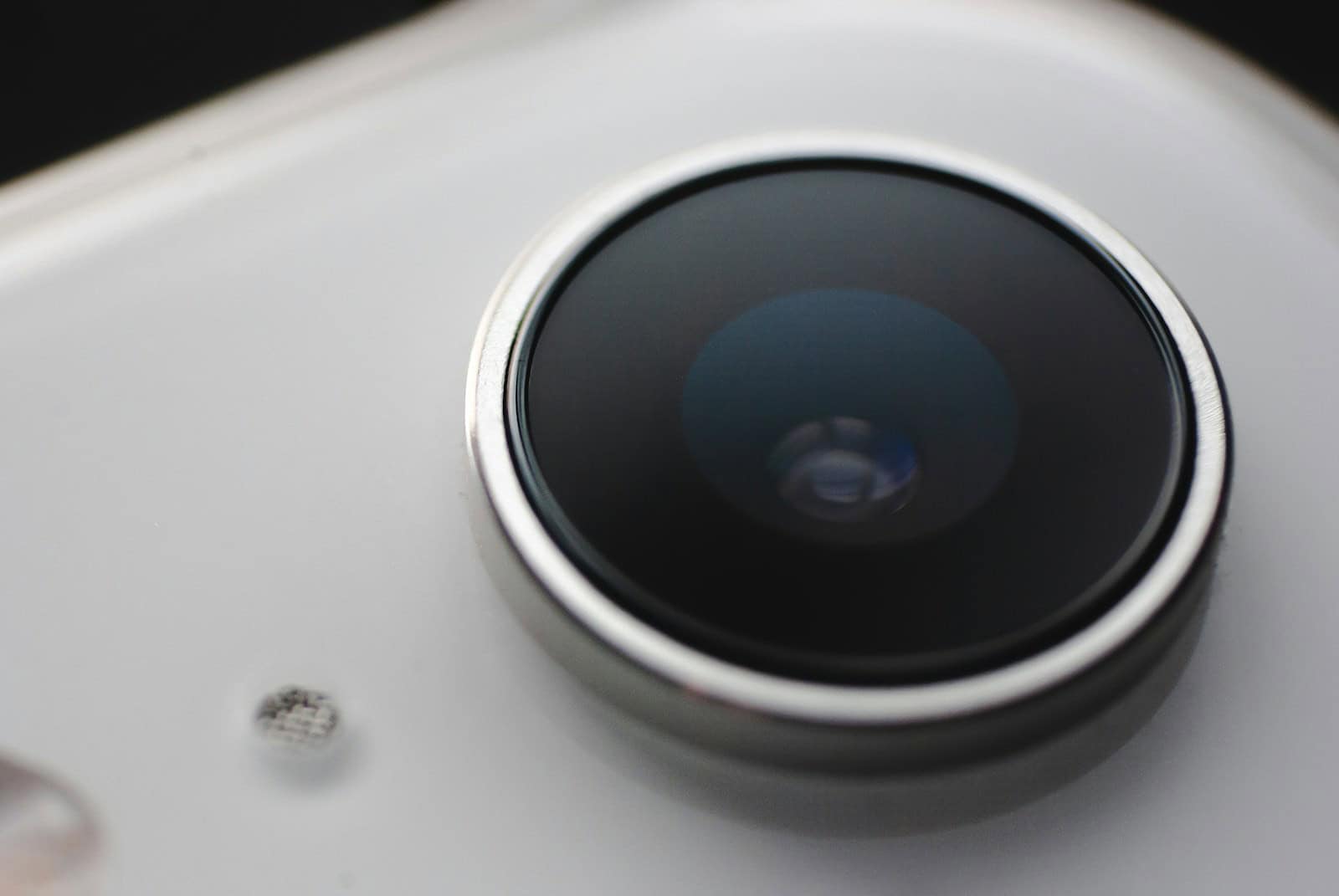
Have you ever tried to take a photo, only to see a black screen on your iPhone camera? It’s frustrating and confusing when your camera doesn’t work. A black iPhone camera screen is often caused by software issues or a blocked lens. Don’t worry; there are several steps you can try to get your camera working again.
The problem could be as simple as an app glitch. Sometimes, force quitting the Camera app can help. Restarting your iPhone can also solve many problems, including a black camera screen. Sometimes a more in-depth solution is required, such as updating your iOS version.
You could also check for physical issues with the camera. Things like dust, dirt, or case obstructions can block the lens. Clearing any debris might solve the problem. If none of these solutions work, it might be time to seek professional help.
Why Is My iPhone Camera Black? Complete Troubleshooting Guide
Nothing is more frustrating than opening your iPhone camera to capture an important moment, only to see a black screen. This comprehensive guide will help you diagnose and fix the iPhone black camera screen issue quickly and effectively.
Common Causes of Black Camera Screen
Before diving into solutions, let’s understand what typically causes this problem:
- Software glitches: Temporary bugs or frozen camera app
- Camera obstruction: Case, lens protector, or debris blocking the lens
- App conflicts: Third-party apps interfering with camera access
- iOS bugs: Software issues after updates
- Hardware problems: Physical damage to camera components
- Memory issues: Insufficient storage or RAM
- Settings problems: Incorrect camera permissions or restrictions
- Overheating: iPhone temperature too high
- Water damage: Moisture affecting internal components
- Failed iOS update: Corrupted system files
Quick Fixes to Try First
1. Force Close and Reopen the Camera App
This simple fix resolves most temporary glitches.
For iPhones with Face ID (iPhone X and later):
- Swipe up from the bottom and pause in the middle of the screen
- Find the Camera app preview
- Swipe it up to close
- Wait 5 seconds
- Tap the Camera app icon to reopen
For iPhones with Home Button (iPhone 8 and earlier):
- Double-press the Home button
- Find the Camera app
- Swipe up to close it
- Press the Home button to return to home screen
- Open Camera app again
2. Switch Between Camera Modes
Sometimes switching cameras can reset the sensor:
- Open the Camera app
- Tap the camera flip icon (circular arrows) to switch between front and rear cameras
- Try both cameras to see if one works
- Switch between different modes (Photo, Video, Portrait, Panorama)
- Check if any mode displays properly
3. Check for Physical Obstructions
Inspect the camera lens:
- Remove any phone case or cover
- Check for protective film over the lens
- Look for dirt, fingerprints, or debris
- Clean gently with a soft, lint-free cloth
- Ensure no accessories are blocking the camera
Check the flash:
- Make sure the flash isn’t covered
- Try turning flash on/off in camera settings
- Flash obstruction can sometimes cause black screen
4. Restart Your iPhone
A simple restart can resolve many software issues.
For iPhone 8 and later:
- Press and quickly release Volume Up button
- Press and quickly release Volume Down button
- Press and hold the Side button
- Keep holding until you see the Apple logo
- Release and wait for iPhone to restart
For iPhone 7 and 7 Plus:
- Press and hold Volume Down + Side button simultaneously
- Keep holding until Apple logo appears
- Release and wait for restart
For iPhone 6s and earlier:
- Press and hold Home + Top (or Side) button
- Keep holding until Apple logo appears
- Release and wait for restart
Intermediate Solutions
5. Check Camera Permissions
Apps need permission to access your camera. Verify settings:
- Go to Settings > Privacy & Security > Camera
- Check that Camera app has access (should be enabled by default)
- Review other apps that use the camera
- Toggle permissions off and on for problematic apps
- Restart the affected app
6. Disable Screen Time Restrictions
Camera access might be restricted:
- Go to Settings > Screen Time
- Tap Content & Privacy Restrictions
- If enabled, tap Allowed Apps
- Make sure Camera is toggled ON (green)
- Enter Screen Time passcode if prompted
- Try opening camera again
7. Free Up Storage Space
Insufficient storage can cause camera problems:
Check storage:
- Go to Settings > General > iPhone Storage
- View available space at the top
- iPhone needs at least 1-2GB free for camera to work properly
Free up space:
- Delete unwanted photos and videos
- Offload unused apps (Settings > General > iPhone Storage > Offload App)
- Clear Safari cache (Settings > Safari > Clear History and Website Data)
- Delete old messages and attachments
- Move photos to iCloud or computer
- Remove downloaded music or podcasts
8. Turn Off VoiceOver
VoiceOver can sometimes interfere with camera:
- Go to Settings > Accessibility > VoiceOver
- Toggle VoiceOver OFF
- Try opening camera again
Or use Siri: “Hey Siri, turn off VoiceOver”
9. Reset Camera Settings
Reset specific camera settings without affecting other data:
- Open Settings > Camera
- Review all settings:
- Preserve Settings: Turn off if enabled
- Record Video: Change resolution and try again
- Grid: Toggle on/off
- Force close camera app and reopen
10. Close Background Apps
Too many apps running can cause memory issues:
- Open the app switcher (swipe up or double-press Home)
- Close all apps by swiping them up
- Wait 10 seconds
- Open only the Camera app
- Test if camera works
11. Check for Overheating
iPhones can disable camera when too hot:
Signs of overheating:
- “iPhone needs to cool down” message
- Device feels warm to touch
- Performance slowdown
Solutions:
- Remove phone case
- Turn off device for 10-15 minutes
- Keep away from direct sunlight
- Close power-intensive apps
- Disable unnecessary features (Bluetooth, Location Services temporarily)
- Let device cool in a shaded, well-ventilated area
12. Test in Safe Mode (Limited to older iOS)
While iOS doesn’t have a traditional safe mode, you can simulate it:
- Turn off iPhone completely
- Turn it back on
- Immediately open Camera app before other apps load
- If camera works, a third-party app is likely causing conflict
Advanced Solutions
13. Update iOS
Software bugs can cause camera issues. Apple regularly releases fixes:
Check for updates:
- Go to Settings > General > Software Update
- Wait while iPhone checks for updates
- If available, tap Download and Install
- Connect to Wi-Fi and charger
- Follow on-screen instructions
- Test camera after update completes
Update notes:
- Backup iPhone before updating (iCloud or iTunes)
- Ensure at least 50% battery or connected to power
- Allow 30-60 minutes for update process
14. Update Camera-Related Apps
Third-party apps might conflict with camera:
- Open App Store
- Tap your profile icon (top right)
- Scroll to Available Updates
- Update all apps, especially:
- Social media apps (Instagram, Snapchat, TikTok)
- Photo editing apps
- Video calling apps (Zoom, FaceTime alternatives)
- Restart iPhone after updates
15. Reset All Settings
This resets settings without deleting data:
What gets reset:
- Wi-Fi passwords
- Bluetooth connections
- Display settings
- Privacy settings
- Accessibility features
- Network settings
What stays:
- Photos and videos
- Apps and app data
- Personal files
- Contacts and messages
How to reset:
- Go to Settings > General > Transfer or Reset iPhone
- Tap Reset > Reset All Settings
- Enter your passcode
- Confirm reset
- iPhone will restart
- Test camera after restart
16. Restore iPhone via iTunes/Finder
A full restore can fix deeper software issues:
Backup first:
- Connect iPhone to computer
- Open iTunes (Windows/older Mac) or Finder (Mac with macOS Catalina+)
- Select your iPhone
- Click Back Up Now
- Wait for backup to complete
Restore iPhone:
- With iPhone connected, click Restore iPhone
- Confirm you want to restore
- iPhone will erase and install latest iOS
- Wait for process to complete (30-60 minutes)
- Set up as new iPhone or restore from backup
- Test camera
Important: “Restore from backup” might restore the problem. Try “Set up as new iPhone” first to test camera.
17. Check for Hardware Damage
Inspect your iPhone for physical damage:
Visual inspection:
- Cracked or shattered camera lens
- Damaged camera module
- Water damage indicators (red in SIM tray or charging port)
- Physical dents or impacts near camera area
- Loose components (shake gently and listen for rattling)
Test multiple camera features:
- Front camera vs rear camera
- Flash functionality
- Video recording
- Portrait mode
- Night mode
- Panorama mode
If only one camera is black:
- Likely hardware issue with that specific camera
- Needs professional repair
18. DFU (Device Firmware Update) Mode Restore
Most comprehensive software reset:
Warning: This erases everything. Backup first!
Enter DFU mode:
For iPhone 8 and later:
- Connect to computer with iTunes/Finder open
- Press and quickly release Volume Up
- Press and quickly release Volume Down
- Press and hold Side button until screen goes black
- Immediately hold Volume Down + Side button for 5 seconds
- Release Side button but keep holding Volume Down for 5 more seconds
- If screen stays black, you’re in DFU mode
- iTunes/Finder will detect iPhone in recovery mode
For iPhone 7/7 Plus:
- Connect to computer
- Press and hold Side + Volume Down buttons
- Keep holding for 8 seconds
- Release Side button, keep holding Volume Down
- Screen should stay black
For iPhone 6s and earlier:
- Connect to computer
- Press and hold Home + Sleep/Wake buttons
- Keep holding for 8 seconds
- Release Sleep/Wake, keep holding Home
- Screen should stay black
Restore:
- iTunes/Finder will prompt to restore
- Follow on-screen instructions
- Set up as new device
- Test camera before restoring backup
Testing Third-Party App Conflicts
If camera works in the native Camera app but not in other apps:
Identify Problematic Apps
- Test each app individually:
- Snapchat
- TikTok
- Messenger
- Zoom
- FaceTime
- Note which apps show black screen
- For each problematic app:
- Delete the app completely
- Restart iPhone
- Reinstall from App Store
- Test again
Check App Permissions
- Go to Settings > Privacy & Security > Camera
- Look for apps with camera access
- Toggle OFF apps you don’t regularly use
- For problematic apps:
- Toggle OFF
- Force close app
- Toggle ON
- Reopen app
Special Cases
Camera Black Only in Specific Modes
If black screen appears only in:
Portrait Mode:
- Requires sufficient lighting
- Needs proper distance from subject (2-8 feet)
- Might not work with certain objects
- Try in better lighting conditions
Night Mode:
- Activates automatically in low light
- Requires iPhone 11 or later
- Keep iPhone steady
- May appear dark until capture
Panorama:
- Ensure adequate lighting
- Start from left or right edge
- Move slowly and steadily
Video Mode:
- Check storage space (video requires more space)
- Try lower resolution (Settings > Camera > Record Video)
- Close other apps using audio/video
Camera Black After iOS Update
Common after major iOS updates:
- Wait 24-48 hours:
- iPhone needs time to optimize after updates
- Background processes can affect performance
- Force restart multiple times:
- Sometimes requires 2-3 restarts after update
- Check Apple’s System Status:
- Visit apple.com/support/systemstatus
- Verify no known issues with iOS/Camera services
- Downgrade iOS (if possible):
- Only available within ~2 weeks of new iOS release
- Requires computer with iTunes/Finder
- Must have saved SHSH blobs (advanced users)
- Apple stops signing older versions quickly
- Not recommended unless camera is completely unusable
- Better to wait for bug-fix update from Apple
- Report to Apple:
- Go to apple.com/feedback
- Select iPhone feedback
- Describe camera black screen issue after update
- Include iOS version and iPhone model
- Apple uses feedback to prioritize fixes
Camera Black After Water Exposure
If iPhone got wet:
- Immediate steps:
- Power off iPhone immediately
- Don’t try to charge it
- Don’t blow compressed air into ports
- Don’t use rice (can cause more damage)
- Drying process:
- Wipe exterior with soft, lint-free cloth
- Gently tap to remove water from ports
- Stand iPhone upright in well-ventilated area
- Wait 24-48 hours before turning on
- Use silica gel packets if available
- After drying:
- Turn on iPhone
- Test camera immediately
- Check for “Liquid Detected” warnings
- If camera still black, likely needs repair
- Water damage indicators:
- Remove SIM tray and look inside
- Red or pink indicator = water damage
- Silver/white = no water damage
- Check charging port with flashlight
Note: Water resistance degrades over time. Even “waterproof” iPhones can suffer water damage.
Front Camera Works But Rear Camera Black (or Vice Versa)
This indicates hardware failure:
Troubleshooting steps:
- Test both cameras in different modes
- Clean the lens that’s showing black
- Remove any case or protector
- Restart iPhone
- Reset all settings
If problem persists:
- Likely hardware failure of specific camera module
- Cannot be fixed with software solutions
- Requires professional repair or replacement
- See “When to Seek Professional Help” section below
Checking for Known iOS Bugs
Before assuming hardware failure, check if it’s a known bug:
- Visit Apple Support Communities:
- Go to discussions.apple.com
- Search “iPhone camera black screen [your iOS version]”
- Check if others report same issue
- Look for Apple’s official responses
- Check tech news sites:
- MacRumors.com
- 9to5Mac.com
- AppleInsider.com
- Search for camera bugs in your iOS version
- Social media:
- Search Twitter/X for “#iPhone camera black”
- Check Reddit r/iPhone and r/iOSBeta
- Look for patterns matching your issue
- If it’s a known bug:
- Wait for Apple’s bug-fix update
- Usually released within 1-2 weeks
- Enable automatic updates for quick fix
When to Seek Professional Help
Signs You Need Repair Service
Definitely need professional help if:
- Camera black after physical drop or impact
- Cracked camera lens or visible damage
- Water damage indicators show red/pink
- Only one camera (front or rear) consistently black
- Camera black in all apps and modes
- Problem persists after DFU restore
- Rattling sound from camera area
- Camera app crashes immediately on opening
- Error message: “Cannot take photo” or similar
Apple Repair Options
1. Apple Store Genius Bar Appointment
How to schedule:
- Go to apple.com/retail or use Apple Support app
- Select your device
- Choose “Camera” issue
- Schedule Genius Bar appointment
- Bring iPhone and proof of purchase
What to expect:
- Free diagnostic test (10-15 minutes)
- Quote for repair if needed
- Same-day repair for some issues
- Loaner iPhone available (sometimes)
Cost (if out of warranty):
- Back camera replacement: $99-$599 (depending on model)
- Front camera replacement: $99-$299
- Multiple camera replacement: $299-$699
- Prices as of 2026, may vary by region
2. Mail-In Repair
Process:
- Visit apple.com/support
- Select iPhone > Camera issue
- Choose “Send in for Repair”
- Apple sends prepaid shipping box
- Send iPhone to Apple
- Receive repaired iPhone in 5-7 days
Advantages:
- No need to visit store
- Same pricing as in-store
- Fully insured shipping
3. AppleCare+ Coverage
If you have AppleCare+:
- Accidental damage: $29-$99 deductible
- Manufacturing defects: Free repair
- Covers 2 incidents per 12 months
- Express replacement available
- Priority service
Check coverage:
- Go to checkcoverage.apple.com
- Enter iPhone serial number
- View warranty and AppleCare+ status
4. Authorized Service Providers
Finding providers:
- Visit locate.apple.com
- Enter your location
- Look for “Authorized Service Provider”
- Call ahead to verify camera repair capability
Advantages:
- Often faster appointments
- Use genuine Apple parts
- Apple warranty honored
- Sometimes lower cost
Third-Party Repair Options
Pros:
- Usually less expensive
- Faster turnaround
- More locations available
- No appointment needed (sometimes)
Cons:
- May void Apple warranty
- Non-genuine parts possible
- Quality varies significantly
- No Apple support after repair
If choosing third-party:
- Read reviews carefully (Google, Yelp)
- Ask about warranty on repair
- Confirm they use genuine or high-quality parts
- Get written quote before approval
- Check for certifications (Better Business Bureau)
Recommended third-party chains:
- uBreakiFix (Asurion authorized)
- Best Buy Geek Squad (Apple authorized)
- Local well-reviewed independent shops
Prevention Tips
Protecting Your iPhone Camera
- Use quality protective case:
- Choose cases with raised camera lip
- Protects lens from surface contact
- Absorbs impact from drops
- Avoid cheap cases that block camera
- Apply lens protector:
- Tempered glass camera lens protector
- Prevents scratches and cracks
- Replace if damaged
- Ensure doesn’t affect photo quality
- Regular cleaning:
- Clean lens weekly with microfiber cloth
- Use lens cleaning solution for stubborn smudges
- Avoid rough materials or paper towels
- Check for debris in camera opening
- Avoid extreme conditions:
- Don’t expose to extreme heat or cold
- Keep away from moisture when possible
- Avoid beach sand and dirt
- Don’t leave in direct sunlight
- Keep iOS updated:
- Install updates when available
- Bug fixes often resolve camera issues
- Security patches protect camera access
- Enable automatic updates: Settings > General > Software Update > Automatic Updates
- Manage storage proactively:
- Keep at least 5GB free space
- Enable iCloud Photos for automatic backup
- Regularly delete unwanted photos/videos
- Offload unused apps
- Be cautious with third-party apps:
- Download from reputable developers only
- Review camera permissions regularly
- Delete apps you no longer use
- Update apps regularly
Quick Reference Checklist
Print or save this checklist for quick troubleshooting:
☐ Force close and reopen Camera app ☐ Switch between front and rear cameras ☐ Remove case and check for obstructions ☐ Clean camera lens with soft cloth ☐ Restart iPhone (force restart if needed) ☐ Check camera permissions in Settings ☐ Verify Screen Time restrictions allow camera ☐ Free up storage space (need 1-2GB free) ☐ Close all background apps ☐ Test camera in different modes ☐ Check for iOS updates ☐ Update all camera-related apps ☐ Reset All Settings ☐ Test for third-party app conflicts ☐ Check for physical/water damage ☐ Restore iPhone via iTunes/Finder ☐ Contact Apple Support if problem persists
Frequently Asked Questions
Why is my iPhone camera black but the flash works?
The flash and camera are separate components. A working flash indicates power is reaching the camera area, suggesting:
- Software issue (try restart and reset)
- Camera sensor failure (needs repair)
- Connection issue between camera and logic board
Can a software update fix black camera screen?
Yes, if caused by an iOS bug. Many users report camera issues resolved after updates. Always backup before updating, and wait 24-48 hours after installing for full optimization.
Why does my camera work sometimes but not others?
Intermittent issues suggest:
- Overheating (camera disabled temporarily)
- Loose internal connection (needs repair)
- Conflicting app running in background
- Low memory/storage causing crashes
Is camera black screen covered by warranty?
- Manufacturing defects: Covered within 1-year warranty
- Physical damage: Not covered (unless you have AppleCare+)
- Water damage: Not covered (even with AppleCare+, requires deductible)
- Software issues: Covered, usually fixed for free
How much does iPhone camera repair cost?
Without AppleCare+ (2026 prices):
- iPhone SE/older models: $99-$199
- iPhone 12-13: $199-$399
- iPhone 14-15: $299-$499
- iPhone 16 and newer: $399-$699
With AppleCare+:
- Accidental damage: $29-$99 deductible
- Manufacturing defect: Free
Can I fix iPhone camera hardware myself?
Not recommended unless you have experience:
- Requires specialized tools
- Voids Apple warranty
- Risk of further damage
- Face ID may stop working if camera replaced incorrectly
- Waterproofing seal compromised
Professional repair is safer and often includes warranty.
Why is my camera black only in certain apps?
This indicates:
- App-specific bug (update or reinstall app)
- Camera permission issue (check Settings > Privacy > Camera)
- App conflict with iOS camera framework
- Corrupted app data (delete and reinstall)
If only native Camera app works, the hardware is fine.
Key Takeaways
- Software issues or a blocked lens often cause a black iPhone camera.
- Restarting the iPhone or quitting the app can help.
- Physical obstructions might need to be cleared.
Troubleshooting Your iPhone Camera
Fixing a black screen on an iPhone camera can involve basic checks, software solutions, and advanced troubleshooting steps. Follow these instructions to resolve the issue.
Basic Checks and Fixes
Sometimes, the problem can be fixed with simple steps. First, clean the camera lens with a microfiber cloth. Dust or debris can cause a black screen or blurry photos. Remove any case or cover that might block the camera. Make sure the camera isn’t physically blocked by anything.
Restart your iPhone. For iPhones with Face ID, hold the right-side button and one volume button until the slider appears. For iPhones with a Home button, hold the power button until the slider appears. Drag the slider to turn it off. Wait a few seconds, then turn it on again.
Software-Based Solutions
Software issues can also be the cause. Update iOS to the latest version through the Settings app. Go to Settings > General > Software Update. Check for updates and install if available.
Close the Camera app. Double-tap the Home button or swipe up from the bottom on newer models. Swipe the Camera app off the screen to force quit it. Reopen the Camera app to see if the issue is fixed.
Check for third-party app issues. Some third-party apps might interfere with the camera. Go to the App Store, tap your profile icon, and update all apps listed. If the camera works in the native app but not in a third-party one, consider deleting and reinstalling the third-party app.
Advanced Troubleshooting
If basic and software solutions don’t help, try more advanced steps. Reset all settings on your iPhone. Go to Settings > General > Reset > Reset All Settings. Enter your passcode and confirm. This resets settings but keeps your data safe.
Check privacy settings. Some apps might have restricted access to the camera. Go to Settings > Privacy > Camera and ensure the Camera app has necessary permissions.
*Backup and restore your iPhone. Using iCloud or iTunes, backup your data, then restore your device to factory settings. This step can resolve deeper software issues.
If the problem persists, it might be a hardware issue. Contact Apple Support or visit an Apple Authorized Service Provider for professional help. They can diagnose if there’s damage to the camera hardware that needs repair.
By following these steps, most iPhone camera issues can be resolved. If none of these work, professional help is your best option to get your camera working again.





