
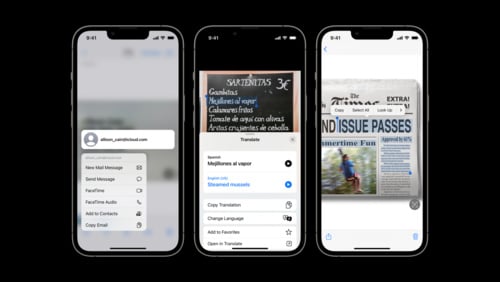
Live Text is a feature on iPhone that allows users to perform actions with text in photos and screenshots. Users can select, copy, and even translate this text across various applications. It works within the camera frame, offering immediate interaction with any text the lens captures.
To use Live Text, a user points their device’s camera at an image that contains text. From there, they can take actions like placing a call if the text is a phone number, or converting currency if it displays prices. Live Text has made it simpler to capture and interact with information in the real world without the need to manually input data.
The tool has become popular for its ease of use and practicality, extending to other actions like sending emails. It has proven to be a valuable addition to iOS, with support for multiple languages and integration into a range of apps, including Notes and Reminders.
What Is Live Text?
Live Text is an Apple feature that lets your iPhone, iPad, or Mac recognize text inside photos, videos, and images. Instead of just looking at text in a picture, you can interact with it: copy it, translate it, search it, or even take quick actions like calling a phone number or opening a website.
How Live Text Works
Live Text uses on-device intelligence to detect text in images, screenshots, Safari, and even paused video frames. Once detected, the text becomes selectable, just like regular typed text.
For example:
- If you take a photo of a business card, you can tap the phone number to call it.
- If you pause a video with a restaurant sign, you can copy the address and get directions in Maps.
- If you see a recipe in another language, you can translate it instantly.
Devices That Support Live Text
Live Text requires relatively recent Apple hardware and software:
- iPhone: iPhone XS, XR, or later with iOS 15 or newer.
- iPad: iPad mini (5th gen), iPad (8th gen), iPad Air (3rd gen), iPad Pro (all models with A12 Bionic or later).
- Mac: Any Mac running macOS Monterey or later with Apple Silicon (M1, M2, M3, etc.).
(source: Apple Support)
How to Use Live Text
- With the Camera App
- Open the Camera app and point it at text.
- A yellow frame appears around detected text.
- Tap the Live Text button to interact with it.
- In Photos or Videos
- Open a photo or pause a video where text appears.
- Tap and hold on the text to copy, translate, or share.
- In Safari and Other Apps
- Long-press on images containing text (like posters or menus).
- Use the context menu to copy or look up text.
What You Can Do With Live Text
- Copy & Paste – Move text from an image into Notes, Messages, or Mail.
- Call or Message – Tap a detected phone number to call or send a text.
- Open Links – Tap a detected URL to open it in Safari.
- Get Directions – Tap an address to open it in Maps.
- Translate – Instantly translate text into another language.
- Currency & Unit Conversions – Convert prices, weights, or measurements.
Tips for Best Results
- Ensure the text is clear and in focus.
- Good lighting improves recognition.
- Works best with printed text, though handwriting is supported in some cases.
- Update to the latest iOS, iPadOS, or macOS for the newest Live Text features.
Why Live Text Is Useful
Live Text saves time by turning static images into interactive information. Instead of typing out numbers, addresses, or notes manually, you can capture and use them instantly. It’s especially useful for:
- Students capturing notes from whiteboards.
- Travelers translating signs or menus.
- Professionals scanning documents or business cards.
👉 In short: Live Text turns your camera and photos into smart, interactive tools that make text actionable.
Key Takeaways
- Live Text enables interaction with text directly in photos or the camera view.
- It supports actions such as copying, sharing, and translating text.
- The feature integrates with multiple apps and is user-friendly.
Overview of Live Text
Live Text allows iPhone and iPad users to interact with text found within images. It’s a feature that changes how people use their cameras and photos to capture information.
Compatibility and Availability
Live Text works on devices with iOS 15 or later and iPadOS 16 or later. It requires an A12 Bionic chip, which means it’s available on the iPhone XS and newer models, including the iPad Pro from 2020. Users can find and use Live Text in the Camera and Photos apps on their devices.
Functional Capabilities
With Live Text, you can use your device’s camera to quickly capture text from the world around you. It lets you highlight, copy, and paste text from images. You can also look up information or translate text into other languages. This feature is deeply integrated into the Camera app, activating when you point your device at text.
Usage Scenarios
Imagine pointing your iPhone at a restaurant menu and using Live Text to highlight and translate an unfamiliar dish. Or think of snapping a photo of a whiteboard after a meeting and then easily copying the notes into an email. In these scenarios, Live Text proves to be a handy tool for quickly gathering and using written information from your everyday surroundings.





