
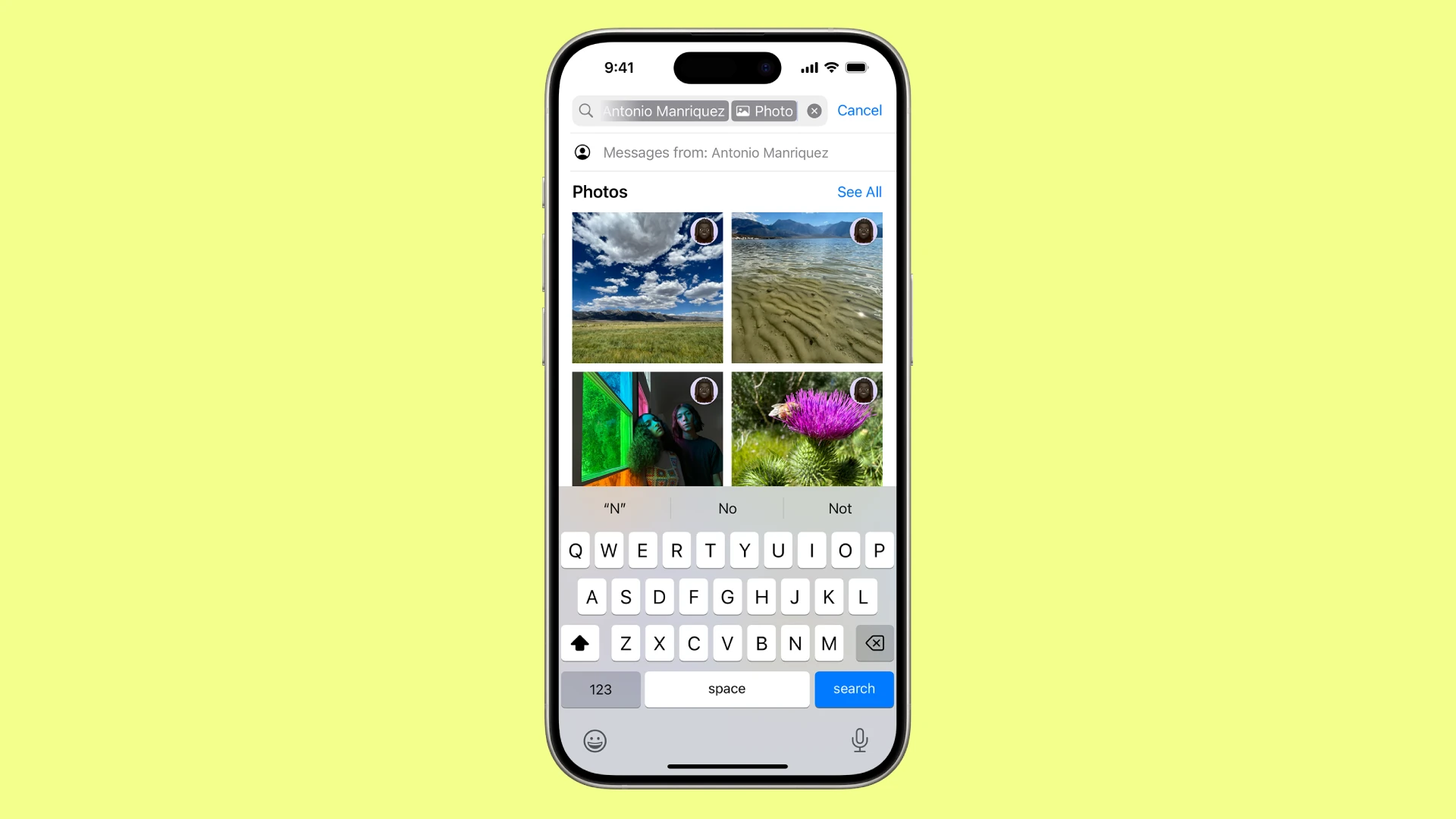
Having trouble with predictive text on your iPhone? Don’t worry; you’re not alone. Many iPhone users face issues with predictive text and auto-correction. To fix predictive text not working, check your iPhone’s keyboard settings and make sure Predictive and Auto-Correction are enabled. This simple step often resolves the problem.
If the issue persists, try turning the predictive text feature off and then back on. You can do this by going to Settings, selecting General, and then tapping Keyboard. It’s a quick way to reset the feature and can solve many problems instantly.
For more solutions, keep reading our detailed guide. It covers everything you need to know to get predictive text working again.
Guide: Predictive Text on iPhone Not Working
What is Predictive Text?
Predictive Text suggests words or emojis as you type on your iPhone keyboard, helping you write faster and with fewer errors.
Common Reasons Predictive Text May Not Work
- Predictive Text is disabled in settings
- Keyboard glitches or software bugs
- Language or keyboard settings mismatch
- Software update issues
- Interference from third-party keyboards
How to Fix Predictive Text on iPhone
1. Ensure Predictive Text is Enabled
- Go to Settings > General > Keyboard.
- Toggle Predictive to On (green).
- If the option is greyed out, try restarting your iPhone and check again.
2. Restart Your iPhone
- Sometimes a simple restart fixes temporary glitches.
- Hold the side button and volume button (or just the side button depending on model) until the power off slider appears.
- Slide to power off, wait 30 seconds, then turn your iPhone back on.
3. Check Keyboard Language and Layout
- Go to Settings > General > Keyboard > Keyboards.
- Make sure your desired keyboard language is added (e.g., English).
- Predictive text may not work if the keyboard language doesn’t support it.
4. Reset Keyboard Dictionary
- Go to Settings > General > Transfer or Reset iPhone > Reset > Reset Keyboard Dictionary.
- This removes custom words and might fix predictive text issues.
5. Update iOS to the Latest Version
- Go to Settings > General > Software Update.
- Install any available updates, as bugs affecting predictive text may be fixed.
6. Disable and Re-enable Predictive Text
- Toggle Predictive off and then back on in Settings > General > Keyboard.
7. Remove and Re-add Keyboards
- Go to Settings > General > Keyboard > Keyboards.
- Tap Edit, remove the keyboard(s), then add them back.
8. Check for Third-Party Keyboard Interference
- If you use third-party keyboards, predictive text might not work properly.
- Switch to the default Apple keyboard to test.
9. Reset All Settings (Last Resort)
- Go to Settings > General > Transfer or Reset iPhone > Reset > Reset All Settings.
- This resets preferences but does not delete your data. You’ll need to reconfigure Wi-Fi and other settings.
Additional Tips
- Predictive text works best with a stable internet connection for some languages.
- In Messages, sometimes location or context-based suggestions appear, so try typing common phrases.
References
- Apple Support: Use predictive text on iPhone
- Apple Community Discussions on predictive text issues
If you follow these steps, you should be able to resolve most issues with predictive text not working on your iPhone. If problems persist, contacting Apple Support or visiting an Apple Store may be necessary.
Key Takeaways
- Ensure Predictive and Auto-Correction are enabled in Keyboard settings.
- Turn predictive text off and on again if it stops working.
- Follow simple steps to troubleshoot and resolve the issue.
Diagnosing Predictive Text Issues
Having trouble with predictive text on your iPhone can be frustrating. Below are steps to figure out what’s wrong and fix the problem.
Assessing Keyboard Functionality
First, check if your keyboard is working fine. Open the Settings App, navigate to General, and tap on Keyboards. Make sure that Predictive is turned on.
Next, check for any third-party keyboards. Switch to the default iOS keyboard in Settings. Sometimes, third-party keyboards can cause compatibility issues.
Try typing in different apps like Messages or Safari. If predictive text works in some apps but not others, the problem may be app-specific.
Identifying System-Wide Problems
System problems can also affect predictive text. Begin by updating to the latest iOS version through Settings > General > Software Update.
Another method is to reset the keyboard dictionary. Go to Settings > General > Reset, then choose Reset Keyboard Dictionary. This clears any custom words that might be causing issues.
Consider a more extensive system reset if problems persist. Tap Reset All Settings in the Reset menu. This option won’t delete your data but will reset system settings like Wi-Fi passwords and wallpaper.
Analyzing Auto-Correction and Text Replacement Settings
Check both Auto-Correction and Text Replacement settings within the keyboard settings. Auto-Correction can sometimes interfere with predictive text. You can disable it temporarily to see if that resolves the issue.
Navigate to Settings > General > Keyboard, then turn off Auto-Correction.
For Text Replacement, look through your shortcuts for any misentered text. Remove or correct any issues. Each text replacement entry has a Phrase field and a Shortcut field. Ensure both fields are correctly filled out.
If all else fails, seek help from Apple Support for more specialized advice.
By checking these settings, you can diagnose and fix most predictive text issues quickly.





