
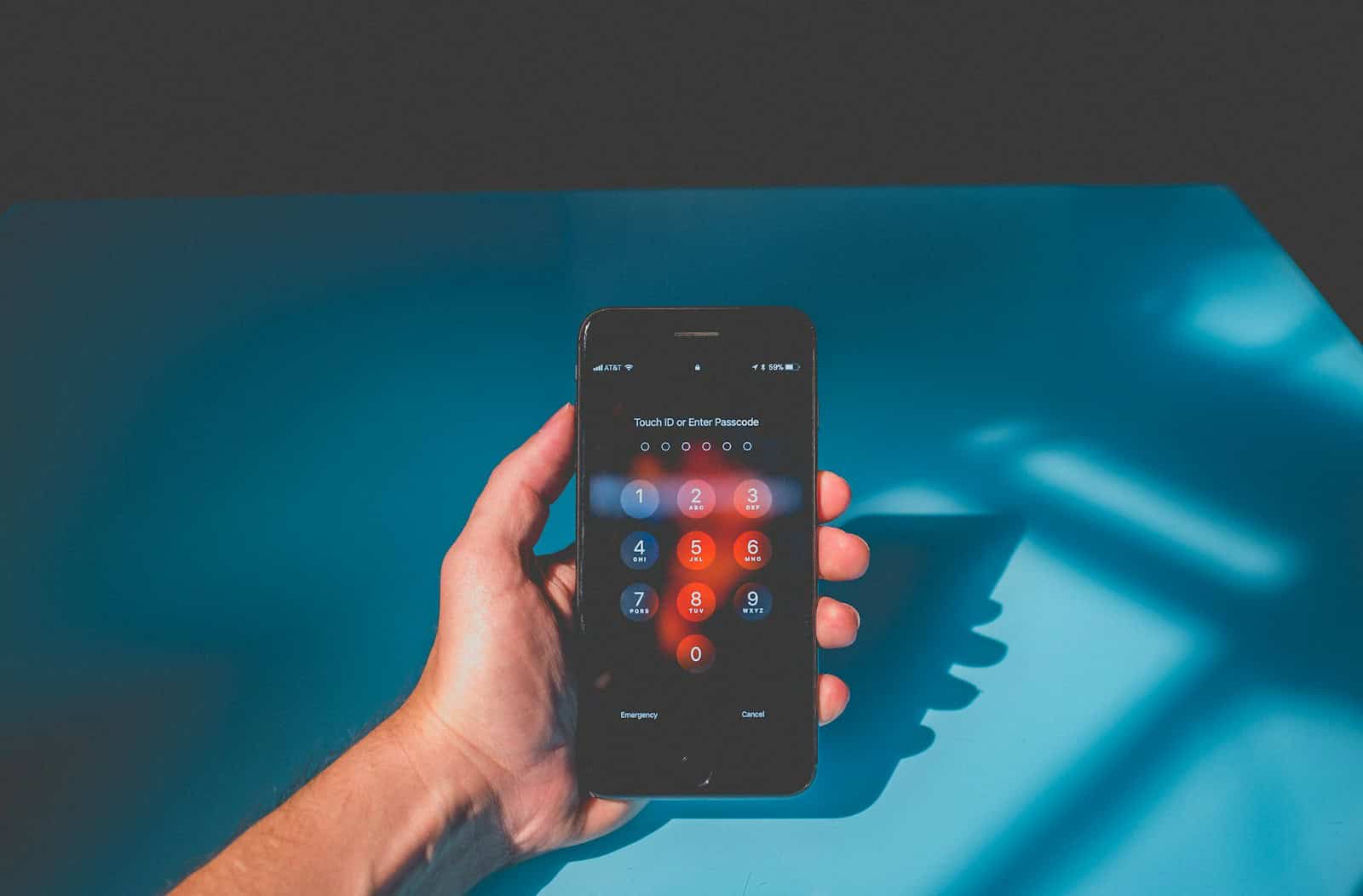
Experiencing issues with your iPhone not accepting your passcode can be very frustrating. If your iPhone doesn’t recognize your passcode, a few quick steps may help resolve the issue. First, try a force restart. This can sometimes clear any software bugs causing the issue. Ensure your phone battery is fully charged to avoid interruptions during troubleshooting.
It’s important to check that you’re entering the correct passcode. Sometimes, a simple mistake in key input can lock you out. If you’re certain the passcode is correct and your iPhone still won’t unlock, the final course of action may be to restore the device using iTunes or your Mac. This will reset the device and allow you to set a new passcode in the settings.
Another solution is to try using a backup if you’ve previously synced to iCloud or a computer. This method ensures you don’t lose important data. Restoring from a backup can sometimes fix issues related to passcode recognition errors and get your device back to normal.
My iPhone Won’t Accept My Passcode: What to Do
If your iPhone suddenly won’t accept your passcode, don’t panic. This is a common issue and usually fixable. Below is a complete guide to help you understand why it’s happening and what steps you can take to regain access.
Common Reasons Your iPhone Won’t Accept the Passcode
Before jumping into fixes, it helps to know why this might be happening:
- Incorrect passcode (easy to mistype, especially after updates)
- Recently changed passcode that you might not fully remember
- iOS update glitch causing temporary issues
- Touchscreen problems leading to wrong digit input
- Face ID / Touch ID confusion after multiple failed attempts
- iPhone disabled after too many incorrect tries
Step 1: Double‑Check the Passcode
It sounds obvious, but this step matters.
- Make sure you’re entering the current passcode, not an old one.
- Enter the code slowly and carefully.
- Clean the screen to ensure the digits register correctly.
- If you use a longer alphanumeric passcode, check capitalization and symbols.
Tip: If you recently updated iOS or restored from a backup, your old passcode may no longer work.
Step 2: Wait If Your iPhone Is Temporarily Disabled
After several incorrect attempts, you may see:
- “iPhone Unavailable” or
- “iPhone is disabled. Try again in X minutes.”
✅ Wait the full time shown on the screen before trying again.
❌ Do not keep guessing — this can permanently lock the device.
Step 3: Restart Your iPhone
A simple restart can sometimes resolve passcode recognition issues.
To restart:
- iPhone X or later: Hold Side button + Volume button, then slide to power off.
- iPhone 8 or earlier: Hold the Power button, then slide to power off.
Wait 30 seconds, turn it back on, and try the passcode again.
Step 4: Use Face ID or Touch ID (If Available)
If your device still allows biometric access:
- Try unlocking with Face ID or Touch ID
- Once inside, you can change or reset your passcode:
- Settings → Face ID & Passcode → Change Passcode
⚠️ Note: After a restart or multiple failed attempts, biometrics may be disabled temporarily.
Step 5: Unlock Using a Computer (Data May Be Erased)
If nothing works, you’ll need to reset the iPhone, which erases the device but lets you regain access.
Option A: Use iCloud (Find My iPhone)
Requirements:
- Find My iPhone enabled
- Apple ID credentials
- Internet connection
Steps:
- Go to icloud.com/find
- Sign in with your Apple ID
- Select your iPhone
- Choose Erase iPhone
- Set it up again and restore from a backup
Option B: Use a Computer (Recovery Mode)
Requirements:
- Mac or Windows PC
- USB cable
Steps:
- Connect iPhone to computer
- Put the iPhone into Recovery Mode
- (Button combination depends on model)
- When prompted, choose Restore
- Set up the iPhone and restore from backup
Step 6: Restore From a Backup
After resetting, you can recover your data if you have:
- An iCloud backup, or
- A computer (Finder/iTunes) backup
Without a backup, unfortunately, the data cannot be recovered.
When to Contact Apple Support
Contact Apple if:
- You’re certain the passcode is correct
- The screen isn’t responding properly
- The iPhone shows errors during restore
- Activation Lock prevents setup
Apple Support may verify ownership and help with next steps.
How to Avoid This in the Future
- Write down your passcode and store it securely
- Keep iCloud backups enabled
- Enable Face ID or Touch ID
- Avoid frequent passcode changes
- Make sure your Apple ID credentials are up to date
Key Takeaways
- Restart your iPhone and check your passcode entry.
- Restore your iPhone with iTunes or a Mac if issues persist.
- Use a backup to avoid data loss and fix passcode errors.
Troubleshooting Passcode Recognition Issues
This section will cover steps to verify your iPhone passcode and resolve software glitches or errors. You’ll learn how to identify and fix common problems with passcode recognition.
Verifying Your iPhone Passcode and iOS Version
First, it’s critical to confirm that you’re entering the correct passcode. The iPhone passcode is case-sensitive and must match exactly. If you’ve changed your passcode recently, try to remember if you made any modifications.
Check your iOS version: Sometimes, using an outdated iOS version can lead to software issues. Navigate to Settings > General > Software Update. Make sure your device runs the latest iOS version, like iOS 17. Update if necessary. This can solve compatibility issues with the passcode feature.
Face ID and Touch ID: If you’re using Face ID or Touch ID, ensure these features haven’t been disabled. To check, go to Settings > Face ID & Passcode (or Touch ID & Passcode). Ensure they are set up correctly and reconfigure if needed.
Resolving Software Glitches and Errors
Often, software glitches cause the iPhone to not accept the passcode. A force restart can resolve minor software errors.
Force restart your iPhone: For iPhone 8 or later, press and release the Volume Up button, then Volume Down. Hold the Side button until the Apple logo appears. For iPhone 7, press and hold both the Volume Down and Side buttons until the Apple logo appears. For iPhone 6s or earlier, hold the Home and Side buttons.
Restore your iPhone using iTunes: If restarting doesn’t help, connecting your iPhone to a computer and restoring it might fix deeper issues. Open iTunes on the computer (Mac or PC). Connect your iPhone and follow the on-screen instructions to restore it. This process will reset your device to factory settings, so ensure your data is backed up.
Recovery mode: If normal restoration fails, use recovery mode. Connect your iPhone to a computer and open iTunes. While connected, force restart the phone as mentioned before, but keep holding the buttons even when the Apple logo appears. Release them when you see the recovery mode screen. Then, choose the option to Update or Restore.
Factory reset via iCloud: If you can’t access a computer, use another Apple device to reset via iCloud. Log into iCloud with your Apple ID and select your iPhone. Choose Erase iPhone to reset it remotely.
Following these steps should help resolve most passcode recognition issues on your iPhone.





