
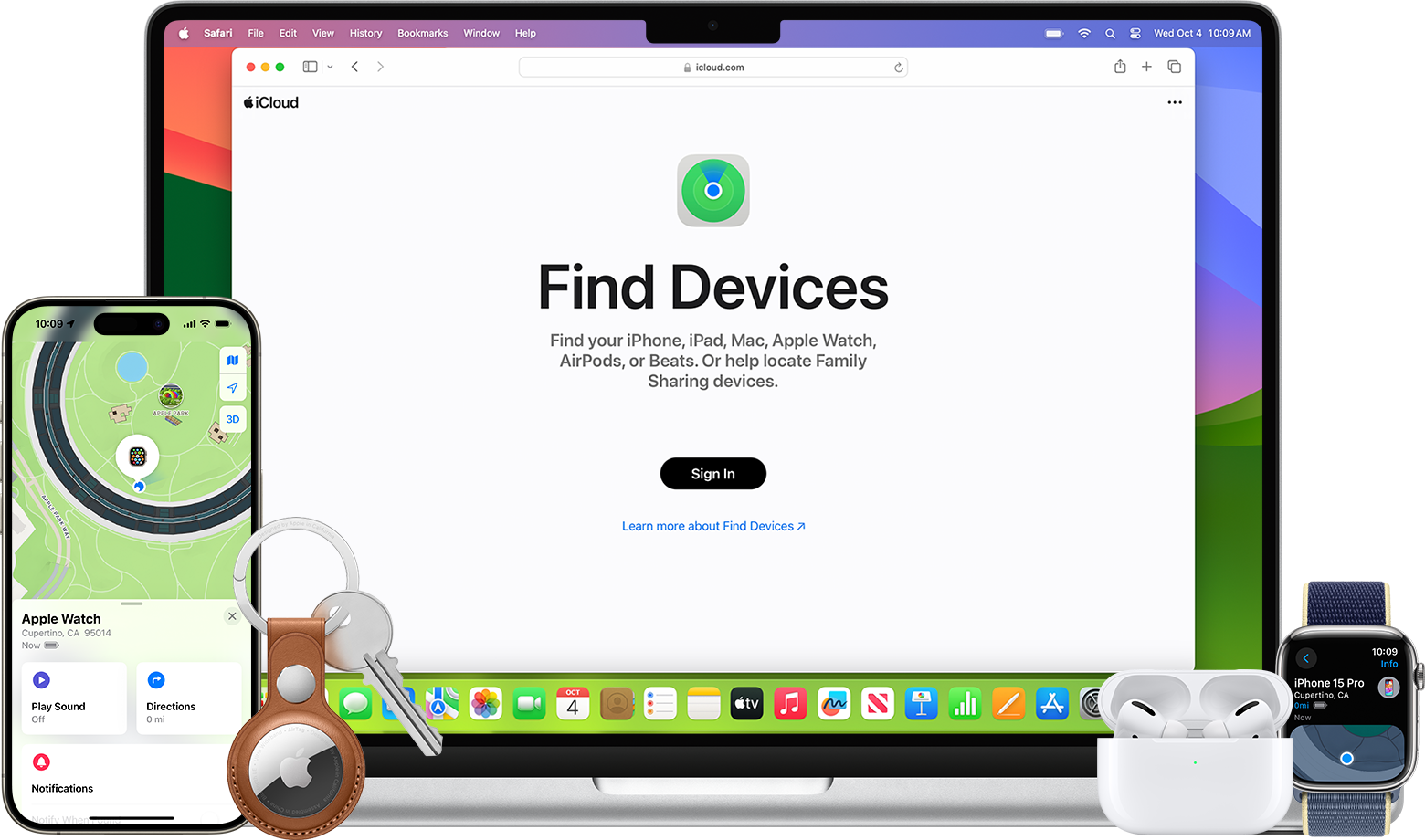
Accidents happen, and sometimes phones break. Knowing how to turn off “Find My iPhone” on a broken phone can help you protect your privacy. The simplest way to do this is through iCloud. You can remove the device from your account even if it no longer powers on.
First, visit iCloud.com and sign in with your Apple ID. From there, select “All Devices” to find the broken device. Click on your device and select “Remove from Account.” This process will also erase the device, ensuring that any sensitive information is wiped clean.
For those using older iOS versions, the steps are slightly different. Open the Settings app, tap your name, and navigate to “Find My iPhone.” Enter your Apple ID password when prompted, and the feature will be turned off. This method is useful when preparing the device for repair or trade-in, protecting your data and privacy.

✅ Method 1: Use iCloud on a Computer or Another Device
- Go to iCloud.com and log in with your Apple ID.
- Click Find iPhone.
- Select All Devices at the top of the screen.
- Choose your broken iPhone from the list.
- Click Erase iPhone (this deletes all data).
- Once erased, click Remove from Account to disable Find My iPhone.
This is the most reliable method if the phone is completely unusable.
(Source: FoneGeek)
✅ Method 2: Use the Find My App on Another Apple Device
If you own another Apple device (iPad, Mac, or another iPhone):
- Open the Find My app.
- Sign in with your Apple ID (if not already).
- Tap Devices.
- Select your broken iPhone.
- Scroll down and choose Erase This Device → then Remove from Account.
✅ Method 3: Contact Apple Support (If You Can’t Access iCloud)
If you don’t have access to another device or iCloud, Apple Support can help. You’ll need:
- Proof of purchase (receipt or invoice).
- Your Apple ID details.
Visit Apple Support or go to an Apple Store.
⚠️ Important Notes
- Apple ID & Password Required: You cannot disable Find My iPhone without your Apple ID. This is part of Apple’s Activation Lock security.
- Back Up First (If Possible): If the phone still powers on and you can connect via computer, back up your data before erasing.
- Stolen Device Protection (iOS 17.3+): If enabled, you may need to wait for a security delay before changes take effect (source: SlashGear).
📝 Quick Summary
- Use iCloud.com or the Find My app to erase and remove your broken iPhone.
- If you can’t, contact Apple Support with proof of purchase.
- You must know your Apple ID and password to complete the process.
Key Takeaways
- Remove the broken phone from iCloud under “All Devices.”
- Use older iOS versions’ settings to turn off the feature.
- Ensure the device is erased to protect your data.
Deactivating Find My iPhone on a Broken Device
To turn off Find My iPhone on a broken phone, you have two main options. You can do it remotely via iCloud.com or get help from Apple Support.
Remote Actions via iCloud.com
If your iPhone is unusable, you can still turn off Find My iPhone using iCloud.com. Log in with your Apple ID and password. Select All Devices at the top of the screen. Find your iPhone in the list and click on it.
Click Erase iPhone. This will delete all data on the phone. If the phone is offline, the erasure will happen the next time it goes online. After the wipe, select Remove from Account. This deactivates Find My iPhone and disconnects the device from your account.
Assistance from Apple Support
Reach out to Apple Support if iCloud.com is not an option. You may need to provide proof of purchase to verify you own the device. Apple Support can assist in remotely deactivating Find My iPhone if the device’s status can be confirmed.
In some cases, if the phone is severely damaged, visiting an Apple Store may be necessary. Apple Support Technicians can help with the process and provide steps to unlock and remove the device from your account. Visit the Apple Support Communities for more tips from other users who have faced similar issues.





