
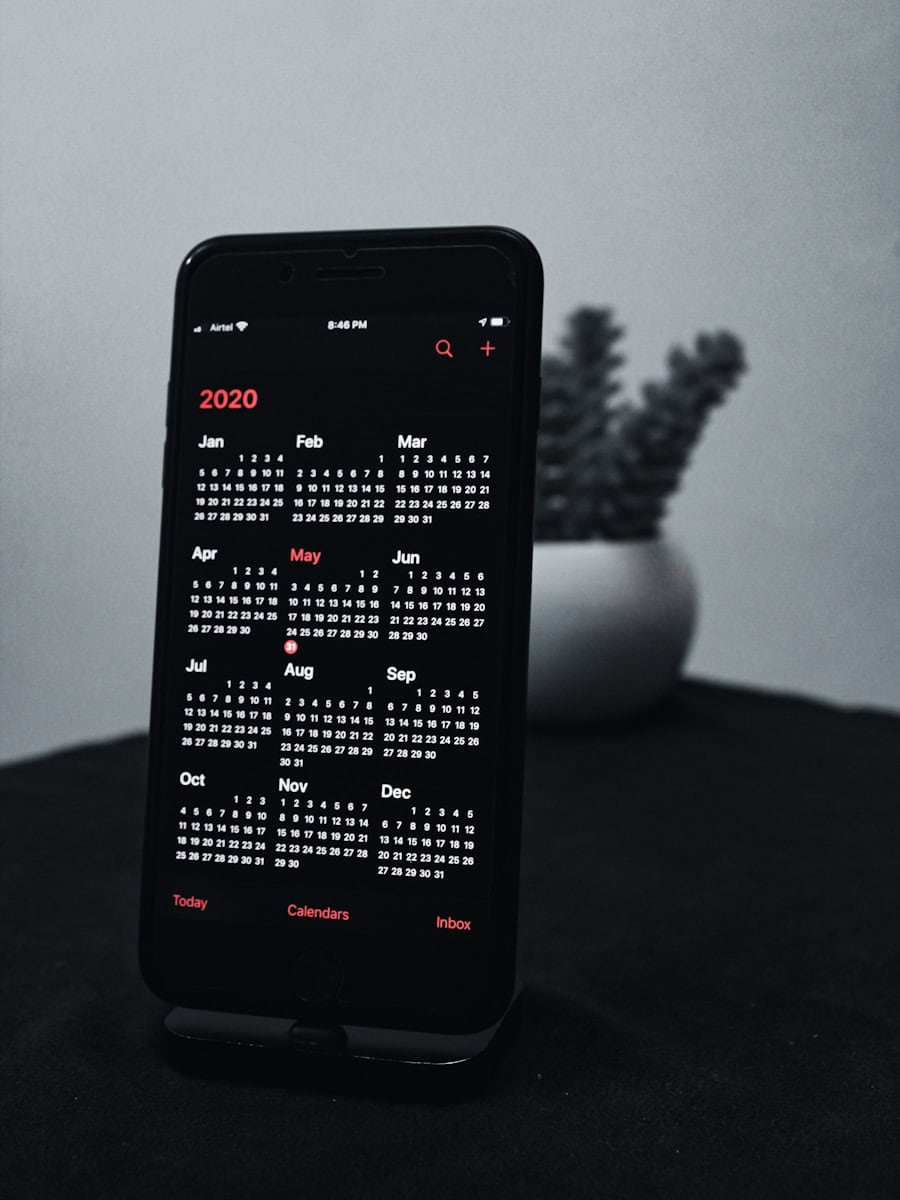
Want to clean up your iPhone’s calendar? This guide shows you how to delete a calendar on your iPhone step-by-step. Deleting a calendar on your iPhone removes all events tied to it. Whether the calendar is for work, school, or personal use, saying goodbye to it is easier than you think.
So why delete a calendar? Maybe you have outdated calendars cluttering the app. Or perhaps you want to remove shared calendars that no longer serve a purpose. Whatever the reason, knowing the steps can save you time and keep your schedule organized.
To get started, tap the Calendars button in the Calendar app. From there, find the calendar you want to delete, tap the little “i” icon next to it, then scroll down and choose Delete Calendar. Confirm your choice and it’s gone. Simple as that.
How to Delete a Calendar on iPhone
If your iPhone’s Calendar app is cluttered with old, duplicate, or unwanted calendars, you can easily remove them. Whether it’s an iCloud calendar, a subscribed one, or a third-party calendar (like Google or Outlook), here’s how to delete or unsubscribe safely.
🔍 Before You Begin
Make sure:
- Your iPhone is updated to the latest version of iOS.
- You know which calendar you want to remove (deleting a calendar permanently removes all its events).
- If the calendar is synced from another account (Google, Outlook, etc.), you may need to remove it from Settings → Accounts instead.
🧭 Option 1: Delete an iCloud or Local Calendar
- Open the Calendar app on your iPhone.
- Tap Calendars at the bottom of the screen.
- Find the calendar you want to delete.
- Tap the ⓘ (info) button next to it.
- Scroll down and tap Delete Calendar.
- Confirm when prompted.
✅ Result: The calendar and all its events are permanently removed from your iPhone and iCloud (if synced).
(Source: Apple Support)
🌐 Option 2: Unsubscribe from a Shared or Subscribed Calendar
If you’ve subscribed to a public holiday, sports, or spam calendar, you can unsubscribe instead of deleting:
- Open the Calendar app.
- Tap Calendars at the bottom.
- Tap the ⓘ (info) button next to the subscribed calendar.
- Tap Delete Calendar or Unsubscribe.
- Confirm your choice.
✅ Result: You’ll no longer see events from that shared or subscribed calendar.
(Source: Guiding Tech)
⚙️ Option 3: Remove a Calendar from an Email Account (Google, Outlook, etc.)
If your calendar is synced through an external account:
- Go to Settings → Calendar → Accounts.
- Tap the account (e.g., Gmail, Outlook, Yahoo).
- Toggle off Calendars to stop syncing events.
- Or tap Delete Account to remove it completely from your iPhone.
✅ Result: All calendars and events from that account will disappear from the Calendar app.
(Source: How-To Geek)
🧼 Option 4: Hide a Calendar (Without Deleting It)
If you want to temporarily hide a calendar instead of deleting it:
- Open the Calendar app.
- Tap Calendars.
- Uncheck the calendar you want to hide.
✅ Result: The calendar is hidden from view but can be re-enabled anytime.
(Source: Guiding Tech)
⚠️ Important Notes
- Deleting a calendar cannot be undone — all events in that calendar are lost.
- Shared calendars will be removed from your view but remain for others.
- If you’re seeing spam events, report them by tapping Report Junk instead of deleting manually.
🧾 Summary
| Type of Calendar | Action | Result |
|---|---|---|
| iCloud or Local | Delete via Calendar app | Permanently removed |
| Subscribed | Unsubscribe | Stops showing events |
| Google/Outlook | Disable via Settings → Accounts | Removes synced events |
| Hidden | Uncheck in Calendar list | Temporarily hidden |
✅ Final Thoughts
Deleting or unsubscribing from unwanted calendars keeps your iPhone’s Calendar app organized and clutter-free. Always double-check before deleting to avoid losing important events.
For more details, visit the official Apple guide: Delete calendars and events on iPhone – Apple Support.
Key Takeaways
- Deleting a calendar removes all associated events.
- Clean up outdated or unnecessary calendars.
- Use the Calendar app to find and delete calendars easily.
Removing Calendars on Your iPhone
Deleting a calendar on your iPhone helps manage your events better and removes any unwanted entries. Here’s how to handle different types of calendars from subscribed ones to those synced with other accounts.
Deleting a Subscribed Calendar
Subscribed calendars are those you’ve added from external sources.
Steps to Remove Subscribed Calendars:
- Open the Settings app.
- Scroll down and tap on Calendar.
- Tap Accounts.
- Choose the account associated with the calendar you want to remove.
- Tap Delete Account if you want to remove all data from that account. To just delete the calendar, tap the calendar name and then Delete Calendar.
Verify that this removes all events linked with this calendar. If there’s an option to unsubscribe, use it to stop receiving future updates.
Managing Calendars Synced with iCloud and Other Accounts
Calendars can be synced from iCloud, Google, or other services.
Steps to Manage Synced Calendars:
- Open the Settings app.
- Tap on Calendar.
- Select Accounts.
- Choose the account type such as iCloud, Google, or another service.
- For iCloud, toggle off Calendars to stop syncing. For other services, select the account and then turn off Calendars or remove the account by tapping Delete Account.
Confirm your actions to avoid losing events or important dates. This helps keep your Calendar app organized without clutter.
Handling Spam and Unwanted Calendar Events
Spam calendar events often come from unknown or unwanted subscriptions.
Steps to Remove Spam Events:
- Open the Calendar app and tap on Calendars at the bottom of the screen.
- Look for suspicious or unknown calendars.
- Tap the Info button (small “i”) next to these calendars.
- Scroll down and tap Delete Calendar.
If spam persists:
- Go to Settings.
- Tap Calendar > Accounts.
- Check for unfamiliar accounts or subscriptions and remove them.
Report spam to Apple if needed. Decline invites from unknown sources to avoid phishing and keep your calendar clean.





