
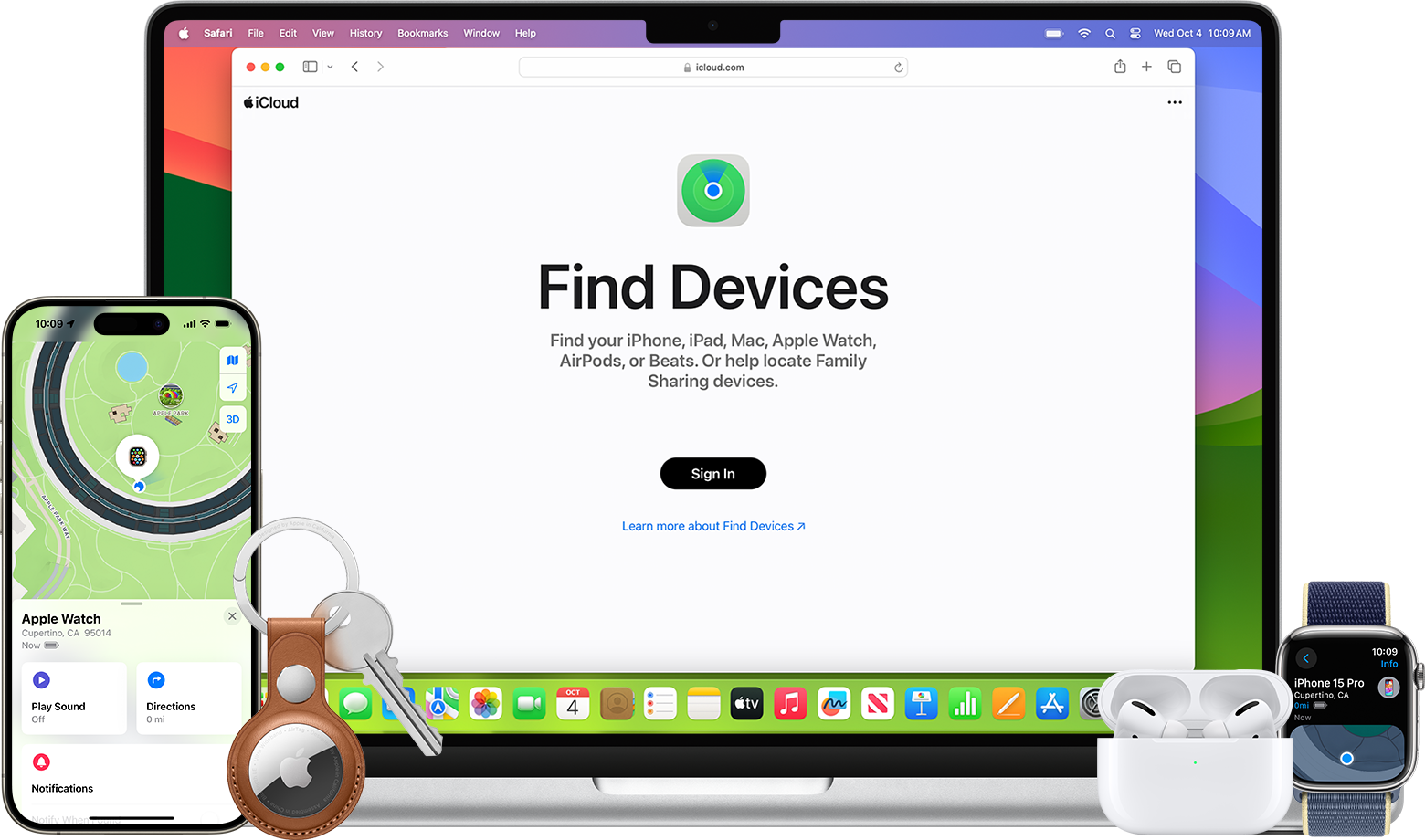
It can be frustrating when “Find My iPhone” shows the wrong location. There are a few common reasons this could happen. Often, it is because of outdated software or location settings.
You might also run into this issue if Location Services is off or not working correctly. Sometimes, a quick fix like updating the software or restarting the device can help.
In other cases, incorrect settings in the app or family sharing features cause the problem. Simple steps like refreshing the app or toggling Airplane Mode can often correct these errors.
Find My iPhone Showing Wrong Location? Here’s How to Fix It
If Find My iPhone is showing the wrong location, you’re not alone. Sometimes the app may display an outdated, inaccurate, or completely incorrect location due to GPS issues, poor connectivity, or incorrect settings.
Here’s a step-by-step guide to understanding why this happens — and how to fix it.
Why Is Find My iPhone Showing the Wrong Location?
Several common issues can cause inaccurate tracking:
- Weak GPS signal
- Poor Wi‑Fi or cellular connection
- Location Services turned off
- Incorrect date & time settings
- The device being offline
- Someone sharing location from another device
- Apple system outages
Before assuming the worst, try the fixes below.
✅ 1. Make Sure Location Services Are Enabled
If Location Services are disabled, Find My cannot update accurately.
Check this:
- Open Settings
- Tap Privacy & Security
- Tap Location Services
- Make sure it’s ON
- Scroll down and tap Find My
- Select While Using the App or Always
- Turn on Precise Location
Precise Location significantly improves accuracy.
✅ 2. Check Internet Connection
Find My needs an active internet connection.
- Turn Wi‑Fi off and back on
- Toggle Airplane Mode on and off
- Switch between Wi‑Fi and mobile data
- Restart the device
If the phone is offline, the location shown may be the last known location, not the current one.
✅ 3. Restart the iPhone
A simple restart can fix temporary GPS glitches.
To restart:
- Press and hold Side button + Volume button
- Slide to power off
- Wait 30 seconds
- Turn it back on
This refreshes GPS, network, and system services.
✅ 4. Enable “Set Automatically” for Date & Time
Incorrect time settings can affect location accuracy.
- Go to Settings
- Tap General
- Tap Date & Time
- Enable Set Automatically
✅ 5. Check Which Device Is Sharing Location
If the wrong location appears under your name, you might be sharing from another Apple device (like an iPad or Mac).
To check:
- Open Settings
- Tap your Apple ID (your name)
- Tap Find My
- Check “My Location”
- Make sure it says This Device
If not, select the correct device.
✅ 6. Refresh Location in the Find My App
Sometimes the app needs a manual refresh.
- Open Find My
- Tap Devices
- Select the device
- Swipe down to refresh
Wait a few seconds for the location to update.
✅ 7. Update iOS
Outdated software can cause bugs.
- Go to Settings
- Tap General
- Tap Software Update
- Install any available updates
Apple often fixes GPS and tracking bugs in updates.
✅ 8. Reset Location & Privacy Settings
If nothing works, reset your location settings.
⚠️ This won’t delete data, but it resets permissions.
- Open Settings
- Tap General
- Tap Transfer or Reset iPhone
- Tap Reset
- Select Reset Location & Privacy
You’ll need to re-enable permissions for apps.
What If Someone Else’s iPhone Shows the Wrong Location?
If you’re tracking a friend or family member:
- Ask them to check their Location Services
- Confirm they have internet access
- Make sure they didn’t disable “Share My Location”
- Verify they’re sharing from the correct device
Also remember: if their phone is off or dead, you’ll only see the last recorded location.
Why Is the Location Jumping Around?
If the map location appears to move randomly:
- The device may be indoors (GPS interference)
- The signal may be weak
- The phone could be switching between Wi‑Fi networks
- Cellular triangulation may be less accurate than GPS
Location can be off by:
- 10–20 feet (normal)
- 100+ feet in weak signal areas
How Accurate Is Find My iPhone?
Under ideal conditions:
- GPS accuracy: 5–20 feet
Under poor conditions:
- Accuracy may drop significantly
- It may show nearby streets or buildings
Urban areas with tall buildings may cause “GPS drift.”
When to Be Concerned
You should investigate further if:
- Location updates stop completely
- The device shows a completely different city
- The device repeatedly goes offline
- You suspect someone turned off location intentionally
In theft situations:
- Enable Lost Mode
- Contact your carrier
- Consider filing a police report
Final Thoughts
If Find My iPhone is showing the wrong location, it’s usually caused by:
- Weak GPS
- Poor connectivity
- Incorrect settings
- Software glitches
In most cases, restarting the phone or checking Location Services fixes the issue quickly.
If problems persist after trying all troubleshooting steps, contacting Apple Support may be your next best option.
Accurate tracking depends on GPS, internet connectivity, and correct settings — so keeping those optimized ensures Find My works when you need it most.
Key Takeaways
- Outdated software can cause location errors
- Turning Location Services off and on may fix the issue
- Restarting the device or updating software may help
Understanding ‘Find My iPhone’ Location Issues
When “Find My iPhone” shows an incorrect location, it can cause stress and confusion. Addressing this issue requires looking at location accuracy, potential iOS anomalies, and crucial device settings.
Assessing Location Accuracy
Incorrect location data can come from various sources. The accuracy of the location depends on GPS, Wi-Fi, and cellular data. A weak GPS signal can distort the position. Using Wi-Fi helps because it triangulates the position using nearby networks. Lack of Wi-Fi access might lead to less accurate results. The iPhone may show a radius of uncertainty on the map, suggesting it can’t find an exact position.
Sometimes, the problem arises from the maps themselves. This can happen if the mapping data is outdated. Apps may also struggle if they rely on old information. Restarting the app or the device can often fix these minor glitches. Users should also check if other location-based apps report wrong locations as this can indicate a broader issue.
iOS System-Related Anomalies
An outdated iOS version can be a major factor in location errors. Regular software updates fix bugs and improve accuracy. Users should install iOS updates whenever they become available. Sometimes, updating the iOS can resolve strange location problems that a reset cannot fix. Another possible problem is a system glitch. To address this, tools like iOS System Recovery software can help restore proper function without deleting personal data.
Turning Airplane Mode on and off can reset connections and help improve accuracy. This quick reset can fix minor network issues. If problems persist, a thorough system check or professional diagnostics might be necessary. Tech support can provide more advanced solutions if these steps do not work.
Device Settings That Impact Location Services
Several settings can affect how accurately “Find My iPhone” reports locations. Location Services must be enabled for “Find My iPhone” to work correctly. Users can check this under Privacy settings. Settings like “Set Automatically” for Date & Time ensure the device syncs with correct time zones, which impacts location data. Make sure to also turn on “Send Last Location” for a final update when battery is low.
Sometimes, resetting Network Settings can fix problems. This option resets Wi-Fi networks and passwords, cellular settings, and VPN settings. All these steps can help improve the device’s ability to report the correct location. In extreme cases, a full reset of the device’s settings might be needed, but this should be a last resort.
These tips will make sure your iPhone gives the most accurate locations possible.





