
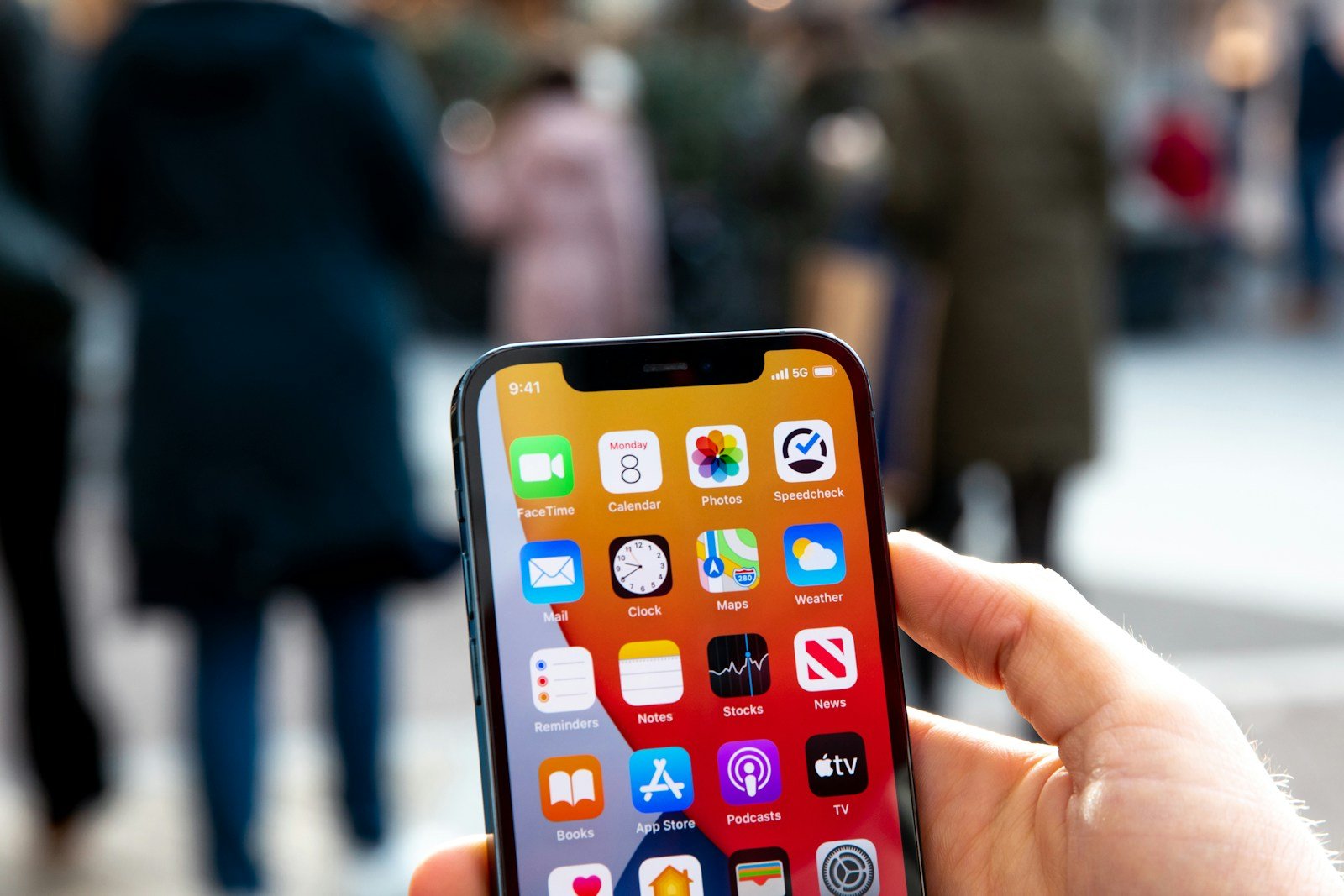
Customizing the Control Center on your iPhone adds a level of convenience that streamlines access to your most-used apps and settings. With a few taps, you can manage the tools and shortcuts available in this swipe-away panel. Whether you want to quickly start a new note, set a timer, or access your calculator, the ability to add shortcuts to your Control Center makes your phone more responsive to your daily needs. This functionality is integral for users who value efficiency and quick access to their device’s capabilities.
The Control Center on Apple devices is a feature designed with users in mind, offering a personalized experience. Users can reorder their shortcuts to match the flow of their tasks, ensuring the tools they need are always at their fingertips. By customizing this powerful panel, the iPhone becomes an even more useful tool in day-to-day activities, keeping important functions just a swipe away.
Adding Shortcuts to Control Center on iPhone
The Control Center on iPhone provides quick access to your most-used features and shortcuts. You can customize it by adding shortcuts to apps, tools, or specific actions, making your workflow faster and easier.
Step 1: Open Settings
- Unlock your iPhone and open the Settings app.
Step 2: Go to Control Center
- Scroll down and tap Control Center.
Step 3: Customize Controls
- Tap Customize Controls (on iOS 13 and earlier) or directly scroll to the list of controls (on iOS 14 and later).
- You’ll see two sections:
- Included Controls: Already in your Control Center.
- More Controls: Available controls you can add.
Step 4: Add Shortcuts
- To add a shortcut or control, tap the green + button next to it in the More Controls list.
- The shortcut will move to the Included Controls section.
Step 5: Rearrange Shortcuts (Optional)
- To reorder shortcuts, tap and hold the three horizontal lines next to a control and drag it up or down in the Included Controls list.
Step 6: Access Your Shortcuts in Control Center
- Swipe down from the top-right corner (on iPhone X and later) or swipe up from the bottom (on earlier models) to open Control Center.
- Your added shortcuts will now appear and be ready for quick access.
Adding Custom Shortcuts Created in the Shortcuts App
If you want to add a specific shortcut you created in the Shortcuts app to Control Center:
- Open the Shortcuts app.
- Tap the shortcut you want to add.
- Tap the three dots (…) to open shortcut details.
- Tap the Share icon.
- Select Add to Home Screen (for home screen) or use Add to Control Center if available via the shortcut settings.
- Alternatively, in Settings > Control Center, tap Customize Controls, then tap + next to Shortcuts to add the Shortcuts widget.
- From there, you can access your favorite shortcuts quickly.
Notes
- The ability to add specific custom shortcuts directly to Control Center is limited; however, adding the Shortcuts widget gives quick access to your favorite shortcuts.
- Available controls may vary depending on your iOS version.
By customizing your Control Center with shortcuts, you can improve productivity and access your favorite functions instantly (source: Apple Support, TechBloat).
Key Takeaways
- Personalizing the Control Center allows for quick access to frequently used apps.
- Users can organize their Control Center to align with their usage habits.
- Customization enhances the iPhone’s efficiency in performing daily tasks.
Understanding Control Center on Apple Devices
The Control Center on Apple devices gives users quick access to a variety of features and settings such as screen brightness, volume controls, and shortcuts to apps. It is a convenient tool designed to enhance the user experience on iPhones and iPads.
Accessing Control Center
On iPhones with a Home button like the iPhone 8 or earlier models, you swipe up from the bottom edge of the screen to access the Control Center. For iPhone X or newer models, as well as iPads running iOS 12 or later, swipe down from the top-right corner of the screen. This gesture brings the Control Center into view, allowing for quick changes to settings or enabling features without diving into the full Settings menu.
Basics of Customizing Control Center
Apple provides options to customize the Control Center so it fits the user’s needs. This includes adding or removing controls and shortcuts to frequently used features. Users can go to the Settings app and choose ‘Control Center’ to start customizing. Here, they can tap the “+” icon to add a feature or tap the “—” icon to remove it. Additionally, they can adjust the order of controls by touching and holding the three horizontal lines next to a control and then dragging it to a new position, allowing for a personalized experience.





