
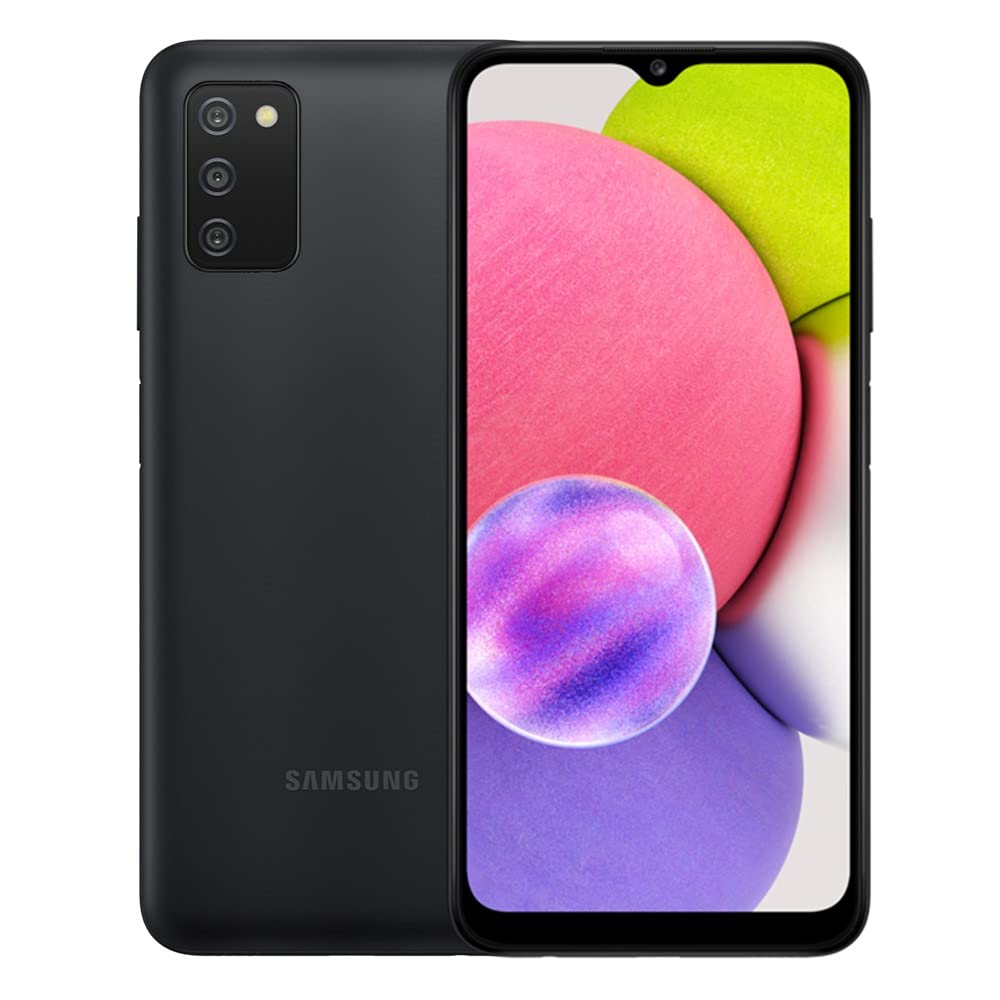
Capturing a screenshot on the Samsung Galaxy A03s is a simple process that users may need to learn for various purposes. Whether it’s to save an important message, record the details of a high score in a game, or keep a snippet of a web page for later reference, knowing how to take a screenshot is an essential skill for Galaxy A03s users. The Android 11 operating system on the device offers multiple ways to accomplish this task. It fits well within the daily use of the smartphone, making the process seamless for anyone.
Many users prefer a quick and easy method to take screenshots without having to navigate through multiple menus. The Samsung Galaxy A03s provides straightforward options to do just that. With features like hardware keys, palm swipe gestures, and the Assistant menu, users can capture the contents of their screen in a moment. Each option suits different scenarios, allowing users the flexibility to choose the method that fits their immediate need.
The convenience of taking a screenshot on the Galaxy A03s enhances the user’s experience as they interact with various applications on their device. The ease with which this function can be executed speaks to the smartphone’s user-friendly design. It ensures that users are only a couple of taps away from saving visual records of their digital interactions.
🧭 Method 1: Using Hardware Buttons (Quickest Way)
This is the most common and reliable method.
Steps:
- Open the screen you want to capture.
- Press and hold the Power (Side) button and Volume Down button together.
- Quickly release both buttons.
- You’ll see a brief flash and hear a shutter sound — this means the screenshot was taken successfully.
Tip:
- Don’t hold the buttons too long, or you’ll trigger the Power menu instead.
- The screenshot preview appears at the bottom of the screen — you can edit, share, or delete it immediately.
✋ Method 2: Using Palm Swipe Gesture
If you prefer a gesture-based method, you can use Palm Swipe to Capture.
Steps:
- Go to Settings → Advanced features → Motions and gestures.
- Turn on Palm swipe to capture.
- Open the screen you want to capture.
- Swipe the side of your hand across the screen (edge to edge).
Your phone will capture the screen automatically.
⚠️ Note: This feature may be turned off by default. If it doesn’t work, double-check that it’s enabled in Settings.
🗣️ Method 3: Using Google Assistant or Bixby Voice
You can also take hands-free screenshots using your voice.
With Google Assistant:
- Say “Hey Google, take a screenshot.”
- The assistant will capture your current screen.
With Bixby:
- Say “Hi Bixby, take a screenshot.”
- Bixby saves the screenshot automatically.
💡 You can combine this with other commands, like “Take a screenshot and share it on WhatsApp.”
🧩 Method 4: Using the Assistant Menu (Accessibility Option)
If your buttons don’t work properly, use the Assistant Menu.
Steps:
- Go to Settings → Accessibility → Interaction and dexterity.
- Turn on Assistant menu.
- A floating icon will appear on your screen.
- Tap the icon → Screenshots to capture your screen.
This method is especially useful if your hardware buttons are damaged.
📂 Where to Find Your Screenshots
All screenshots are automatically saved in:
- Gallery → Albums → Screenshots, or
- My Files → Internal Storage → DCIM → Screenshots
From there, you can edit, share, or upload them anywhere.
🛠️ Troubleshooting Tips
- Screenshot not working?
- Make sure you’re pressing the buttons simultaneously (not one after the other).
- Restart your phone if gestures or buttons stop responding.
- Check that your phone’s software is up to date: Settings → Software update → Download and install.
- Can’t screenshot a specific app?
- Some apps (like banking apps or streaming services) block screenshots for security reasons.
🧠 Summary
| Method | How It Works | Best For |
|---|---|---|
| Buttons | Power + Volume Down | Fast and reliable |
| Palm Swipe | Swipe hand across screen | Gesture lovers |
| Voice Command | “Hey Google, take a screenshot” | Hands-free use |
| Assistant Menu | On-screen button | Broken hardware |
✅ Final Thoughts
The Samsung Galaxy A03s makes taking screenshots simple.
The Power + Volume Down shortcut is the fastest method, but features like Palm Swipe or Voice Commands offer great flexibility.
Sources:
- ScreenshotGeek – How to Take a Screenshot on Samsung Galaxy A03s
- KnowYourMobile – How to Screenshot on Samsung Galaxy A03s
- Robots.net – How To Take Screenshot On Samsung Galaxy A03s
Key Takeaways
- The Samsung Galaxy A03s offers simple screenshot methods, suiting different user preferences.
- Screenshots can be taken using hardware keys, palm gestures, or the Assistant menu.
- The screenshot feature enhances user experience on the Android 11 equipped smartphone.
Taking Screenshots on Samsung Galaxy A03s
The Samsung Galaxy A03s offers several methods to take a screenshot, from hardware buttons to voice commands. These options cater to different user preferences and needs.
Using Hardware Buttons
To take a screenshot on the Samsung Galaxy A03s using hardware buttons, press and hold the Power Button and the Volume Down Button simultaneously. Release them when you see the screen flash, indicating that the capture was successful. The screenshot will then be available in the Gallery App.
Using Palm Swipe Gesture
The Palm Swipe gesture is an alternative method. First, make sure Palm Swipe to Capture is enabled in your phone’s settings under Motions and Gestures. Then, swipe the edge of your hand across the phone’s screen. The screen will flash, signaling that the screenshot was taken.
Using Advanced Features
Samsung Galaxy A03s comes with Advanced Features that include the Assistant Menu under Accessibility settings and the Edge Panel. The Assistant Menu provides an on-screen menu to take a screenshot. The Edge Panel, if enabled, allows for quick access to screen capture options.
Using Bixby or Google Assistant
For hands-free assistance, Bixby and Google Assistant can take a screenshot through voice commands. Say “Take a screenshot” after activating either service with “Hi Bixby” or “Ok Google”. This method is useful when you can’t physically use the phone.
Accessing and Sharing Screenshots
After capturing a screenshot, find it in the Gallery app. From there, you can share it on social media, send it to contacts, or edit it. Editing options include crop and drawing to add personal touches to your screenshots before sharing.
Taking a Scroll Capture
Scroll Capture is useful for taking a long screenshot of content that extends beyond the screen view. After taking a standard screenshot, tap the Scroll Capture option that appears. Keep tapping it to continue the screenshot capture down the page until you have all the content you need.





