
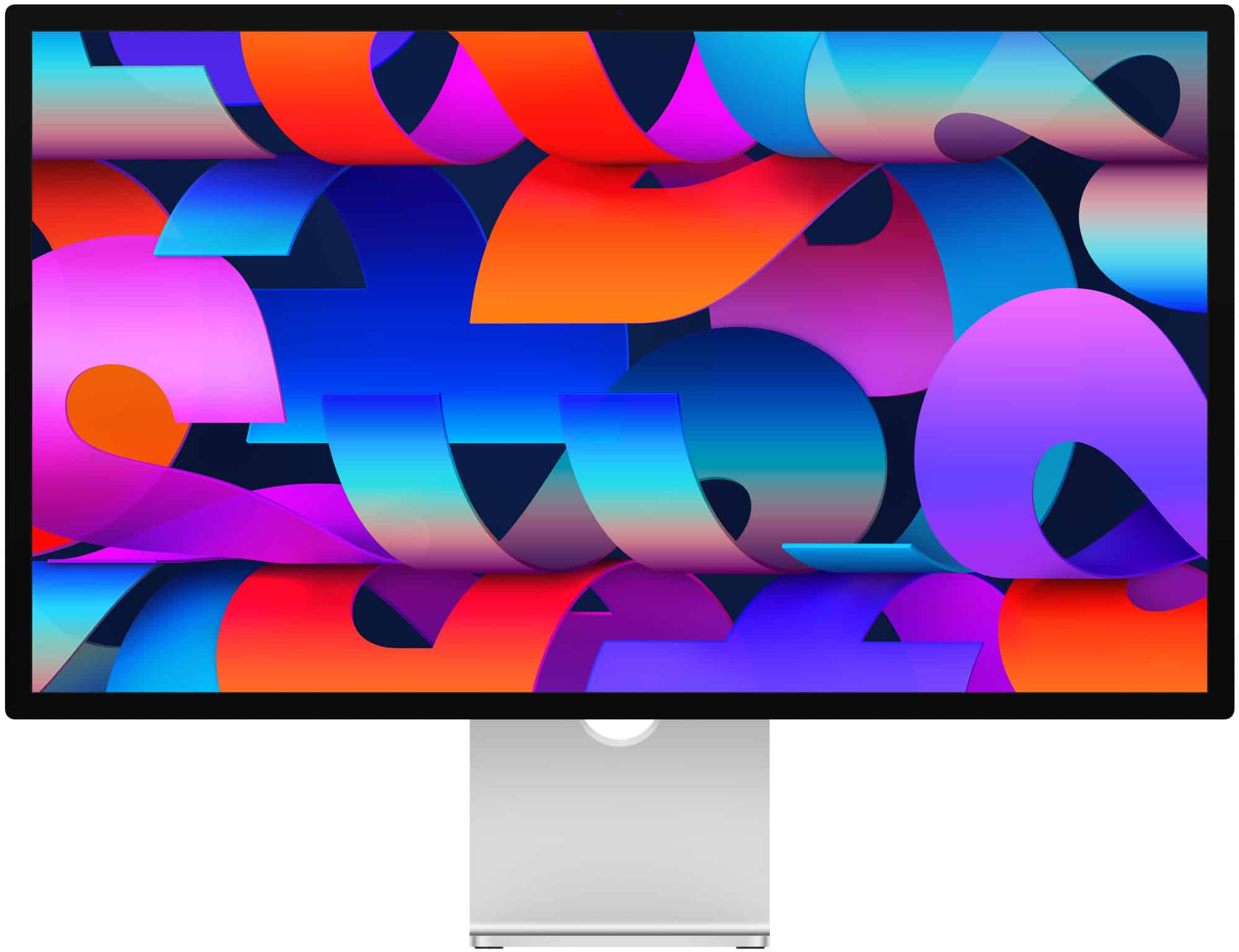
Apple regularly enhances its products with software updates to improve user experience. The Apple Studio Display is no exception. Users can update their display’s firmware through the System Settings on a Mac running macOS Sonoma or later versions. For updates using macOS Monterey, users navigate through System Preferences instead.
Updating the Apple Studio Display is straightforward. If an update is available, the user simply clicks “Update Now” to initiate the installation. Recent updates have introduced features like camera framing improvements and support for Boot Camp on Intel-based Macs, as well as general stability enhancements to the Studio Display’s performance.
Firmware updates can also add new functionalities to the Apple Studio Display, providing a more seamless integration with the Mac ecosystem. Such updates ensure that the display maintains compatibility with the latest Mac features and securities, ensuring a reliable and efficient experience for users.
Apple Studio Display Updates: A Complete Guide
Apple’s Studio Display has become a popular choice for Mac users who want a premium 5K monitor without stepping up to the much more expensive Pro Display XDR. Since its introduction, Apple has rolled out several updates—mostly software-based—that improve performance, compatibility, and everyday usability. This guide breaks down what’s changed, how updates work, and what users should expect going forward.
Overview of the Apple Studio Display
Before diving into updates, it helps to understand the basics:
- Display: 27-inch 5K Retina (5120 × 2880)
- Brightness: 600 nits
- Color: P3 wide color, True Tone
- Camera: 12MP Ultra Wide with Center Stage
- Audio: Six-speaker system with Spatial Audio
- Connectivity: Thunderbolt 3 + three USB‑C ports
Unlike most monitors, the Studio Display includes an A-series chip, which allows Apple to push firmware updates similar to iPhones and iPads.
How Apple Studio Display Updates Work
Apple Studio Display updates are delivered as part of macOS updates.
- Updates install automatically when your Mac is updated
- No manual firmware download is required
- The display must be connected via Thunderbolt
- The Mac must be running a compatible version of macOS
You can confirm your display’s firmware version by going to: System Settings → General → About → Displays
Major Apple Studio Display Updates So Far
1. Camera Quality Improvements
Initial Issue:
At launch, many users criticized the webcam for soft images and poor low-light performance.
Apple’s Response:
Apple released multiple firmware updates that:
- Improved noise reduction
- Enhanced contrast and color accuracy
- Refined Center Stage framing
While not equal to iPhone-quality cameras, the Studio Display camera is noticeably better after updates.
2. Center Stage Enhancements
Updates have refined how Center Stage works by:
- Smoother subject tracking
- Faster response when users move
- More natural framing during video calls
These improvements benefit apps like FaceTime, Zoom, and Microsoft Teams.
3. Audio Tuning Updates
Apple has also adjusted audio processing through firmware updates:
- Improved vocal clarity
- Better spatial separation
- More consistent volume levels
The six-speaker system now delivers more balanced sound, especially during video calls and media playback.
4. Stability and Bug Fixes
Ongoing updates have addressed:
- Display wake-from-sleep issues
- Occasional brightness or True Tone glitches
- Connectivity stability over Thunderbolt
These fixes have made the Studio Display more reliable for daily professional use.
macOS Compatibility and Update Requirements
To receive the latest Studio Display updates, you typically need:
- macOS Monterey or later (newer updates require newer macOS versions)
- A Mac with Thunderbolt connectivity
- Internet access during system updates
Older Macs may continue to work with the display but might not receive future firmware enhancements.
What Hasn’t Changed
Despite updates, some aspects remain the same:
- No ProMotion (still 60Hz)
- No HDR support
- Camera hardware remains unchanged
- No user-accessible firmware rollback
Updates focus on refinement rather than adding major new features.
Future Update Expectations
While Apple doesn’t publish a roadmap, future updates may include:
- Further camera processing improvements
- Enhanced macOS integration
- Continued stability and performance optimizations
Major new features are unlikely unless tied to new macOS releases.
Tips to Ensure You Get Updates
- Keep macOS up to date
- Use a direct Thunderbolt connection (avoid hubs during updates)
- Don’t disconnect the display during system updates
- Restart your Mac after updating
Final Thoughts
Apple Studio Display updates may not be flashy, but they’re important. Thanks to its built-in chip, the display continues to improve over time—particularly in camera performance, audio quality, and overall stability. For Mac users invested in Apple’s ecosystem, these ongoing updates help justify the Studio Display as a long-term, premium monitor choice.
If you already own one, staying current with macOS updates is the best way to ensure you’re getting the most out of your Apple Studio Display.
Key Takeaways
- Apple provides firmware updates to improve Studio Display features and stability.
- The update process is integrated into macOS, with accessibility from System Settings or System Preferences.
- Recent firmware updates enhance camera functions and ensure compatibility with the latest Mac features.
Apple Studio Display Firmware Enhancements
Apple Studio Display firmware updates enhance user experience and device performance. They include changes such as stability improvements, new features, and bug fixes.
Release Details and Installation
Apple provides firmware updates for its Studio Display with detailed release notes. Users can install the latest firmware by navigating to the Software Update section in their Mac’s System Settings. For macOS Monterey, the path is within System Preferences. Clicking ‘Update Now’ initiates the download and installation process, which may require a restart.
Performance and Stability Improvements
Updates often bring improvements to the stability of the display. This includes better graphics performance and responsiveness. Each firmware version is tested to ensure it provides a reliable experience for animations and video playback.
Feature Updates and Compatibility
Significant enhancements in firmware updates may include new features like in-field recalibration for color workflows or custom calibration profiles. Support for Boot Camp on Intel-based Macs and integration with macOS Sonoma are recent additions. Compatibility with various Apple devices like MacBooks, iPads, and iPhones is also improved with each update.
User Experience and Connectivity
Firmware updates enhance user-facing features such as Center Stage, which uses the Ultra Wide camera to keep users in view during video calls. Connectivity with monitors and external displays benefits from these updates which aim to streamline the user’s workflow.
Fixes and Known Issues
Updates may address audio issues, bugs involving the built-in webcam, or problems with app icons on the home screen. While firmware updates aim to fix known issues, release notes can also highlight any remaining known bugs users should be aware of.
Supporting Devices and Software
Apple releases firmware updates compatible with a range of devices, from MacBooks to the latest iPhone models. Each update includes information about supported devices and any necessary companion software updates, such as iOS or macOS versions.
Additional Software Integration
Firmware updates often come with enhanced functionality for software like the Pro Display Calibrator and other AI features. Apple ensures these updates align with current software tools available to users, making it a seamless integration experience.
Sales and Promotions
Around events like the Memorial Day sale, Apple may offer promotions on products such as refurbished iPhone models or discounts on new releases. These promotions are sometimes mentioned alongside firmware updates to attract users to both software improvements and hardware deals.
Technical Support and Resources
Apple provides technical support and resources for firmware updates. Users can access guides and help articles via Apple’s support website or consult resources like MacRumors for the latest update news, especially around key events such as the Worldwide Developers Conference (WWDC).





