
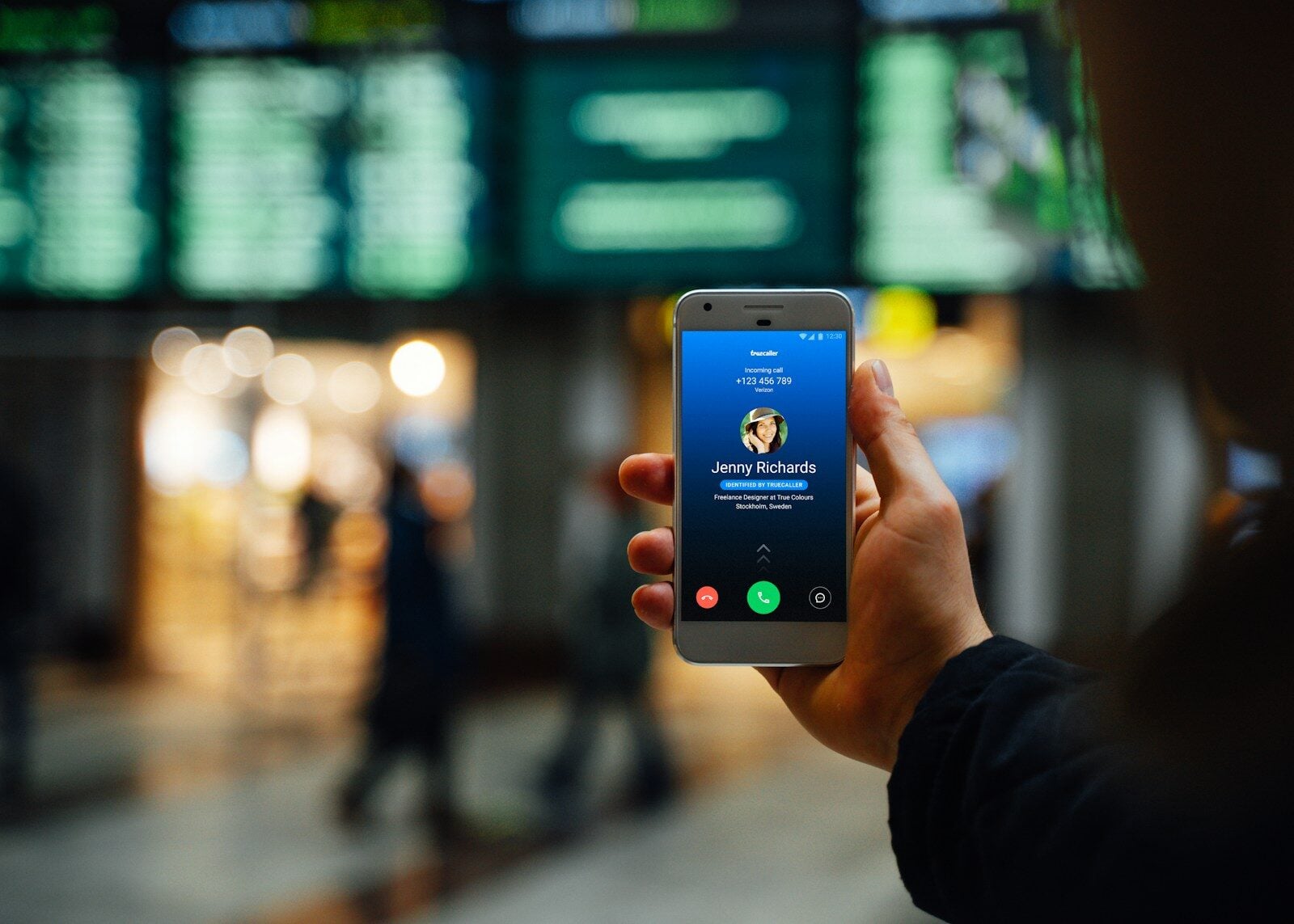
In an age where privacy concerns are on the rise, withholding your mobile number before making a call can provide an extra layer of security. When you withhold your number, it ensures that your caller ID is not visible to the recipient, allowing for anonymous calls. This can be crucial in various situations, such as when privacy is a necessity or when reaching out to unknown parties.
Withholding a number can be done easily. On many smartphones, including iPhones and Android devices, the feature can be activated in the call settings. For one-off instances on a UK landline or mobile, you might simply prefix the dialed number with 141. There are options to perform this action on a per-call basis or set it permanently depending on your preferences and the steps vary slightly between different operating systems.
Withhold Number Feature: How to Enable Caller ID Blocking on Your Phone
Want to keep your phone number private when making calls? The Withhold Number feature (also known as Caller ID Blocking) lets you hide your number so it appears as No Caller ID, Private Number, or Unknown on the recipient’s phone.
Here’s a complete guide on how to enable it on iPhone and Android devices.
📱 What Is Caller ID Blocking?
Caller ID blocking prevents your phone number from being displayed when you call someone. Instead of your number, the recipient sees:
- No Caller ID
- Private
- Unknown
- Blocked
This can be useful for:
- Protecting your privacy
- Calling businesses without sharing your number
- Returning calls without revealing personal contact details
✅ How to Withhold Your Number on iPhone
Method 1: Hide Caller ID in Settings (All Calls)
- Open Settings
- Scroll down and tap Phone
- Tap Show My Caller ID
- Toggle it OFF
Once disabled, your number will be hidden for all outgoing calls.
Apple’s official guide explains how to manage call screening and blocking features here:
(source: Apple Support)
Additional step‑by‑step instructions are available here:
(source: Guiding Tech)
(source: Currys)
Method 2: Hide Your Number for a Single Call (iPhone & Most Networks)
Dial:
codeCopy
#31#PhoneNumber
Example:
codeCopy
#31#07123456789
This hides your number for that call only.
Note: This feature depends on your carrier. Some networks may use a different prefix.
✅ How to Withhold Your Number on Android (Samsung & Others)
Method 1: Through Phone App Settings
- Open the Phone app
- Tap the three dots (⋮) or More
- Select Settings
- Tap Supplementary Services or Additional Settings
- Tap Caller ID
- Choose Hide Number
Samsung provides guidance here:
(source: Samsung Support)
Method 2: Hide Number for a Single Call
Use the same prefix method:
codeCopy
#31#PhoneNumber
This works on most GSM networks worldwide.
📡 Carrier-Level Caller ID Blocking
Some mobile carriers (like Verizon) allow you to:
- Block Caller ID permanently on your line
- Block it per call using a special code (often *67 in the US)
Carrier-specific instructions:
(source: Verizon Support)
Example in the U.S.:
codeCopy
*67 5551234567
⚠️ Important Things to Know
- Emergency services (911/112/999) will still see your number.
- Some recipients automatically reject calls from hidden numbers.
- Businesses may block “No Caller ID” calls.
- WhatsApp and internet calls may not follow the same rules.
🔄 How to Turn Caller ID Back On
If you want your number visible again:
- iPhone: Settings → Phone → Show My Caller ID → Toggle ON
- Android: Phone → Settings → Caller ID → Show Number
🧾 Quick Comparison
| Device | Hide All Calls | Hide One Call |
|---|---|---|
| iPhone | Settings → Phone → Show My Caller ID | #31#Number |
| Android | Phone → Settings → Caller ID | #31#Number |
| U.S. Carriers | Line setting | *67 Number |
✅ Final Thoughts
Withholding your number is simple and gives you greater privacy control. Whether you want to block Caller ID permanently or just for a single call, both iPhone and Android make it easy.
Key Takeaways
- Withholding your number enhances call privacy.
- Caller ID can be hidden on both individual calls and permanently.
- Different methods are available for landlines and smartphones.
Methodologies to Withhold Your Number
There are several methods to hide your number before making a call. These techniques range from settings adjustments on smartphones to using special codes.
For iPhone Users
On an iPhone, go to the ‘Settings’ app and select ‘Phone’. Here, find the ‘Show My Caller ID’ option. When you toggle this setting to off, your number does not show up on the recipient’s phone when you call them.
For Android Users
For Android devices like a Samsung Galaxy, open the ‘Phone’ app. Tap the ‘Menu’ and choose ‘Settings’. Here, select ‘Call settings’, then ‘Additional settings’, and finally ‘Caller ID’. Choose ‘Hide number’ to conceal your mobile number for outgoing calls.
Using Special Codes
You can block your caller ID on a per-call basis by dialing special codes. Before the number you wish to call, enter *67 on most phones in North America. In the UK, the code is 141. These codes block your number only for the call you are making.
Service Provider Options
Contact your service provider to inquire about permanent blocking options. Some offer a service where they will permanently keep your caller ID hidden unless you dial a specific code before the call to override the block.
Privacy Considerations and Legal Implications
Blocking your number has privacy benefits, reducing risks related to unsolicited contacts or marketing. However, you must consider legal implications. For example, authorities might require that your number be visible in certain situations.
Alternative Solutions for Caller ID Privacy
Apps like Google Voice or a burner app provide a second phone number for privacy. Having a separate number lowers the risk of unwanted calls and adds another layer of security.
Understanding Network-Specific Features
Different wireless carriers might have unique features. For instance, dialing *82 may unblock your number temporarily. It’s essential to check with your network provider for exact details.
Regional Variations and Instructions
Caller ID blocking practices can vary by region. It’s important to follow the correct procedure for your location, whether you’re using a mobile phone or a landline.
Technical Support and Troubleshooting
If you experience issues with caller ID blocking, your service provider’s technical support team can assist. They can troubleshoot problems and guide you on how to block or unblock your number.





