
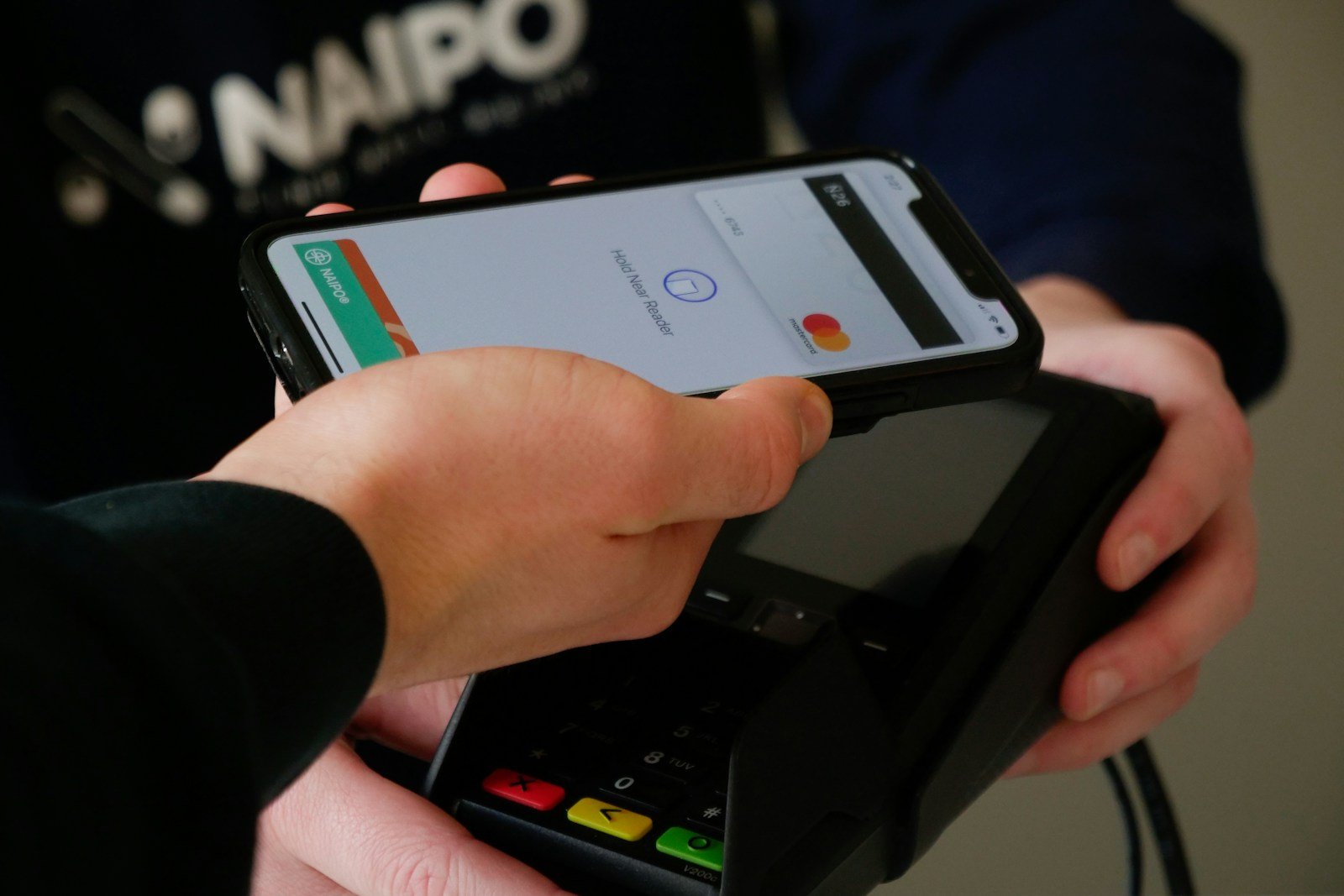
If you’ve experienced problems with the Tap to Pay feature on your iPhone, you’re not alone. Many users have reported issues ranging from the phone not recognizing the tap point to payment failing despite recognizing the card. Restarting the device, removing thick cases, or checking the settings often solve these problems.
Sometimes, the issue might be specific to certain cards, especially the Goldman Sachs Apple Card. In such cases, contacting Apple Support or the card issuer can be helpful. The Tap to Pay function works for most users when set up correctly, but occasional hiccups can occur with newer software updates.
Tap to Pay Not Working on iPhone: How to Fix It
If Tap to Pay (Apple Pay contactless payments) isn’t working on your iPhone, the problem is usually related to settings, software, network issues, or the NFC hardware. Follow this guide to quickly identify and fix the issue.
1. Make Sure Your iPhone Supports Tap to Pay
Tap to Pay requires NFC hardware, which is available on:
- iPhone 6 and later (Apple Pay support)
- iPhone XS or later (Tap to Pay on iPhone for merchants)
Check:
- Go to Settings > General > About
- Confirm your iPhone model
If your iPhone doesn’t support NFC, Tap to Pay won’t work.
2. Confirm Apple Pay Is Set Up Correctly
Tap to Pay won’t work unless Apple Pay is properly configured.
Steps:
- Open the Wallet app
- Make sure at least one debit or credit card is added
- Verify the card (follow on‑screen instructions if needed)
✅ Your card must be supported by your bank and region.
3. Turn On NFC and Contactless Settings
NFC is automatically enabled on iPhones, but related settings must be active.
Check these settings:
- Settings > Wallet & Apple Pay
- ✅ Allow Payments on Lock Screen
- ✅ Double‑Click Side Button enabled
If you’re using Tap to Pay for merchants:
- Ensure your Tap to Pay app (e.g., Square, Stripe) has permission
4. Check Region and Country Availability
Tap to Pay isn’t available in all countries.
Verify:
- Settings > General > Language & Region
- Ensure your region supports Apple Pay and Tap to Pay
5. Restart Your iPhone
A simple restart can fix temporary system glitches.
How:
- Hold Side Button + Volume Button
- Slide to power off
- Turn the phone back on
Try Tap to Pay again after rebooting.
6. Check Internet Connection
Tap to Pay requires a stable connection.
Make sure:
- Wi‑Fi or cellular data is enabled
- Airplane Mode is OFF
- You have good signal strength
7. Update iOS
Outdated software may cause Apple Pay issues.
Steps:
- Go to Settings > General > Software Update
- Download and install any available updates
8. Re‑Add Your Card to Apple Wallet
Sometimes the card itself loses authorization.
Steps:
- Open Wallet
- Remove the affected card
- Restart your iPhone
- Add the card again
9. Check for Case or Accessory Interference
Thick or metal cases can block NFC signals.
Try this:
- Remove your phone case
- Remove magnetic accessories (MagSafe wallets, pop sockets)
- Hold the top of the iPhone close to the payment terminal
10. Check Apple Pay System Status
Apple Pay outages can prevent Tap to Pay from working.
Check:
- Apple System Status page
- Look for issues with Apple Pay
11. Reset Network Settings (Advanced)
If connectivity issues persist, reset network settings.
⚠️ This will erase saved Wi‑Fi passwords.
Steps:
- Settings > General > Transfer or Reset iPhone
- Reset > Reset Network Settings
12. Contact Apple or Your Bank
If Tap to Pay still doesn’t work:
- Contact your bank or card issuer
- Contact Apple Support if NFC hardware may be faulty
Hardware issues are rare but possible after drops or water damage.
Quick Checklist
✅ Apple Pay set up correctly
✅ Supported iPhone model
✅ Correct region
✅ Stable internet connection
✅ Updated iOS
✅ No case interference
✅ Card re‑added
Key Takeaways
- Restarting or adjusting settings can fix Tap to Pay issues.
- Sometimes the issue is specific to certain cards.
- Contact Apple Support if problems persist.
Troubleshooting Tap Issues on iPhone
Tap issues on your iPhone can frustrate and disrupt your daily usage. In the following sections, we will explore basic checks, software updates, customization, and advanced settings to resolve these problems.
Basic Checks and Initial Steps
First, make sure your iPhone model is compatible with the tapping feature you are trying to use. Features like Back Tap are available only on iPhone 8 and later models.
Remove any thick or rugged case you might be using as it may block the tap sensitivity. Next, restart your iPhone to clear temporary software glitches.
Check if the tapping feature is enabled in the Settings app. Navigate to Settings > Accessibility > Touch, and ensure the relevant options are turned on.
Software Update and Reset Procedures
Updating your iPhone to the latest iOS version can often fix bugs and improve performance. Go to Settings > General > Software Update to check for available updates.
If an update doesn’t resolve the issue, consider resetting your device’s settings. Head to Settings > General > Reset > Reset All Settings.
This action will not delete your data but will reset system settings such as Wi-Fi passwords and wallpapers.
Accessibility and Gesture Customization
For tap-related features, it is crucial to customize gestures properly. Go to Settings > Accessibility > Touch > Back Tap. Assign actions to Double Tap and Triple Tap gestures to ensure they perform as expected.
Enable other helpful tap-related features like Reachability, AssistiveTouch, or VoiceOver to enhance user interaction. These settings offer alternative ways to navigate and interact with your iPhone.
Advanced Settings and System Configuration
Advanced configurations include checking for conflicts with other features. For example, iPhones with NFC enabled for Apple Pay might see tap issues at point-of-sale terminals.
Review iCloud settings under Settings > Your Name > iCloud to see if sync issues affect tap functions.
Lastly, consider seeking help from Apple Support or visiting an Apple Store for professional assistance. They can provide technical support and help diagnose hardware problems.





