
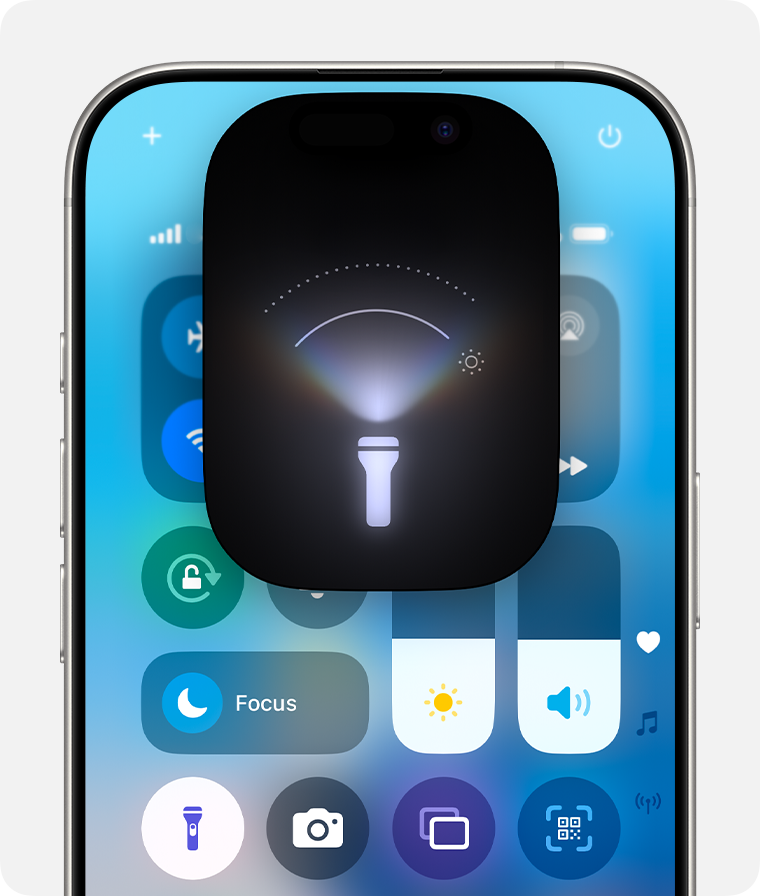
It can be frustrating when your iPhone flashlight is greyed out just when you need it most. This usually happens due to software glitches or hardware issues. Sometimes, a simple fix like restarting your iPhone or closing the Camera app can solve the problem.
Check if the flashlight is disabled in the Control Center by going to Settings and ensuring it’s added under More Controls. If these steps don’t work, consider whether a hardware problem may be at play. In such cases, contacting Apple Support is advisable.
Following these troubleshooting steps can often help resolve the issue. For more detailed instructions, continue reading to find out how to get your iPhone flashlight working again.
Why Is My iPhone Flashlight Greyed Out?
When the flashlight icon is greyed out (disabled), it means your iPhone temporarily can’t access the LED flash. This can happen for several reasons:
1. Camera App Is in Use
The camera and flashlight share the same LED light. If the Camera app is open — even in the background — the flashlight will be unavailable.
Fix: Close the Camera app completely and try again.
2. Low Power Mode Is Enabled
When Low Power Mode is turned on, iOS limits certain features to save battery — including the flashlight.
Fix:
- Go to Settings → Battery → Low Power Mode and toggle it off.
- Or, disable it quickly from Control Center.
3. iPhone Is Overheating
If your iPhone becomes too hot, iOS will automatically disable hardware features like the flashlight to prevent damage.
Fix:
- Let your iPhone cool down for a few minutes.
- Avoid charging or using high-performance apps until it returns to normal temperature.
4. System or Software Glitch
A temporary iOS bug can cause the flashlight to stop working or appear greyed out.
Fix:
- Restart your iPhone.
- If that doesn’t help, perform a force restart (press and quickly release Volume Up → Volume Down → hold Side button until the Apple logo appears).
5. Outdated iOS Version
Older iOS versions may have bugs that affect the flashlight or camera.
Fix:
- Go to Settings → General → Software Update.
- If an update is available, install it.
6. Hardware Issue with the Flash
If you’ve dropped your iPhone or it’s been exposed to moisture, the LED flash may be physically damaged.
Fix:
- Test the flash in the Camera app (switch to rear camera and tap the flash icon).
- If it still doesn’t work, contact Apple Support or visit an Apple Store for inspection.
🧰 Step-by-Step Solutions to Fix iPhone Flashlight Greyed Out
If you’re not sure what’s causing the issue, try these steps in order:
✅ 1. Close the Camera App
Swipe up from the bottom (or swipe halfway up on Face ID models) → find the Camera app → swipe it away to close.
✅ 2. Restart Your iPhone
A simple restart clears temporary glitches that might disable the flashlight.
✅ 3. Disable Low Power Mode
As mentioned earlier, turn off Low Power Mode in battery settings.
✅ 4. Reset All Settings
If the problem persists:
- Go to Settings → General → Transfer or Reset iPhone → Reset → Reset All Settings.
- This won’t delete your data but will reset system preferences.
✅ 5. Check for iOS Updates
Install the latest iOS update to patch known bugs.
✅ 6. Use a System Repair Tool (Optional)
If your flashlight remains greyed out due to a deeper iOS issue, you can use tools like:
- TunesKit iOS System Recovery
- iMyFone Fixppo
- Tenorshare ReiBoot
These tools can fix system-level problems without erasing data (source: TunesKit).
🧠 Bonus Tips
- Charge your iPhone — some models disable the flashlight when the battery is below 10%.
- Avoid third-party camera apps that might conflict with system functions.
- Check flashlight in Control Center and Lock Screen to confirm if it’s a system or app-level issue.
🚀 Final Thoughts
When your iPhone flashlight is greyed out, it’s usually due to a simple conflict — like the camera being open, Low Power Mode, or a temporary iOS glitch. Start with the basic fixes (closing apps, restarting, updating iOS), and if that doesn’t help, consider a deeper reset or professional repair.
With these steps, your flashlight should be shining bright again in no time. 🔦
Related Guides:
- How to Fix iPhone Camera Not Working
- How to Reset iPhone Settings Without Losing Data
- Fix iPhone Flashlight Not Working (4EasySoft)
Key Takeaways
- iPhone flashlight can be greyed out due to software or hardware issues.
- Restarting the phone or modifying Control Center settings may fix it.
- Persistent problems may require contacting Apple Support.
Diagnosing the Problem
The flashlight on an iPhone can become greyed out due to various reasons. Identifying whether the issue lies with hardware or software is crucial, as is knowing common causes.
Hardware vs Software
To troubleshoot a greyed out flashlight, it is key to check both hardware and software aspects. For hardware, inspect the LED flash on the back of the iPhone. Dust or damage could be a reason. On models like the iPhone 6 or 7, wear and tear from age might affect the flashlight.
For software, ensure your iPhone is up to date. Outdated software can create glitches. Restarting the phone can also help. On models like the iPhone 11, turning off LED Flash for Alerts in Settings may resolve the issue.
Common Causes
Several common causes might make the flashlight icon greyed out. One is the Camera app being active. The flashlight and camera’s flash cannot work at the same time. Close the Camera app to fix this.
Low Power Mode can also disable the flashlight. Check the battery settings and if Low Power Mode is on, disable it. Temperature can affect the functionality too. If the iPhone is too hot or too cold, let it return to a normal temperature.





