
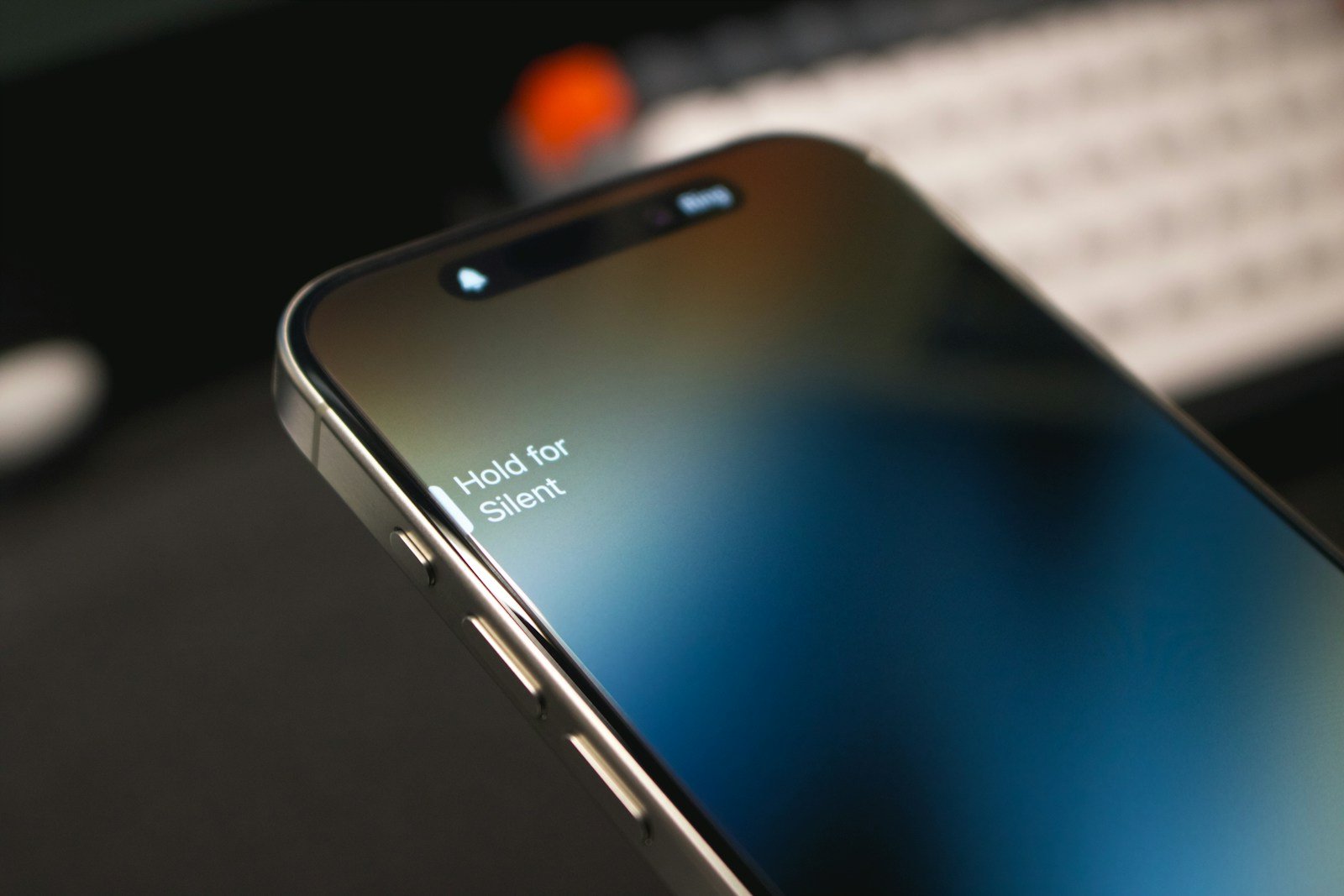
Do you struggle to hear phone calls on your iPhone? Whether you’re in a noisy place or simply want louder calls, adjusting the volume settings is essential. Turning up the call volume on your iPhone can make a big difference in how well you hear the person on the other end.
Using the volume buttons on the side of your iPhone is the simplest way to increase call volume. Be sure to press these buttons during a call to see immediate changes. Sometimes, you may need to clean the speaker or check your settings if the volume doesn’t improve.
If basic adjustments don’t work, explore settings like Voice Isolation. This feature filters out background noise, making voices clearer during calls.
How to Increase iPhone Call Volume: A Complete Guide
If you’re struggling to hear calls on your iPhone—especially in noisy environments—you’re not alone. Fortunately, iOS offers several built‑in settings and practical tricks to increase call volume and improve call clarity without installing third‑party apps.
This guide walks you through every effective way to make iPhone calls louder.
1. Turn Up Call Volume the Right Way
This sounds obvious, but it’s often misunderstood.
- During an active call, press the Volume Up button on the side of your iPhone
- The volume buttons control ringtone volume when not on a call and call volume only during a call
✅ Tip: Adjust volume while the call is in progress, not before.
2. Disable Phone Noise Cancellation (If Needed)
iPhone’s noise cancellation can sometimes reduce voice clarity.
How to turn it off:
- Go to Settings
- Tap Accessibility
- Select Audio & Visual
- Turn Phone Noise Cancellation off
This may increase perceived loudness in some situations.
3. Enable “Phone” Audio Routing Correctly
Incorrect audio routing can reduce volume.
Check audio output:
- During a call, tap the Audio button
- Select iPhone instead of Bluetooth or speaker (unless needed)
Bluetooth devices may limit call volume.
4. Use Speaker Mode for Louder Calls
Speakerphone is often significantly louder than the earpiece.
- During a call, tap Speaker
- Place the phone on a flat surface for better sound projection
Ideal for hands-free or quiet environments.
5. Turn On Headphone Accommodations
This feature boosts voice frequencies and improves clarity—even for non‑headphone use in some cases.
Enable it:
- Go to Settings
- Tap Accessibility
- Select Audio & Visual
- Tap Headphone Accommodations
- Turn it On
- Choose Vocal Range
- Set intensity to Moderate or Strong
6. Clean the iPhone Earpiece Speaker
Dust and lint are common causes of low call volume.
Safe cleaning tips:
- Use a soft brush or clean toothbrush
- Use compressed air gently
- Avoid liquids or sharp objects
Even a small blockage can significantly reduce sound.
7. Check for Bluetooth Interference
Your iPhone may be routing calls to a connected device.
- Go to Settings → Bluetooth
- Turn Bluetooth off
- Make a test call
This ensures sound plays directly through the iPhone speaker.
8. Update iOS
Software bugs can affect call audio.
Update your iPhone:
- Go to Settings
- Tap General
- Select Software Update
- Install any available updates
Apple frequently improves audio performance and bug fixes.
9. Reset All Settings (Last Resort)
If call volume is still low, reset system settings.
⚠️ This will not erase data but will reset Wi‑Fi, Bluetooth, and preferences.
How to reset:
- Go to Settings
- Tap General
- Select Transfer or Reset iPhone
- Tap Reset
- Choose Reset All Settings
10. Check for Hardware Damage
If none of the above works:
- Test calls using wired or wireless headphones
- If volume is normal with headphones, the earpiece speaker may be faulty
In this case, contact Apple Support or an authorized service provider.
Quick Checklist
✅ Increase volume during a call
✅ Disable noise cancellation
✅ Check audio routing
✅ Clean the earpiece
✅ Update iOS
✅ Test without Bluetooth
Final Thoughts
Low call volume on an iPhone is usually caused by settings, dirt, or audio routing—not a broken phone. By following the steps above, most users can significantly increase call volume and clarity in just a few minutes.
If the issue persists after troubleshooting, professional repair may be the best option.
Key Takeaways
- Use side buttons to adjust volume during calls.
- Clean speakers and check settings if volume issues persist.
- Voice Isolation improves call clarity.
Optimizing iPhone Volume Settings During Calls
To improve call volume on an iPhone, you need to explore various settings and troubleshoot common issues. This involves adjusting volume controls, addressing low call volume issues, and using accessibility features for better audio.
Adjusting Volume Controls
Adjusting the volume during a call is simple. Press the volume up button on the left side of your iPhone to increase the call volume. The volume down button decreases it too.
You can also adjust the volume using the Control Center. Swipe down from the top-right corner of the screen, then use the slider to adjust the volume to your preferred level. This helps if the side buttons are not responsive.
Use earphones or Bluetooth devices for clearer audio during calls. Check the settings to make sure the sound is routed correctly.
Troubleshooting Low Call Volume Issues
Low call volume can often result from hardware or software issues. Check if the speaker is clean and free of dust. Use a soft brush to gently clean the speaker area. Remove any screen protectors or cases that might obstruct the speaker.
Restarting the iPhone can resolve temporary software issues affecting call volume. Go to Settings > General > Software Update to ensure the iPhone is running the latest version.
If these steps don’t help, reset all settings by going to Settings > General > Reset > Reset All Settings. Be sure to back up important data before doing this.
Utilizing Accessibility Features for Better Audio
iPhone provides several accessibility features to improve audio during calls. Go to Settings > Accessibility > Audio/Visual. Here, you can adjust balance, enabling Mono Audio if you have hearing impairment in one ear. This can make the audio clearer.
“Phone Noise Cancellation” reduces background noise during calls. Ensure this feature is enabled by going to Settings > Accessibility > Audio/Visual > Phone Noise Cancellation.
Another feature is “Reduce Loud Sounds.” This setting helps protect your hearing by limiting the maximum volume the iPhone can output. Adjust it according to your comfort level.
Using these methods ensures optimal call volume, making for a better calling experience.





