
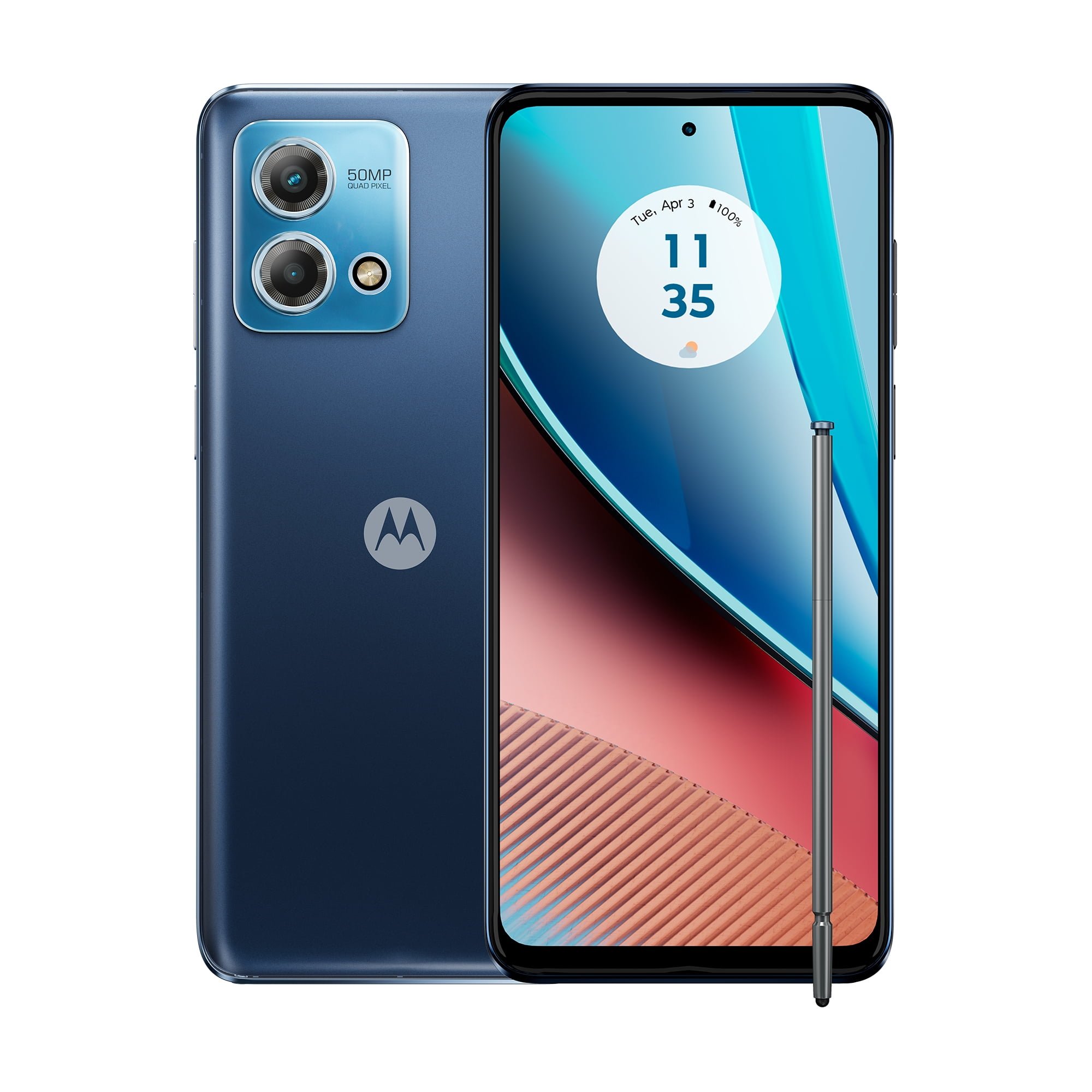
Capturing screenshots on a Moto G Stylus is a quick way to save or share what’s displayed on your screen. Whether you want to preserve a memorable conversation or a high score in a game, screenshots are a vital feature. Moto G Stylus provides multiple methods to take a screenshot, catering to the user’s preference and convenience.
Understanding how to take a screenshot can enhance your experience with the device. The Moto G Stylus allows users to employ simple gestures or button combinations to achieve this. This flexibility ensures that taking a screenshot is accessible, whether the user is holding the stylus or just using the touch screen.
How to Screenshot on Moto G Stylus
Taking a screenshot on the Moto G Stylus is quick and easy. Motorola offers several built‑in ways to capture your screen.
Method 1: Power Button + Volume Down (Most Common)
- Open the screen you want to capture.
- Press and hold the Power button and Volume Down button at the same time.
- Release both buttons quickly.
- You’ll see a screen animation or hear a sound confirming the screenshot.
📍 The screenshot is automatically saved in Photos > Screenshots.
Method 2: Three‑Finger Touch Gesture
If enabled, this is one of the fastest ways to take a screenshot.
Enable Three‑Finger Screenshot (if not already on):
- Open Settings
- Go to System > Gestures
- Turn on Three‑finger screenshot
Take a Screenshot:
- Place three fingers on the screen at once.
- Hold briefly until the screenshot is captured.
Method 3: Using the Moto Stylus
Some Moto G Stylus models support screenshot capture via the stylus menu.
- Remove the Stylus from the phone.
- Tap Screenshot from the stylus menu.
- The screen will be captured instantly.
✅ You may also see options to capture part of the screen or edit immediately.
Method 4: Google Assistant
- Say “Hey Google” or press and hold the Power button (if enabled).
- Say “Take a screenshot.”
⚠️ Note: Google Assistant screenshots may not work in some apps like banking or private browsing.
Where to Find Your Screenshots
- Open the Photos app
- Go to Library > Screenshots
Tips for Editing or Sharing
- Tap the screenshot preview to crop, draw, or add text
- Use the Share button to send it via messages, email, or social apps
Troubleshooting
- If screenshots aren’t working, check Settings > System > Gestures
- Restart your phone and try again
- Make sure buttons aren’t damaged or blocked by a case
Key Takeaways
- Screenshots can be taken using gestures or button combinations on the Moto G Stylus.
- The device offers flexibility in capturing screen content for ease of use.
- Learning the screenshot function improves user experience with the Moto G Stylus.
Taking Screenshots on Moto G Stylus
The Motorola Moto G Stylus offers multiple ways to take a screenshot, whether using physical buttons, the phone’s stylus, gestures, or even voice commands.
Using Button Combination
Owners of the device can easily capture what’s on their screen by pressing two buttons at the same time. Pressing the Power Button and the Volume Down Button together will take a screenshot. The image is then saved automatically, and one can find it later in the Photos app.
Using the Stylus
For those who like to use the phone’s stylus, taking a screenshot is just a tap away. Pull out the stylus and touch the Stylus Menu. From here, one will find the option to take a screenshot. This method is handy for those who want to capture, edit, or write on their screenshots right away.
Using Three-Finger Gesture
A quick and effortless way to capture the screen is by placing three fingers on the display and holding them there for a moment. If this gesture doesn’t work initially, it may need to be enabled in the phone settings. Once activated, this gesture is a straightforward way to take a screenshot on the Moto G Stylus.
Using Voice Command
For a hands-free approach, one can use voice commands. By activating Google Assistant and saying, “Take a screenshot,” the phone will capture the display without the need to touch any buttons. This can be especially useful when one’s hands are busy with other tasks.





