
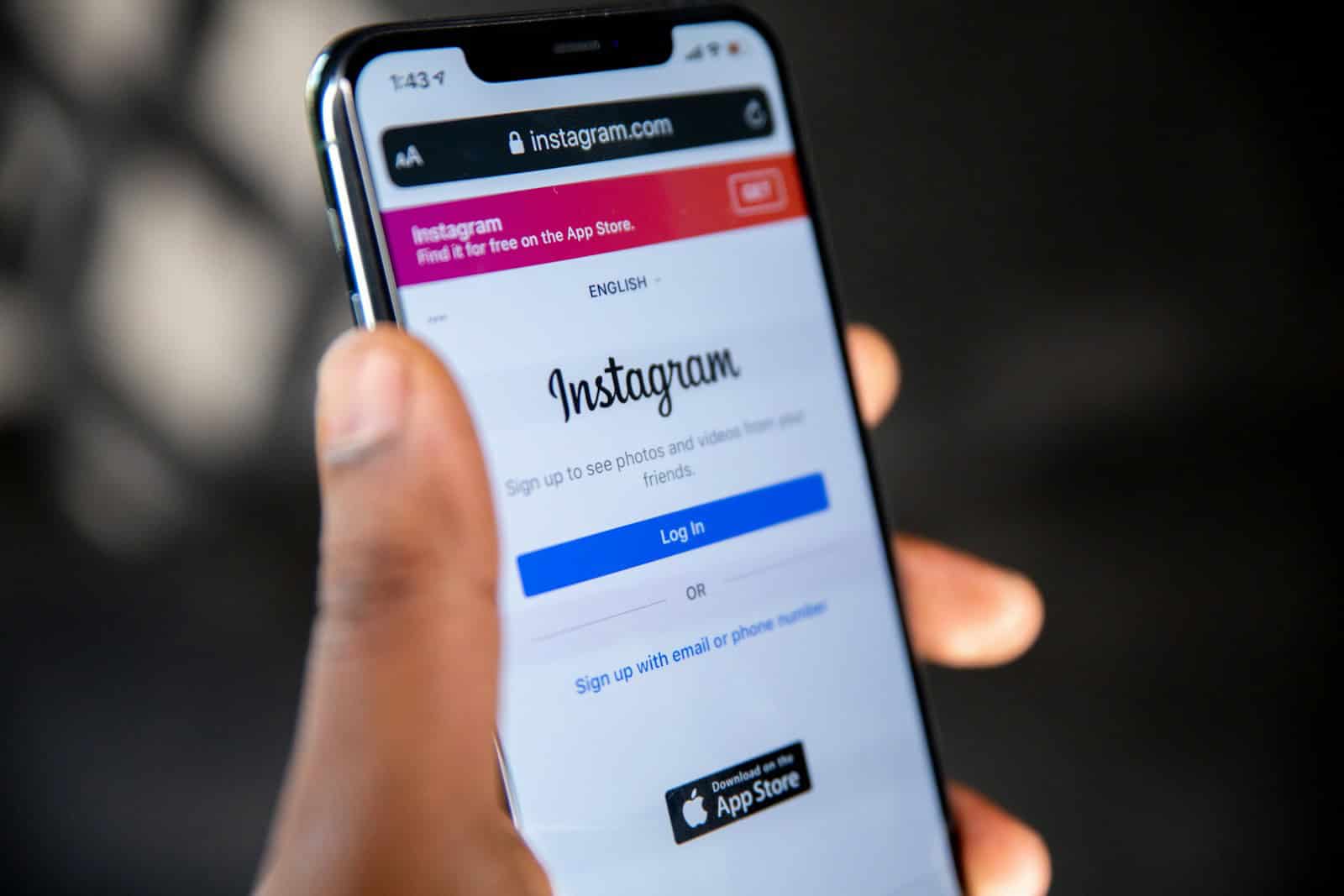
Experiencing trouble logging into Instagram can be very frustrating. Many users encounter the “There was a problem logging you into Instagram” message. To fix this, try resetting your password or clearing your app’s cache.
Some users find success by restarting their devices or updating the app. It’s also helpful to check Instagram’s server status to make sure the issue isn’t widespread. Different solutions work for different people, so keep trying to find what works for you.
Why This Happens
This error can appear for several reasons:
- Instagram servers are temporarily down.
- You entered incorrect login details or your password was recently changed.
- Your account was deactivated or disabled.
- There’s a network issue or unstable internet connection.
- The app’s cache or data is corrupted.
- You’re using an outdated version of the Instagram app.
- Two-factor authentication or third-party logins (like Facebook) aren’t syncing properly.
⚙️ Step-by-Step Fixes
1. Check if Instagram Is Down
Before troubleshooting your device, visit Downdetector or X (formerly Twitter) to see if other users are reporting login issues.
If servers are down, you’ll need to wait until Instagram resolves it.
2. Verify Your Internet Connection
Ensure your Wi-Fi or mobile data is stable.
Try switching between them or restarting your router.
If you’re using a VPN, turn it off — VPNs can sometimes trigger login blocks.
3. Restart the App and Device
- Close Instagram completely (swipe it away from recent apps).
- Restart your phone.
- Reopen Instagram and try logging in again.
4. Update or Reinstall Instagram
Outdated app versions often cause login bugs.
- Go to the App Store (iPhone) or Google Play Store (Android).
- Search for Instagram and tap Update.
If the problem persists, uninstall and reinstall the app — this clears corrupted cache and data.
5. Clear Cache and App Data (Android Only)
- Go to Settings → Apps → Instagram → Storage.
- Tap Clear Cache and Clear Data.
Then restart the app and log in again.
6. Reset Your Password
If you suspect a login credential issue:
- Tap Forgot password? on the login screen.
- Follow the email or SMS instructions to reset it.
Then try logging in with the new password.
7. Try Logging In from a Browser
Go to Instagram.com on a browser (mobile or desktop).
If you can log in there, the issue is likely with the app — not your account.
8. Disable Third-Party Apps
If you use automation or analytics tools connected to your Instagram, revoke access temporarily.
Go to Instagram Settings → Security → Apps and Websites and remove suspicious ones.
9. Contact Instagram Support
If none of the above works:
- Go to Instagram Help Center.
- Report the issue using “Report a Problem” inside the app (if you can access it).
- Or email support@instagram.com with your username and a description of the issue.
✅ Bonus Tips
- Avoid logging in on multiple devices simultaneously.
- Ensure your account hasn’t been temporarily locked due to suspicious activity.
- If you recently deactivated your account, wait at least 24 hours before reactivating.
📚 References
- Followchain: How to Fix “There Was a Problem Logging You Into Instagram”
- Ricky Spears: Solved – Instagram Login Problem
- PureOverclock: Fix Instagram Login Error
Key Takeaways
- Resetting your password can often resolve login issues.
- Clearing cache and updating the app may help.
- Checking server status can identify if the problem is on Instagram’s end.
Understanding Instagram Login Issues
Getting locked out of Instagram can be frustrating. Here are key factors and solutions to deal with login issues effectively.
Assessing Instagram Server Status
Sometimes, the issue isn’t with your account. Instagram servers can experience downtime. One way to check this is by using websites like Downdetector. This site shows real-time server status based on user reports. Twitter can also be useful to see if others are facing similar issues. If the problem is on Instagram’s end, waiting is often the best solution.
Checking Internet and Device Connectivity
Poor internet connection can cause login problems. Ensure you are connected to a stable Wi-Fi network or have a strong cellular data signal. Restarting your device can also help. Sometimes, a simple VPN connection might be causing issues, so try disconnecting it. Clearing the app’s cache or reinstalling Instagram can resolve issues related to corrupted files.
Verifying User Credentials
Incorrect login information is a common issue. Double-check your username and password. If you forgot your password, use the “Forgot Password?” link to reset it through your email or phone. Also, check if you mistakenly have caps lock or any other key affecting your login. If login issues persist, try using the Log in with Facebook option if your accounts are linked.





