
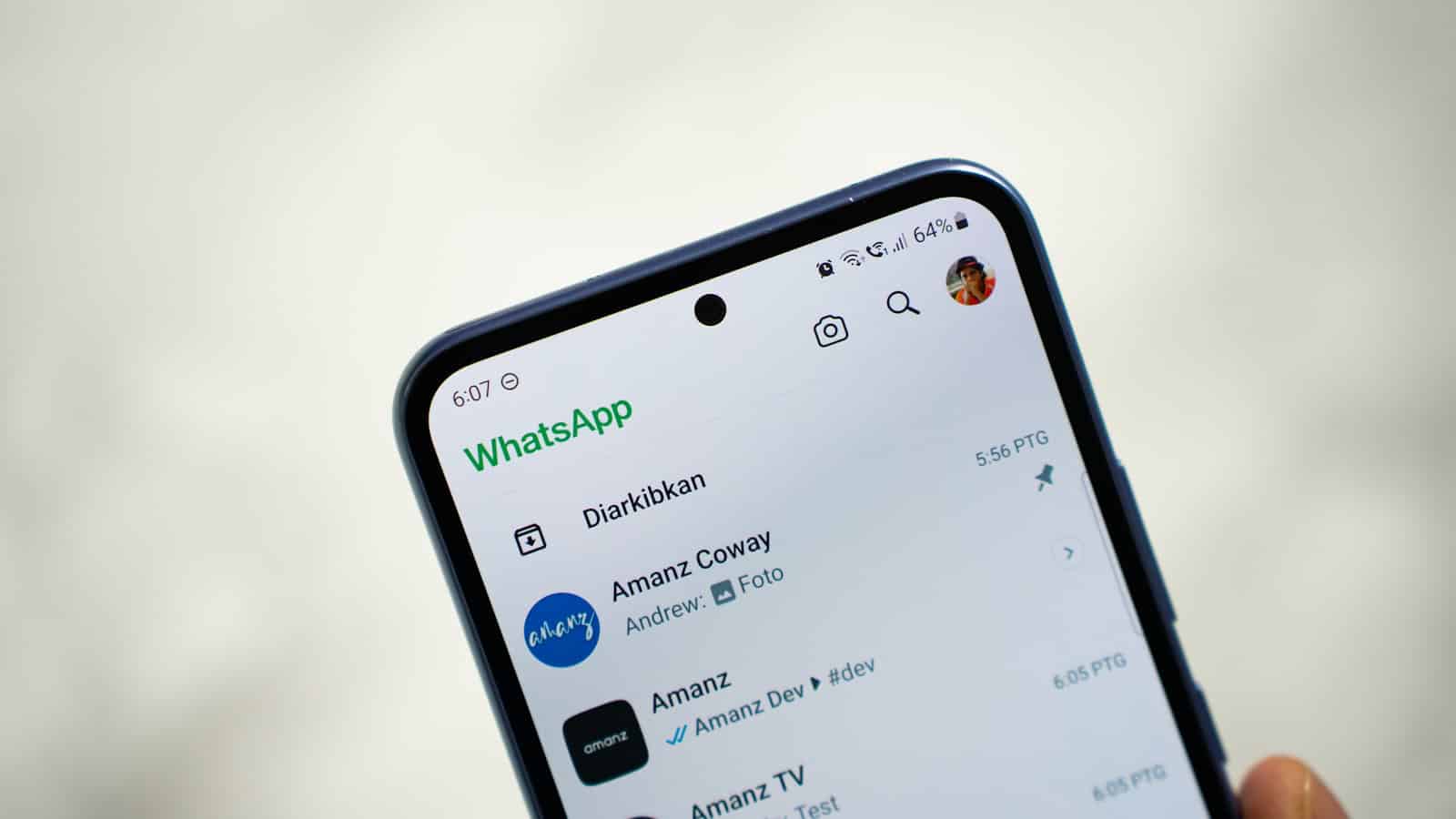
Privacy matters on messaging apps, especially for iPhone users who value discretion. You can hide WhatsApp messages on iPhone by using the Archive Chat feature, which moves conversations out of your main chat list without deleting them. This simple method keeps your private conversations accessible but not immediately visible when someone glances at your phone.
WhatsApp offers additional privacy options beyond basic archiving. iPhone users can enable settings to keep archived chats hidden even when new messages arrive. The Chat Lock feature provides another layer of protection by requiring Face ID or Touch ID to access specific conversations, adding security for sensitive discussions.
For those who need comprehensive privacy, combining these methods works best. Archive less sensitive chats to declutter your inbox, while using Chat Lock for truly private conversations. These built-in WhatsApp features give iPhone users multiple ways to maintain privacy without installing third-party apps.
How to Hide WhatsApp Messages on iPhone
While WhatsApp doesn’t have a single “hide messages” button, there are several effective ways to keep your chats private on an iPhone. Below are the best methods, from built‑in WhatsApp tools to iOS features.
Method 1: Archive WhatsApp Chats (Simple & Built‑In)
Archiving hides chats from your main chat list without deleting them.
Steps:
- Open WhatsApp
- Go to Chats
- Swipe left on the chat you want to hide
- Tap Archive
Keep Chats Hidden:
- Go to WhatsApp Settings
- Tap Chats
- Enable Keep Chats Archived
✅ The chat will stay hidden even when new messages arrive.
Method 2: Lock Chats with Face ID or Touch ID (Most Secure)
WhatsApp allows you to lock individual chats using biometric security.
Steps:
- Open the chat you want to hide
- Tap the contact’s name at the top
- Tap Chat Lock
- Enable Lock This Chat with Face ID / Touch ID
🔒 Locked chats move to a Locked Chats folder and can only be opened with Face ID, Touch ID, or your iPhone passcode.
Method 3: Hide Message Previews on Lock Screen
This prevents message content from showing when notifications appear.
Steps:
- Open iPhone Settings
- Tap Notifications
- Select WhatsApp
- Tap Show Previews
- Choose Never or When Unlocked
✅ Notifications will appear without message content.
Method 4: Hide WhatsApp Notifications Completely
If you want zero visibility of incoming messages:
Steps:
- Go to Settings > Notifications > WhatsApp
- Turn off Allow Notifications
⚠️ You won’t receive alerts until notifications are turned back on.
Method 5: Lock WhatsApp App Using Screen Time
This adds an extra lock to the entire WhatsApp app.
Steps:
- Open Settings
- Tap Screen Time
- Tap App Limits
- Add WhatsApp
- Set a limit (e.g., 1 minute)
- Enable Block at End of Limit
- Set a Screen Time passcode
✅ Once the limit is reached, WhatsApp requires a passcode to open.
Method 6: Hide WhatsApp Using Focus Mode
Focus Mode can silence notifications and hide alerts during specific times.
Steps:
- Go to Settings > Focus
- Create or edit a Focus mode (e.g., Personal)
- Under Apps, remove WhatsApp from allowed notifications
- Activate the Focus mode
Which Method Should You Use?
| Goal | Best Method |
|---|---|
| Hide specific chats | Chat Lock or Archive |
| Protect private messages | Chat Lock (Face ID) |
| Stop lock screen previews | Hide notification previews |
| Completely restrict access | Screen Time |
| Temporary privacy | Focus Mode |
Final Tip
For maximum privacy, combine Chat Lock + hidden notifications. This ensures no one can read your WhatsApp messages even if they access your phone.
Key Takeaways
- Archive Chat moves WhatsApp conversations out of sight without deleting them.
- Enable “Keep chats archived” in settings to prevent hidden conversations from reappearing.
- Chat Lock adds biometric protection to sensitive WhatsApp conversations on iPhone.
Understanding WhatsApp’s Privacy Features on iPhone
WhatsApp offers several privacy features on iPhone that help users protect their conversations from prying eyes. These features include archiving chats to reduce clutter, using biometric locks for additional security, and utilizing discreet messaging options for sensitive communications.
Archive Feature and Its Role
The archive feature in WhatsApp serves as a practical way to hide conversations without deleting them.
Users can archive individual chats or multiple conversations by swiping left on a chat and tapping “Archive” or by using the edit option to select multiple chats for archiving simultaneously.
Archived chats move to a dedicated folder at the top of the chat list. This keeps the main chat screen uncluttered while preserving the conversation history.
By default, new messages will bring archived chats back to the main screen, but users can change this setting.
In WhatsApp settings, there’s an option called “Keep chats archived” that prevents archived conversations from automatically returning to the main chat list when new messages arrive. This feature is particularly useful for hiding sensitive conversations more effectively.
Enhancing Security with Biometric Lock
WhatsApp on iPhone offers biometric authentication to add an extra layer of security.
Users can enable Face ID or Touch ID to prevent unauthorized access to their messages, even if someone has access to their unlocked phone.
To activate this feature, users should:
- Open WhatsApp Settings
- Tap on “Privacy”
- Select “Screen Lock”
- Toggle “Require Face ID” or “Require Touch ID”
- Choose the time interval for authentication requirements
This security measure protects all WhatsApp content, including sensitive chats and media. The biometric lock works independently from the iPhone’s main lock screen, creating a secondary security barrier specifically for WhatsApp.
Options for Discreet Messaging
WhatsApp provides multiple options for discreet communication on iPhone. Disappearing messages automatically delete after a set period, ranging from 24 hours to 90 days depending on user preference.
This feature minimizes the digital footprint of sensitive conversations.
Muting notifications for specific chats prevents alerts from appearing on the lock screen or notification center. This helps maintain privacy when others might see notification previews on the user’s phone.
End-to-end encryption serves as WhatsApp’s core privacy feature, ensuring that only the sender and recipient can read messages. This encryption applies to all communications including texts, calls, photos, videos, and documents.
For temporary privacy needs, users can hide message previews in iPhone settings. This prevents message content from appearing in notifications while still alerting users to new messages.





