
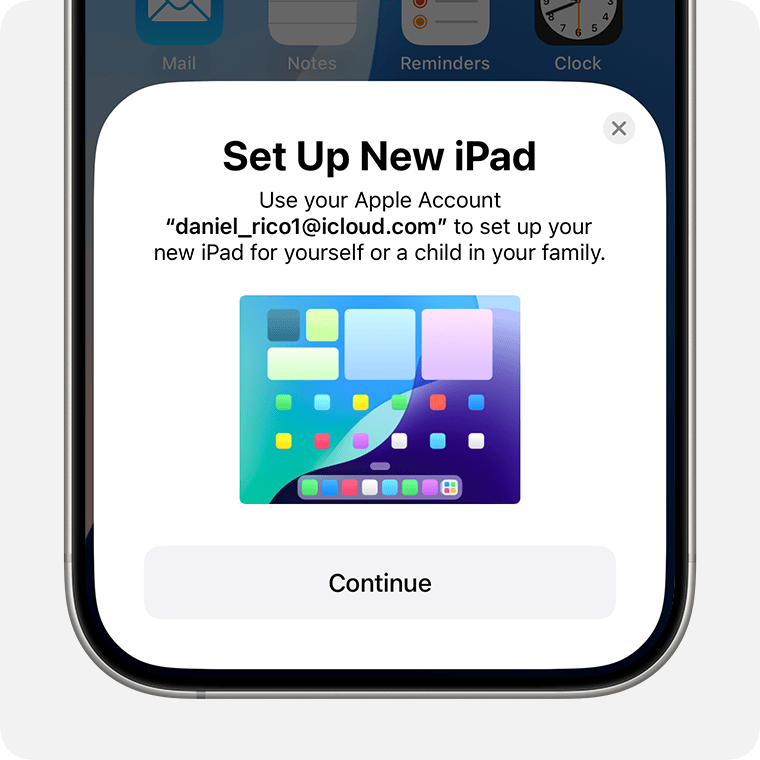
Is your iPad Quick Start not working? It can be frustrating when you can’t transfer your data smoothly. Often, insufficient battery levels or a weak Wi-Fi connection can cause Quick Start to malfunction. Ensuring both devices are charged to over 80% and connected to a stable Wi-Fi network can resolve many issues.
Another common problem is outdated software. Both iPads must have the latest iOS version. If your devices are still not connecting, restarting both can sometimes fix hidden glitches. Always keep your device software updated for the best performance.
Sometimes simple steps can solve the problem. Keep both devices near each other, with Bluetooth turned on. If these tips don’t work, consulting Apple Support may help you further.
iPad Quick Start Not Working
If iPad Quick Start isn’t working, it can prevent you from transferring data quickly from your old device. This feature relies on Bluetooth, Wi-Fi, and proximity between devices, so even small issues can interrupt the setup process.
Quick Start should automatically appear when you bring a new iPad near an existing Apple device, but if it doesn’t, there are several ways to fix it.
How to fix Quick Start issues:
- Turn Bluetooth and Wi-Fi on for both devices
- Keep devices close together (within a few inches)
- Restart both iPads
- Make sure both devices are running compatible iPadOS versions
- Sign in to the same Apple ID
If Quick Start still doesn’t appear:
- Reset network settings
- Update iPadOS on both devices
- Try manual setup and restore from iCloud backup
Common causes:
- Bluetooth disabled
- Devices too far apart
- Software mismatch
- Apple ID not signed in
Key Takeaways
- High battery levels and strong Wi-Fi are crucial for Quick Start.
- Update both iPads to the latest iOS.
- Restart devices and try again if issues persist.
Resolving Quick Start Issues
To fix Quick Start problems with an iPad, you should check compatibility, ensure proper execution, and troubleshoot common issues.
Preparation and Compatibility Checks
First, check that both devices support Quick Start. Quick Start works on devices running iOS 11, iPadOS 13, or later versions. Ensure that Bluetooth and Wi-Fi are switched on for both the old iPad and the new iPad. Verify that both devices are charged and ideally plugged into a power outlet.
Compatibility involves having the same Apple ID logged in. If one device isn’t updated, update the software through the Settings. Frequent checks on compatibility and requirements can save time and frustration later.
Execution of Quick Start
To use Quick Start, turn on the new device and place it near the old one. A prompt should appear on the old device to set up the new one. Follow the on-screen instructions, which may involve scanning an animation with the old device. This process uses Wi-Fi and Bluetooth to transfer data securely.
Face ID or Touch ID should be set up during this process. The devices need to stay connected and remain close to each other throughout the transfer. Interruptions like moving too far apart can cause issues. Once the data transfer starts, the time it takes depends on the amount of data being moved.
Troubleshooting Common Problems
If Quick Start isn’t working, several steps can help. Start by restarting both devices. For an iPad, this often involves holding the Top Button and either of the Volume Buttons. Ensure that the devices are charged and connected to a power source.
Check for any software updates and install them. If the Wi-Fi connection is unstable, reset the network settings by going to Settings > General > Reset > Reset Network Settings. For persistent issues, consider restoring from a backup using iCloud or iTunes.
Some problems may need Apple Support. Contacting them will provide professional help, ensuring that your iPad setup is successful. Consistent troubleshooting can resolve most issues quickly.





