
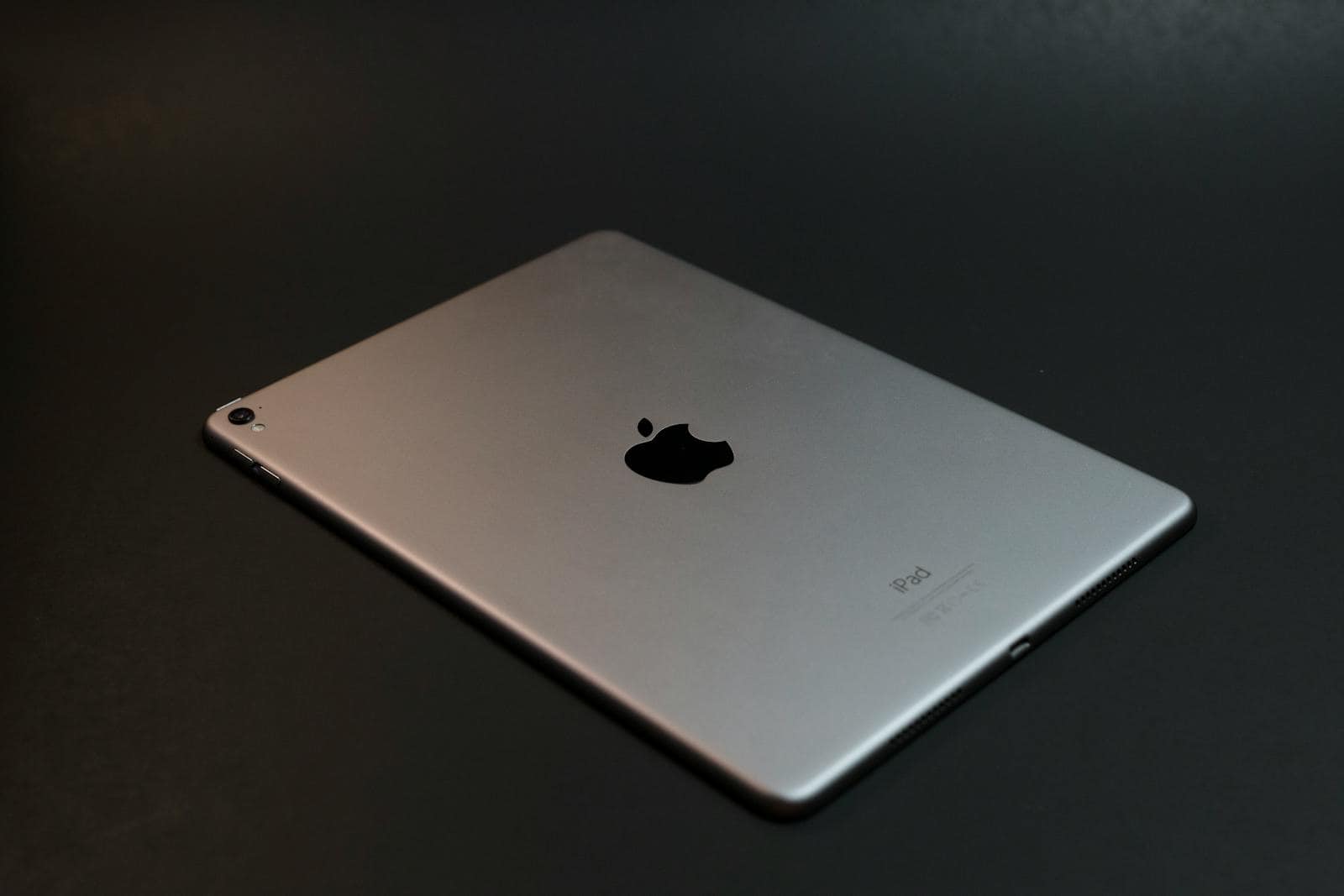
Can’t find a message on your iPad? Don’t worry; there’s a way to get it back. To find deleted messages on your iPad, look in the “Recently Deleted” folder in the Messages app. This folder keeps deleted messages for up to 30 days, giving you plenty of time to recover them.
The Messages app on your iPad has a simple way to recover conversations. You can restore your messages if you deleted them within the last month. Just open the “Recently Deleted” folder in the app and select the messages you want to restore.
You can also use other methods if you can’t find your messages in the “Recently Deleted” folder. Options include using iCloud or iTunes backups or even third-party software like MobiKin Doctor for iOS.
How to Find Deleted Messages on iPad (2026 Guide)
Accidentally deleted an important message on your iPad? Don’t panic — in most cases, you can recover deleted messages within 30 days using Apple’s built‑in recovery feature. If that window has passed, there are still a few options you can try.
Here’s a complete step‑by‑step guide to finding and recovering deleted messages on your iPad.
✅ Method 1: Check the “Recently Deleted” Folder (Best & Fastest Way)
Apple allows you to recover deleted messages for up to 30 days.
How to Find Deleted Messages:
- Open the Messages app on your iPad.
- Tap Edit in the top-left corner
(or tap the Filters button if you see it). - Tap Show Recently Deleted.
- Select the conversation(s) you want to restore.
- Tap Recover.
- Tap Recover Messages to confirm.
✅ Messages will return to your main conversation list.
📌 Important: Messages are permanently deleted after 30 days.
✅ Method 2: Recover from an iCloud Backup
If the message isn’t in Recently Deleted, you may be able to restore it from a previous backup.
Step 1: Check if You Have a Backup
- Go to Settings
- Tap your Apple ID name
- Select iCloud
- Tap Manage Storage → Backups
- Check the date of your last backup
If the backup was created before the message was deleted, you may be able to recover it.
Step 2: Restore the Backup
⚠️ Warning: This will erase your current data and replace it with the backup.
- Go to Settings → General
- Tap Transfer or Reset iPad
- Tap Erase All Content and Settings
- During setup, choose Restore from iCloud Backup
- Select the relevant backup
✅ Method 3: Recover from a Computer Backup (Finder or iTunes)
If you backed up your iPad to a Mac or PC:
On Mac (macOS Catalina or later):
- Connect your iPad to your Mac
- Open Finder
- Select your iPad from the sidebar
- Click Restore Backup
- Choose a backup from before deletion
On Windows PC (iTunes):
- Open iTunes
- Connect your iPad
- Click the device icon
- Select Restore Backup
Again, this replaces your current data with the backup version.
✅ Method 4: Check Other Apple Devices
If you use Messages in iCloud, deleted messages sync across devices.
However, if you do not use Messages in iCloud:
- Check your iPhone
- Check your Mac
- Check other iPads
The message may still exist on another device that hasn’t synced.
✅ Method 5: Contact the Sender
If recovery options don’t work:
- Ask the person who sent the message
- They can screenshot or forward the conversation
Simple — but often effective.
🔎 Why Messages Disappear
Messages may be deleted because of:
- Manual deletion
- Auto-delete settings (30 days or 1 year)
- iCloud sync
- Device restore
- Software update issues
To check auto-delete settings:
- Go to Settings → Messages
- Tap Keep Messages
- Choose:
- 30 Days
- 1 Year
- Forever
If set to 30 days or 1 year, older messages are automatically removed.
❗ Can You Recover Messages After 30 Days?
Generally, no.
Once messages are permanently deleted from:
- Recently Deleted
- iCloud
- Backups
They cannot be recovered.
Be cautious of third-party apps claiming guaranteed recovery — many require full device access and may not work if no backup exists.
✅ Quick Recovery Checklist
If you’re trying to find deleted messages on iPad:
✔ Check Recently Deleted (within 30 days)
✔ Restore from iCloud backup
✔ Restore from computer backup
✔ Check other synced devices
✔ Contact the sender
Final Thoughts
The fastest way to recover deleted messages on iPad is through the Recently Deleted folder inside the Messages app. If that option isn’t available, your next best bet is restoring from a backup created before deletion.
To avoid losing important conversations in the future:
- Set Keep Messages to “Forever”
- Enable iCloud Backups
- Regularly back up to a Mac or PC
Key Takeaways
- Check the “Recently Deleted” folder in the Messages app.
- Messages can be recovered up to 30 days after deletion.
- Use iCloud, iTunes backups, or third-party software if needed.
Recovering Deleted Messages on iPad
Retrieving deleted messages on an iPad can be accomplished through several methods. Users can utilize features within the device itself or seek help from external sources.
Using Recently Deleted Feature
To recover messages deleted in the past 30 days, open the Messages app. Tap Edit in the top-left corner and select Show Recently Deleted. Choose the conversations to restore. Then tap Recover and confirm. Messages and conversations deleted within the last 30-40 days will be available.
Restoring from iCloud Backup
First, confirm that an iCloud backup was made before the messages were deleted. Go to Settings > [Your Name] > iCloud > Manage Storage > Backups. Ensure the iPad is backed up. Reset the iPad via Settings > General > Reset > Erase All Content and Settings. Follow setup prompts and choose Restore from iCloud Backup. Select the backup and complete the restoration to retrieve messages.
Retrieving from iTunes Backup
Connect the iPad to a computer with a USB cable. Open iTunes and click on the device icon. Select Restore Backup and choose the appropriate backup file from the list. Click Restore and wait for the process to complete. The iPad will restart and have the deleted messages restored along with other backed-up data.
Using Third-Party Data Recovery Tools
Several third-party tools can help recover deleted messages. Connect the iPad to a computer and launch the chosen software. Programs like UltData or MobiKin can scan the iPad for recoverable files. Follow the software’s prompts to select Messages, start the scan, and recover the needed messages. Check the device afterward to confirm recovery.
Contacting Apple Support for Assistance
If other methods fail, reaching out to Apple Support can provide additional help. Visit the Apple Support website or use the Apple Support app. They can guide through additional recovery steps or provide professional assistance. Make sure to have your Apple ID, device information, and backup details ready for a quicker resolution.





