
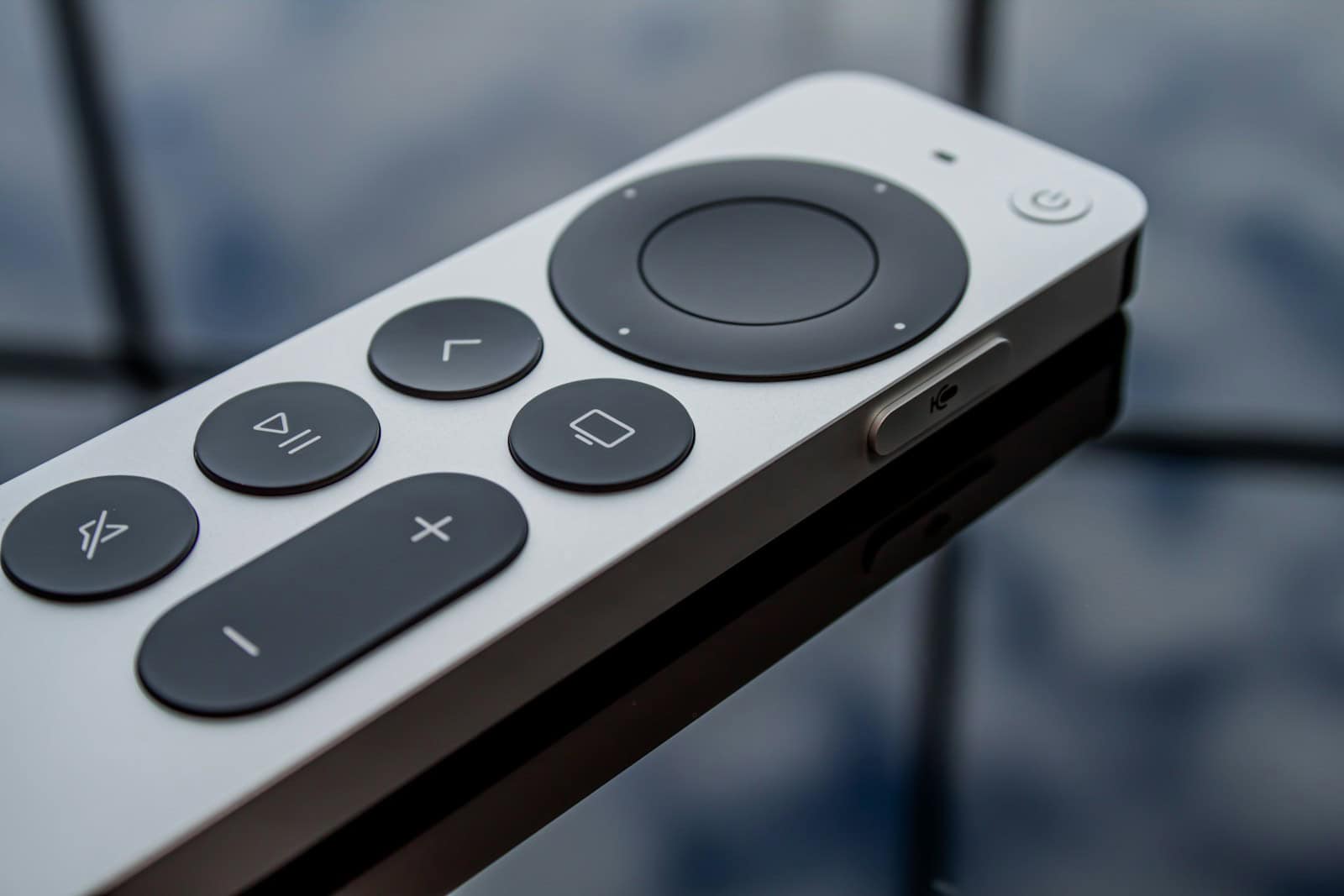
Navigating an Apple TV can become more efficient when users master the shortcuts available on the Siri Remote. With just a few button presses, one can swiftly jump between apps, check remote battery life, and even control the TV’s power and volume. This enhanced control elevates the user experience by providing quick access to frequently used functions and settings without having to dig through menus.
The Siri Remote offers a practical approach to managing an Apple TV. By understanding the various gestures and button combinations, users gain access to shortcuts that can turn the device on, summon the screen saver, show the remote, or even pause the TV. The process is designed to be intuitive, allowing for adjustments like trackpad sensitivity and home button customization to suit individual user preferences.
🔹 Navigation Shortcuts
- Swipe or Click: Use the touch‑enabled clickpad to swipe or click up, down, left, or right.
- Quick App Switch: Double‑press the TV button to open the App Switcher.
- Return to Home: Press and hold the TV button until you see the Home screen.
🔹 Playback Shortcuts
- Pause/Play: Press the Play/Pause button once.
- Skip Forward/Back:
- Swipe right/left on the clickpad to jump 10 seconds.
- Press and hold right/left edge of the clickpad to fast‑forward or rewind.
- Skip to Next/Previous Episode: Double‑click right/left on the clickpad.
🔹 Power & Sleep Shortcuts
- Sleep Apple TV: Press and hold the TV button until the Control Center appears, then select Sleep.
- Turn TV On/Off: A single press of the TV button can wake Apple TV and your TV (if HDMI‑CEC is enabled).
🔹 Volume & Audio Shortcuts
- Volume Control: Use the + / – buttons (works if your TV or sound system supports HDMI‑CEC or IR).
- Audio Options: Hold the Play/Pause button during playback to switch audio tracks, subtitles, or speakers.
🔹 Siri Shortcuts
- Activate Siri: Press and hold the Siri button (side button).
- You can ask Siri to:
- “Skip ahead 5 minutes.”
- “Turn on subtitles.”
- “Open Netflix.”
🔹 Screenshot & Reset Shortcuts (Advanced)
- Restart Apple TV: Press and hold TV button + Back button until the light on Apple TV flashes.
- Force Quit an App: Open App Switcher (double‑press TV button), swipe up on the app.
✅ Pro Tips
- Keep your remote charged (USB‑C or Lightning depending on model).
- If you lose it, use your iPhone as a remote from Control Center.
- Customize the TV button (Settings > Remotes and Devices) to open either the Apple TV app or the Home screen.
👉 With these shortcuts, you’ll navigate Apple TV faster, control playback more precisely, and unlock hidden features most people don’t know about
Key Takeaways
- Efficient navigation of Apple TV comes through mastering Siri Remote shortcuts.
- Siri Remote shortcuts provide quick access to functions without complicated menu traversing.
- Customizable settings on the remote enhance user experience by tailoring controls.
Mastering the Apple TV Remote
The Apple TV Siri Remote looks simple, but it hides a lot of powerful shortcuts that make navigating faster and easier. Whether you’re using the Lightning (2nd‑gen) or USB‑C (3rd‑gen) version, these tricks will help you get the most out of your Apple TV.
Gaining proficiency with the Apple TV Remote enhances the user’s experience by easing navigation and controlling various functions with finesse. Users should familiarize themselves with essential shortcuts, understand the remote’s advanced capabilities, customize settings to fit their needs, and know basic troubleshooting steps.
Essential Shortcuts and Commands
Navigating the Apple TV is straightforward with a few key commands. Users can press and hold the Menu button to return to the Home Screen swiftly. The Siri button allows for voice commands which makes searching for content easy. For example, asking Siri to “Find Dredd on Netflix” or “Search the App Store for VLC” conveniently pulls up desired content. If equipped with iOS devices like an iPhone or iPad, users can also utilize the Remote app which mirrors the functionality of the physical remote.
- Quick navigation:
- Home button – Single press to go to the Home Screen; double press for App Switcher
- Menu button – Hold to go to the Home Screen
- Siri button – Press to activate Siri for voice commands
- Play/Pause button – Press to control media playback
Advanced Functionalities and Tips
The Apple TV Remote, or Siri Remote, supports more nuanced controls, which seasoned users will appreciate. Users should be aware of features like HDMI-CEC, which allows the user to control the TV’s power and volume through the remote. Swiping on the Touch Surface lets users navigate easily, and if they want to skip forward or backward, a 10-second skip is available with an edge click.
- Advanced controls:
- HDMI-CEC – Control your TV’s power and volume
- Touch Surface Tracking – Adjust the sensitivity in Settings under Remotes and Devices
Customization and Settings
The remote offers customization options to enhance the user experience. In Settings, users can adjust the Touch Surface sensitivity, activate the Accessibility Shortcut, or pair Bluetooth accessories. For an individualized experience, users may also configure volume controls and check the battery level of the remote.
- Personal preferences:
- Settings – Adjust Touch Surface sensitivity and pair devices
- Volume Controls – Set up via Remotes and Devices in Settings
Troubleshooting and Maintenance
Sometimes, users may need to troubleshoot their Apple TV Remote. If the remote is unresponsive, a quick restart of the Apple TV can resolve many issues. To restart, users must press and hold the Menu and Home buttons until the light on the Apple TV flashes. Users should also regularly check for software updates in the Settings to keep their remote functioning optimally.
- Keeping things running:
- Restart – Hold Menu and Home buttons to reboot the Apple TV
- Battery Level – Check in the Remote app or under Remotes and Devices in Settings





