
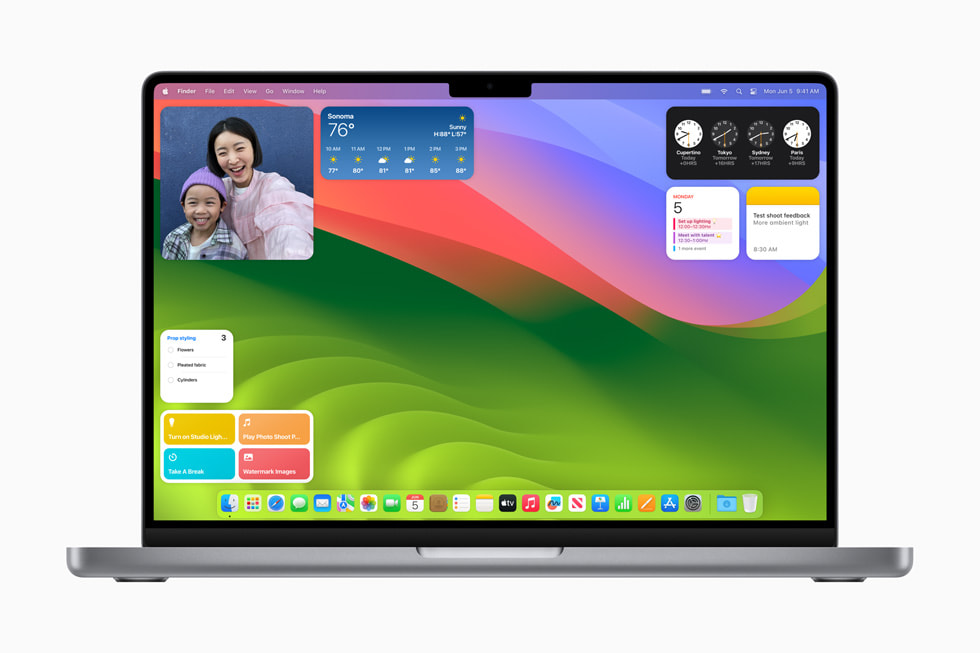
Apple released macOS Sonoma 14.8.1 on September 29, 2025, as part of its latest wave of software updates. While the update is primarily focused on security and stability, some users are reporting new issues after installing it. If your Mac is running Sonoma 14.8.1 and you’re running into problems, here’s a guide to the most common bugs and how to fix them.
1. Wi‑Fi Drops or Slow Internet
Some users say their Wi‑Fi connection became unstable after updating.
Fixes:
- Forget your Wi‑Fi network and reconnect: System Settings > Wi‑Fi > Details > Forget This Network.
- Restart your router and Mac.
- Reset network settings: delete
/Library/Preferences/SystemConfigurationfiles (make a backup first), then restart your Mac.
2. Bluetooth Devices Not Connecting
Bluetooth peripherals like AirPods or Magic Mouse may fail to reconnect.
Fixes:
- Remove the device and re‑pair it: System Settings > Bluetooth > (i) > Forget Device.
- Reset Bluetooth: press Shift + Option, click the Bluetooth menu, and choose Reset the Bluetooth Module.
- If issues persist, try resetting the SMC and NVRAM.
3. Battery Drain on MacBooks
Some MacBook users report faster battery drain after updating to 14.8.1.
Fixes:
- Check System Settings > Battery > Usage History to see which apps are consuming the most power.
- Disable background processes you don’t need: System Settings > General > Login Items.
- Reset the SMC if the drain seems abnormal.
- Give it 24–48 hours — macOS often re‑indexes Spotlight and Photos after updates, which temporarily increases power usage.
4. App Crashes or Compatibility Issues
A few third‑party apps may not yet be fully optimized for 14.8.1.
Fixes:
- Update all apps from the App Store or the developer’s site.
- If an app keeps crashing, delete and reinstall it.
- Check the developer’s website for Sonoma‑specific patches.
5. System Performance: Lag, Freezing, or Spinning Beachball
Fixes:
- Restart your Mac (sometimes post‑update processes cause temporary lag).
- Run Disk Utility > First Aid to check for disk errors.
- Free up storage — macOS runs best with at least 15–20% free space.
- Reset NVRAM and SMC if system slowdowns persist.
6. macOS Update Stuck or Failing to Install
Some users report that the update wouldn’t finish installing.
Fixes:
- Boot into Safe Mode (hold Shift at startup) and try updating again.
- If that fails, download the macOS Sonoma 14.8.1 installer directly from Apple’s support site.
- As a last resort, reinstall macOS via Recovery Mode (Command + R at startup).
7. When to Wait for the Next Update
If you’re still experiencing issues after trying these fixes, you may want to hold out for macOS Sonoma 14.8.2 or consider upgrading to macOS Sequoia 15.7.1 (if your Mac supports it). Apple typically follows up quickly with additional patches when stability problems are widespread.
✅ Bottom line: macOS Sonoma 14.8.1 is a security‑focused update, but some users may encounter Wi‑Fi, Bluetooth, battery, or performance issues. Most can be fixed with simple resets, updates, or reinstallations — but if problems persist, watch for Apple’s next patch.





