
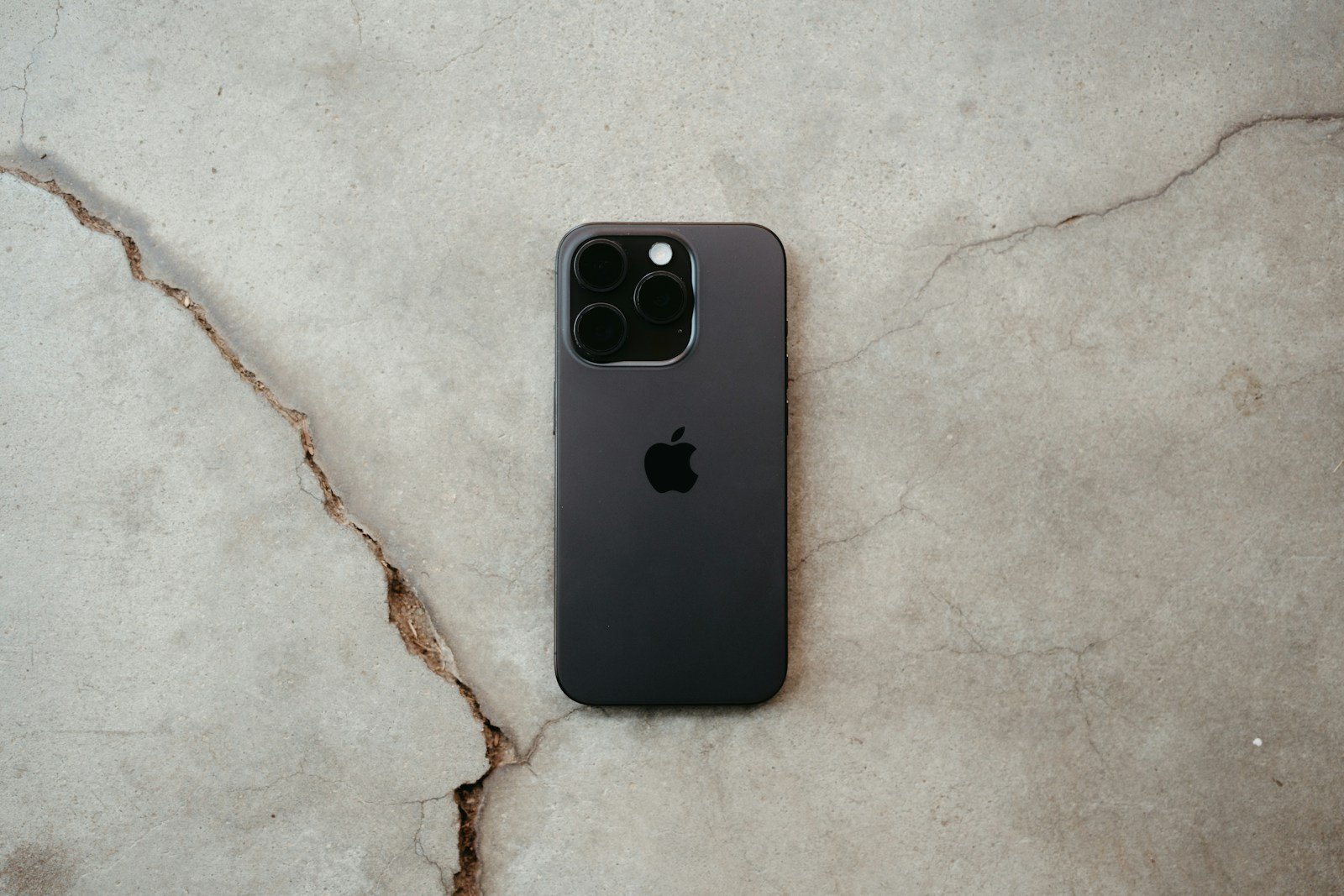
Screen burn-in is an issue that affects many types of displays, where images appear to be permanently etched onto the screen. This phenomenon occurs when the same image is displayed for a long period, causing some pixels to wear out and retain the image. It’s most common on OLED and plasma screens but can affect LCDs as well.
To reduce the likelihood of screen burn-in, users can take several preventative measures. These include using the screen’s built-in features like pixel shifting and timeouts. Additionally, rotating the screen content and reducing static displays can help. If burn-in occurs, one of the possible solutions is to use dedicated apps that attempt to reverse the effect.
Recovery methods for mild cases of burn-in involve displaying varying images to equalize the wear on the screen pixels. Severe cases might require professional repair or even screen replacement. By understanding the causes and effects of screen burn-in, individuals can adopt strategies to prevent and address this display issue.
Screen Burn‑In Reduction Guide (OLED, AMOLED & Plasma)
Screen burn‑in happens when static images (logos, taskbars, HUDs, news tickers) stay on screen so long that they leave a faint, permanent “ghost.” It’s most common on OLED/AMOLED displays because each pixel emits its own light and can age unevenly.
Below is a practical guide to reduce the risk of burn‑in and extend your display’s lifespan.
🔥 What Causes Burn‑In?
Burn‑in is caused by:
- Long‑term display of static elements
- High brightness over extended periods
- Uneven pixel aging (some pixels work harder than others)
Modern OLEDs are more resistant than early models, but prevention still matters (source: ViewSonic – OLED Burn‑In Explained).
✅ How to Reduce Screen Burn‑In
1️⃣ Lower Brightness
High brightness accelerates pixel wear.
What to do:
- Keep brightness at moderate levels
- Avoid running max brightness for long sessions
- Enable Auto‑Brightness
Reducing brightness is one of the most effective preventative steps (source: TechyConcepts).
2️⃣ Use Dark Mode
Dark mode reduces the number of brightly lit pixels.
Enable Dark Mode on:
- Windows: Settings → Personalization → Colors
- macOS: System Settings → Appearance → Dark
- iPhone/Android: Display → Dark Mode
This helps reduce uneven pixel strain.
3️⃣ Hide Static UI Elements
Static elements are the biggest burn‑in risk.
On Windows:
- Auto‑hide the taskbar
Settings → Personalization → Taskbar → Auto-hide
On macOS:
- System Settings → Desktop & Dock → Automatically hide and show the Dock
On TVs:
- Reduce or hide channel logos (if supported)
- Avoid leaving paused screens for hours
Static UI reduction is frequently recommended in OLED care guides (source: XDA Developers).
4️⃣ Enable Pixel Shift
Many OLED TVs and monitors include Pixel Shift (or Screen Shift).
This feature:
- Slightly moves the image periodically
- Reduces uneven pixel wear
- Is usually enabled by default
Check your display’s settings under:
- Panel Care
- Device Care
- OLED Maintenance
Pixel shift technology is a standard modern prevention method (source: TechyConcepts).
5️⃣ Use Screen Savers
If you step away frequently:
- Set screen timeout to 5–10 minutes
- Use animated screen savers
- Avoid static wallpaper
Especially important for:
- Office PCs
- Retail displays
- Always‑on dashboards
6️⃣ Avoid Static Content for Long Periods
High‑risk scenarios:
- News channels with constant tickers
- Gaming HUDs
- Stock trading dashboards
- Desktop with static icons
Rotate content when possible.
OLED burn‑in risk increases in continuous‑use environments (source: Lincoln Tech Solutions).
7️⃣ Run Pixel Refresh / Panel Refresh
Most OLED TVs and some monitors include a Pixel Refresh feature.
It:
- Rebalances pixel voltage
- Helps reduce image retention
- Should be used occasionally (not excessively)
Find it under: Settings → Support → Device Care → Panel Refresh (varies by brand)
Modern OLED monitors include built‑in mitigation tools (source: ViewSonic).
8️⃣ Vary Your Content
Try to:
- Watch different types of content
- Rotate between full-screen apps
- Avoid leaving a single layout for days
Even pixel usage = healthier display.
📱 Burn‑In vs Image Retention
- Image Retention → Temporary ghosting (usually fades)
- Burn‑In → Permanent pixel wear
If it disappears after a few minutes or a pixel refresh cycle, it’s likely retention — not permanent burn‑in.
💡 Is Burn‑In Still a Big Problem in 2026?
Modern OLED and QD‑OLED panels are significantly improved and include:
- Automatic brightness limiting (ABL)
- Logo detection dimming
- Pixel shift
- Panel refresh systems
Many experts now consider burn‑in a minor risk for typical home use, but it remains a concern in high static‑content environments (source: ViewSonic).
✅ Quick Prevention Checklist
✔ Keep brightness moderate
✔ Use dark mode
✔ Auto‑hide static UI
✔ Enable pixel shift
✔ Set screen timeout
✔ Run pixel refresh occasionally
✔ Avoid leaving paused screens
🎯 Final Thoughts
Burn‑in is preventable with smart usage habits. For most users:
- Normal mixed content use = low risk
- 24/7 static dashboards = higher risk
Key Takeaways
- Screen burn-in refers to permanent display damage from prolonged image display.
- Preventative measures include using built-in screen features and varying content.
- Mild burn-in can be treated with image variation, severe cases may need repair.
Understanding Screen Burn-In and Prevention
Screen burn-in is a problem affecting many devices. This section explains the causes and how to stop it.
Mechanisms Behind Screen Burn-In
When the same image remains on a screen too long, it may lead to screen burn-in. This happens most often on OLED and plasma displays. These types of screens use organic compounds that emit light when they receive electric current. The pixels in these displays may get overused, causing them to show faint outlines of old images.
Factors Contributing to Burn-In
Static images are the main cause of burn-in. This can include items like status bars and navigation buttons. High brightness and contrast settings also play a role. Over time, they can hurt the screen’s ability to show correct colors.
Identifying and Testing for Burn-In
To see if a screen has burn-in, users can run a burn-in test. This usually involves displaying a single color across the entire screen. If permanent discoloration or ghost images appear, this indicates burn-in.
Prevention and Reduction Strategies
To prevent screen burn-in, users can lower screen brightness and use dark mode. They can also enable pixel shift or pixel refresher features. Setting a sleep timer and using screen savers also help by changing the images shown on the screen.
Software Approaches to Mitigate Burn-In
Software can help reduce screen burn-in. Features like Apple’s iOS or Google’s Android can minimize static imagery by using settings such as immersive mode. Customization options allow for changes to how and where information appears, reducing the chance of burn-in.
Hardware Solutions and Maintenance
Choosing the right hardware can prevent burn-in. For instance, LCD panels have a lower risk compared to OLED or plasma displays. Good maintenance, like using screen savers and regularly turning off devices, can also extend the lifespan of screens.





