
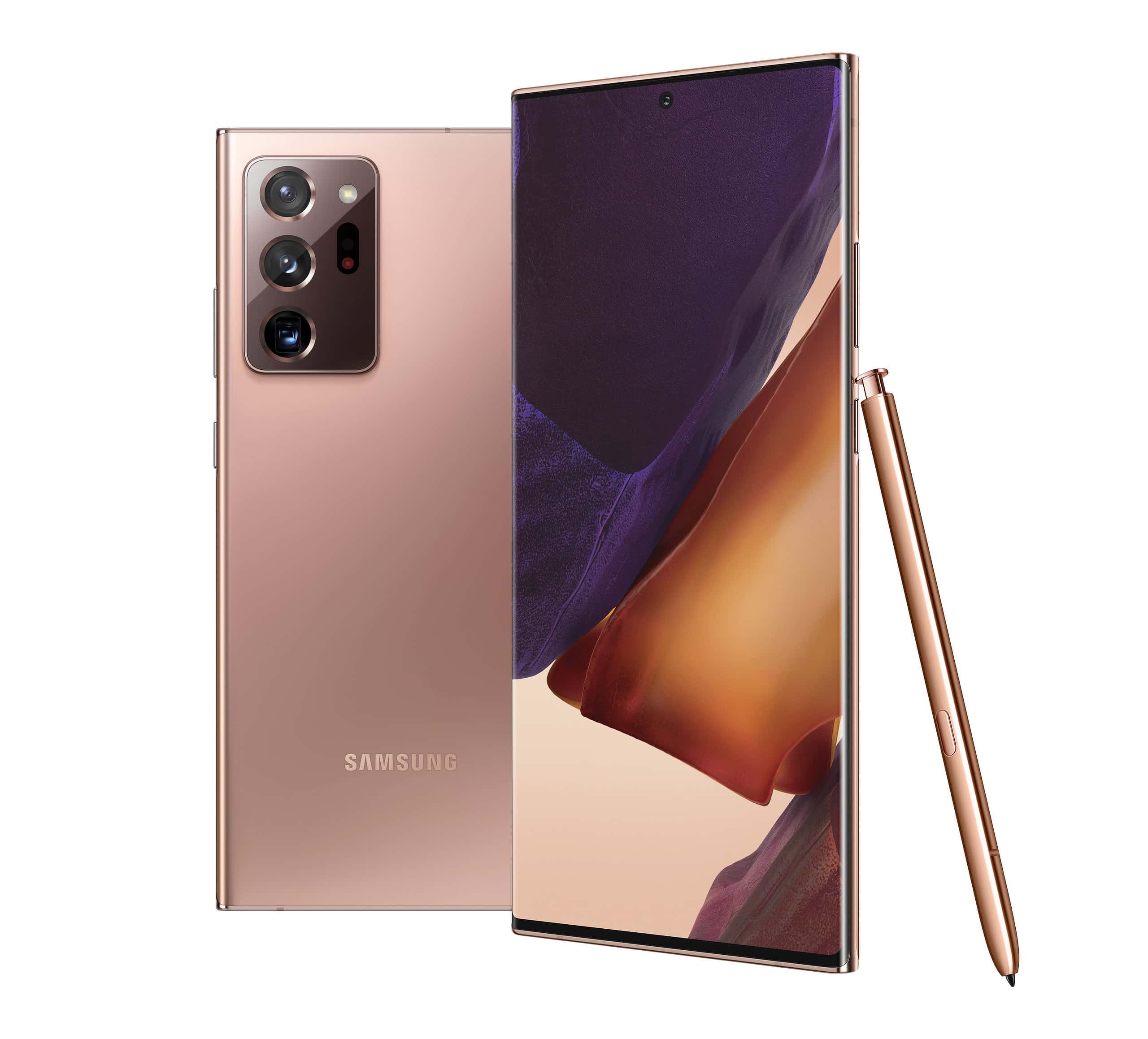
Capturing a screenshot on a Samsung phone is a useful skill for saving information or sharing your screen with others. Most Samsung Galaxy smartphones and tablets allow users to take screenshots with simple button combinations or gestures. These methods are efficient for quickly preserving on-screen content on your device.
Samsung’s approach to screen capture offers several methods to accommodate different user preferences and scenarios. Whether using a quick button press or a swipe of the palm, taking a screenshot on a Samsung Galaxy device can be accomplished with ease. After the screenshot is taken, editing and sharing options are readily available to enhance and distribute the captured image.
How to Take a Screenshot on a Samsung Phone
Samsung Galaxy devices offer multiple ways to capture your screen — from button shortcuts to gestures and advanced tools like scrolling screenshots.
1. The Most Common Method: Buttons
Works on most Samsung Galaxy models (S, A, Note, Z series).
- Go to the screen you want to capture.
- Press and hold the Power (Side) button and Volume Down button at the same time.
- Release quickly — you’ll see the screen flash and a small preview appear.
- Tap the preview to edit or share, or find it later in Gallery > Screenshots.
2. Palm Swipe Gesture
You can swipe your hand across the screen to take a screenshot.
- Go to Settings > Advanced features > Motions and gestures.
- Turn on Palm swipe to capture.
- Swipe the side of your hand from right to left or left to right across the screen.
- The screen will flash, confirming the capture.
3. Scrolling Screenshot (Capture More)
For capturing an entire webpage or long chat.
- Take a normal screenshot using buttons or palm swipe.
- In the preview toolbar, tap Capture more (icon with arrows pointing down).
- Keep tapping until you’ve captured all the content you need.
4. Using the S Pen (Galaxy Note & S Ultra Models)
- Remove the S Pen.
- From the Air Command menu, tap Screen write.
- This takes a screenshot and opens it for immediate annotation.
5. Voice Commands (Bixby or Google Assistant)
- Bixby: Say “Hi Bixby, take a screenshot.”
- Google Assistant: Say “Hey Google, take a screenshot.”
6. Where to Find Your Screenshots
- Gallery app → Screenshots album
- My Files app → Internal storage > DCIM > Screenshots
7. Quick Troubleshooting
- Buttons not working: Make sure you’re pressing them at the same time and not holding too long.
- Palm swipe not working: Check if the gesture is enabled in settings.
- Scrolling screenshot option missing: Some apps (like banking apps) disable this for privacy reasons.
Tip: You can also edit, crop, or draw on your screenshot immediately from the preview toolbar before saving.
Key Takeaways
- Samsung devices provide multiple ways to take screenshots, including button combinations and gestures.
- Screenshots on Samsung phones can be edited and shared immediately after capture.
- The methods for taking screenshots are designed to be user-friendly and efficient.
Capturing Screenshots on Samsung Phones
Taking a screenshot on a Samsung Galaxy phone is simple and can be done through various methods. Whether you’re capturing a high score in a game or saving a web page for later use, knowing how to swiftly take a screenshot is handy.
Using Button Combinations
To take a standard screenshot on a Samsung Galaxy phone, press the Power and Volume down buttons at the same time. The screen will flash indicating that the screenshot has been captured. This image then saves to the Gallery app.
Advanced Features and Gestures
Samsung Galaxy devices offer the Palm swipe to capture feature. Enable this by going to Settings, then Advanced features, and toggling on Motions and gestures. To take a screenshot using this method, swipe the side of your hand across the device’s screen.
Utilizing Assistive Tools
The S Pen on devices like the Galaxy Note series provides another way to take screenshots. Click the S Pen stylus to open the Air Command menu. Here you can tap Smart select or Screen write to capture parts of your screen.
Editing and Sharing Screenshots
After capturing a screenshot, a menu might appear at the bottom of your screen. This Smart capture menu lets you Edit, Share, or take a Scrolling screenshot. Use this option to capture more content beyond what is visible on the screen.
Navigating Screenshot Settings and Storage
Find your screenshots in the Screenshots album within the Gallery or Photos app. You can tweak screenshot settings by diving into the Settings. For example, change where your screenshots are saved or adjust their format.
Specialized Screenshot Methods
For advanced use, Samsung’s Bixby voice assistant can take screenshots via a voice command. Say “Hey Bixby, take a screenshot” and it’ll capture what’s on your screen. The Edge panels also offer tools to take and edit screenshots with easy access on the edge of the display.





